Social Media Cover Maker: Turn One Logo Into LinkedIn, YouTube, Facebook and X Banners
See where your logo belongs on LinkedIn, YouTube, Facebook and X covers, with sizes, safe areas, and a real logo example, then make every cover from one logo.

Your social media covers are the first thing people see on your LinkedIn profile, YouTube channel, Facebook Page, and X profile. Each network uses a different size, crops the image differently on phones and computers, and puts your profile photo on top of part of the banner. A logo that looks perfect on one network can end up cut off or hidden on another.
In this guide, we use the logo of Sunbreeze Retreats, a wellness retreat brand, to show where your logo and text should go on each network. Then we show how LogoAI's social media banner maker turns one logo into a cover for every profile.
Social Media Cover Sizes at a Glance
| Network | Cover size | What to watch |
|---|---|---|
| LinkedIn profile | 1584 × 396 px | Your profile photo covers the lower left |
| LinkedIn company page | 1512 × 256 px | The page logo covers the lower left |
| YouTube | 2560 × 1440 px | Phones show only the center 1546 × 423 px |
| Facebook Page | 851 × 315 px | Phones cut off the left and right sides |
| X (Twitter) | 1500 × 500 px | About 60 px can be cut at the top and bottom |
The safe area is the part every screen shows. Keep your logo and any text inside it, and use the rest for background.
How to Make Social Media Covers From Your Logo
1. Start with your logo
Upload your logo as a PNG, JPG, or WEBP file. A clean file with a plain background gives the best result. The Sunbreeze Retreats logo works well: a teal and gold lotus symbol with the name set in a classic serif.
No logo yet? You can create a logo with AI first, then come back for your covers.
2. Choose the network and a style
Pick a network in the banner maker, then choose a style: Clean & minimal, Bold gradient, Geometric, or Scene. For a calm wellness brand like Sunbreeze, a minimal style in the logo's own colors keeps the mood consistent.
3. Add a short tagline
A tagline tells visitors what you do. Keep it to a few words so it stays readable on a phone. For Sunbreeze, "Mindful retreats under the sun" says it in one line.
4. Preview and download at the exact size
The banner maker shows each cover the way its network displays it, with your logo in the profile photo spot and a dashed outline around the safe area. Download it at the exact size and upload it to your profile.
Example: Sunbreeze Retreats on Every Network
The images below are layout examples for the Sunbreeze logo. They show where the logo, the tagline, and the profile photo sit on each network.
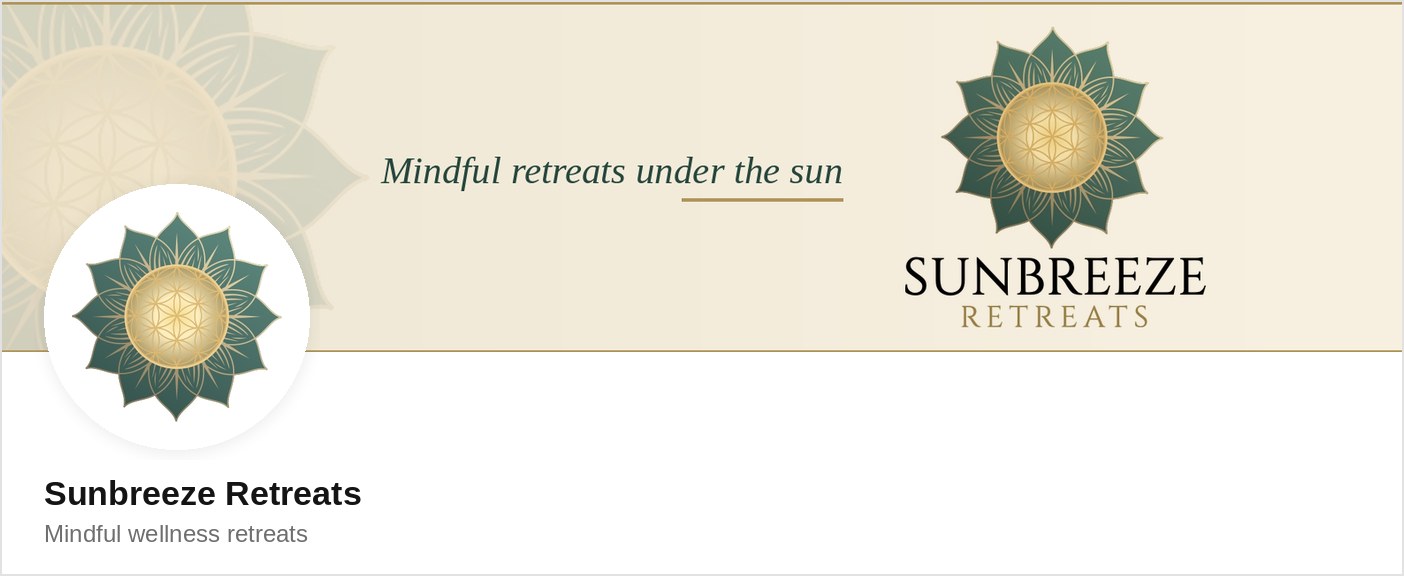
LinkedIn Banner
On LinkedIn, your profile photo covers the lower-left corner. Put the logo on the right half and keep the left side calm. The LinkedIn banner maker makes both the 1584 × 396 personal banner and the 1512 × 256 company page cover.
YouTube Banner
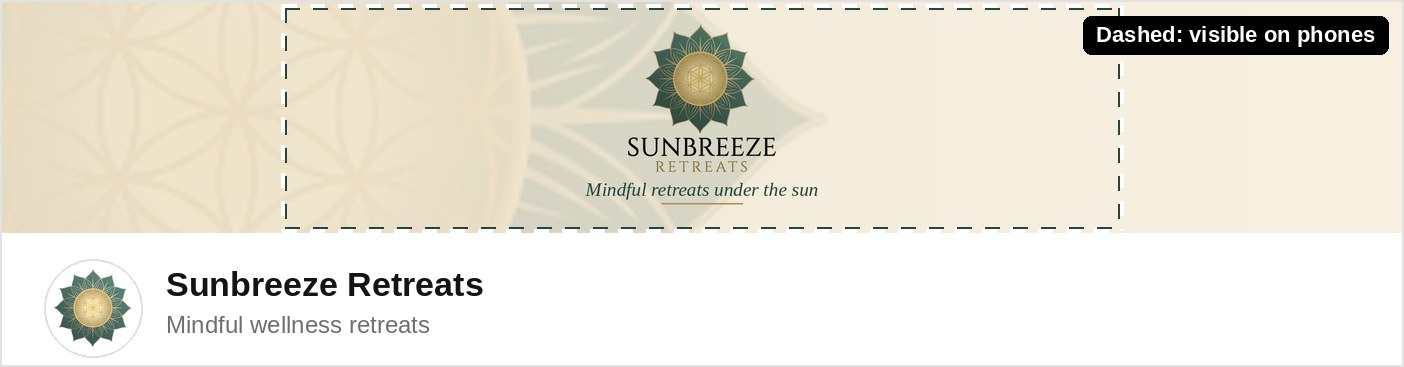
YouTube shows the whole 2560 × 1440 banner only on TVs. Computers show a thin strip across the middle, and phones show only the center of that strip. Keep the logo and tagline inside the center safe area, as in the example below. The YouTube banner maker places them there for you.
Facebook Cover Photo
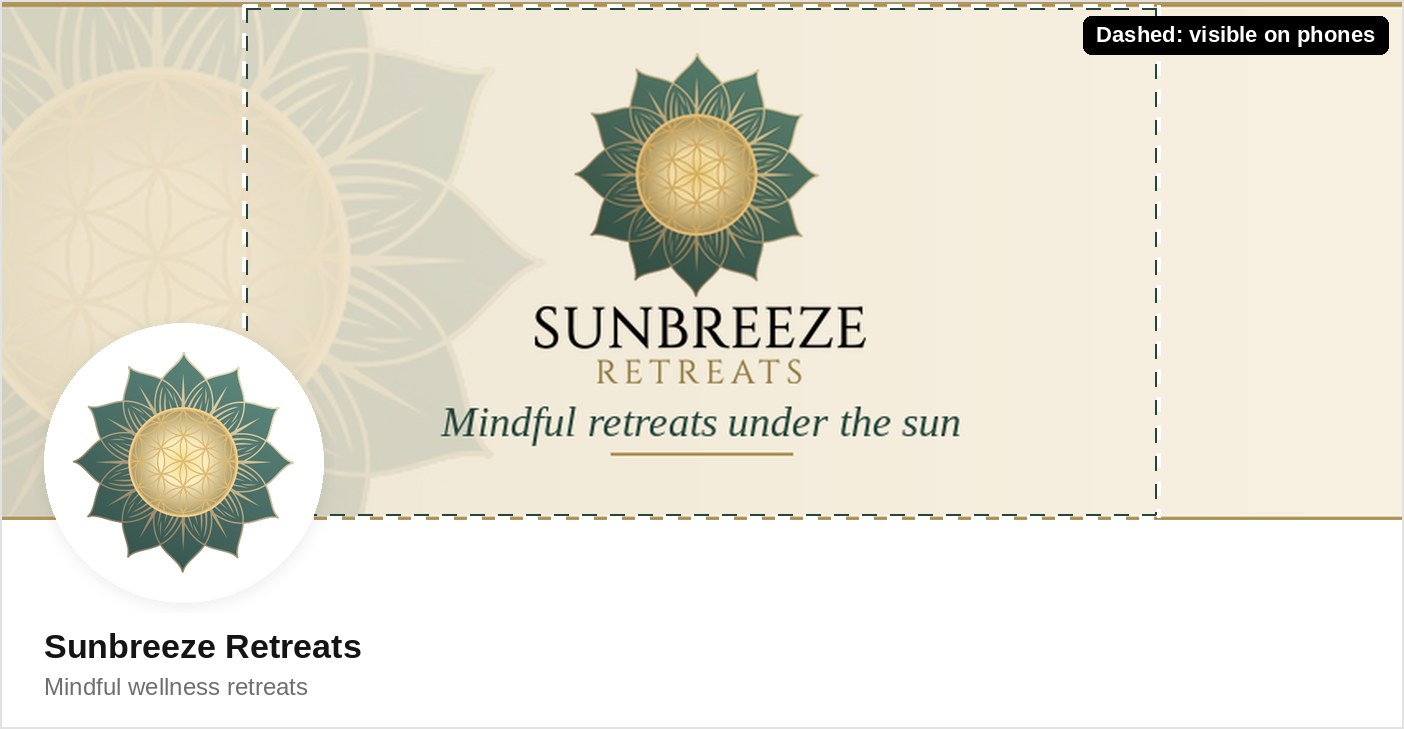
Phones show only the middle of a Facebook cover, so the left and right sides disappear. Center the logo and stack the tagline under it, away from the profile picture in the lower left. Try the Facebook cover photo maker to get an 851 × 315 cover.
X (Twitter) Header
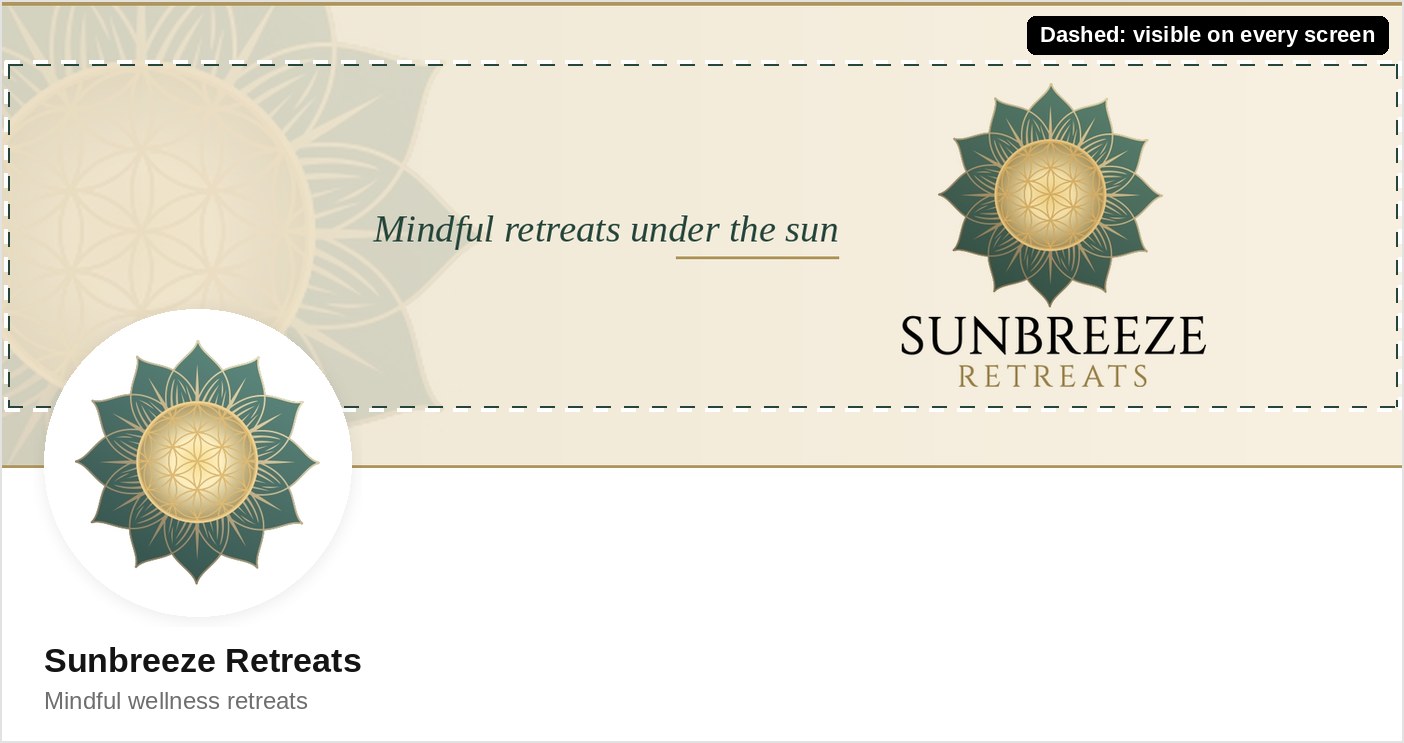
X can cut the top and bottom of the header on some screens, and your profile photo covers the lower left. Keep the logo on the right and the tagline in the middle band. The Twitter header maker makes a 1500 × 500 header with that layout.
Tips for Social Covers That Fit Your Brand
- Use your logo's colors. Sunbreeze's teal and gold carry from the logo into every cover, so the profiles look like one brand.
- Let the background stay quiet. A soft pattern taken from your symbol adds depth without competing with the logo.
- Keep the same tagline everywhere. One short line on every network makes your message easy to remember.
- Use the symbol as your profile photo. The Sunbreeze lotus reads clearly in a small circle, while the full logo appears on the banner.
- Check on your phone. After uploading, open each profile on a phone to make sure nothing important is cut off.
Frequently Asked Questions
What is a social media cover?
It is the wide image at the top of a profile or page: the LinkedIn background photo, the YouTube channel banner, the Facebook cover photo, or the X header.
Can I use the same cover on every network?
You can, but it will be cropped differently on each one. Each network has its own size and safe area, so a cover made for one often cuts off the logo on another. It's better to make one cover per network from the same logo and colors.
Where should my logo go on a cover?
Inside the safe area, away from your profile photo. On LinkedIn and X, that means the right half. On Facebook and YouTube, keep it in the center.
Will the banner maker change my logo?
No. It places your logo as it is and designs the background around it. If a result changes the logo, try again or choose the Clean & minimal style.
Is the banner maker free?
You can try it free with a LogoAI account. After the free trial, each banner uses a few credits.
Final Thoughts
A good set of covers makes every profile look like the same brand. Start from your logo, keep the logo and tagline inside each network's safe area, and check the result on a phone before you call it done.
Ready to create your own logo?
Turn your brand name into professional logo concepts in seconds with LogoAI.
Generate my logo