AI Image to Video Generator
Upload your photo/image to generate videos using top AI models like Grok, Veo, and Seedance.
Upload your photo/image to generate videos using top AI models like Grok, Veo, and Seedance.
Upload an image and bring it to life with natural motion — animate it in one click, or guide the motion with an optional prompt, across multiple AI models at once.
Upload a photo, logo, product shot, or artwork and watch AI bring it to life. Image to video keeps your original subject, colors, and composition intact while adding natural motion — no prompt required to get started, just upload and generate.
Upload an image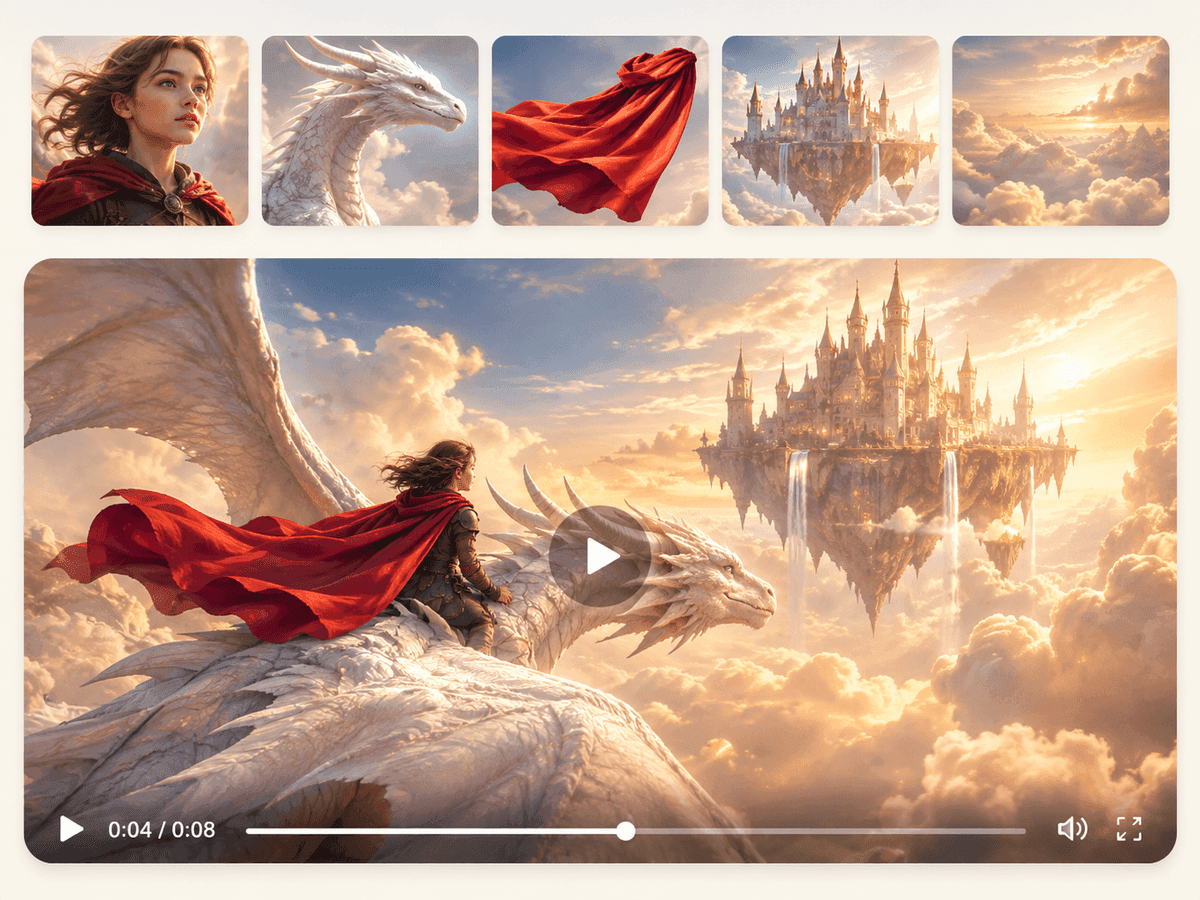
Send the same image to leading AI video models like Grok, Veo, and Seedream at once and compare how each animates it. Explore different motion and cinematic styles side by side, then keep the best result — all from a single upload.
Explore video models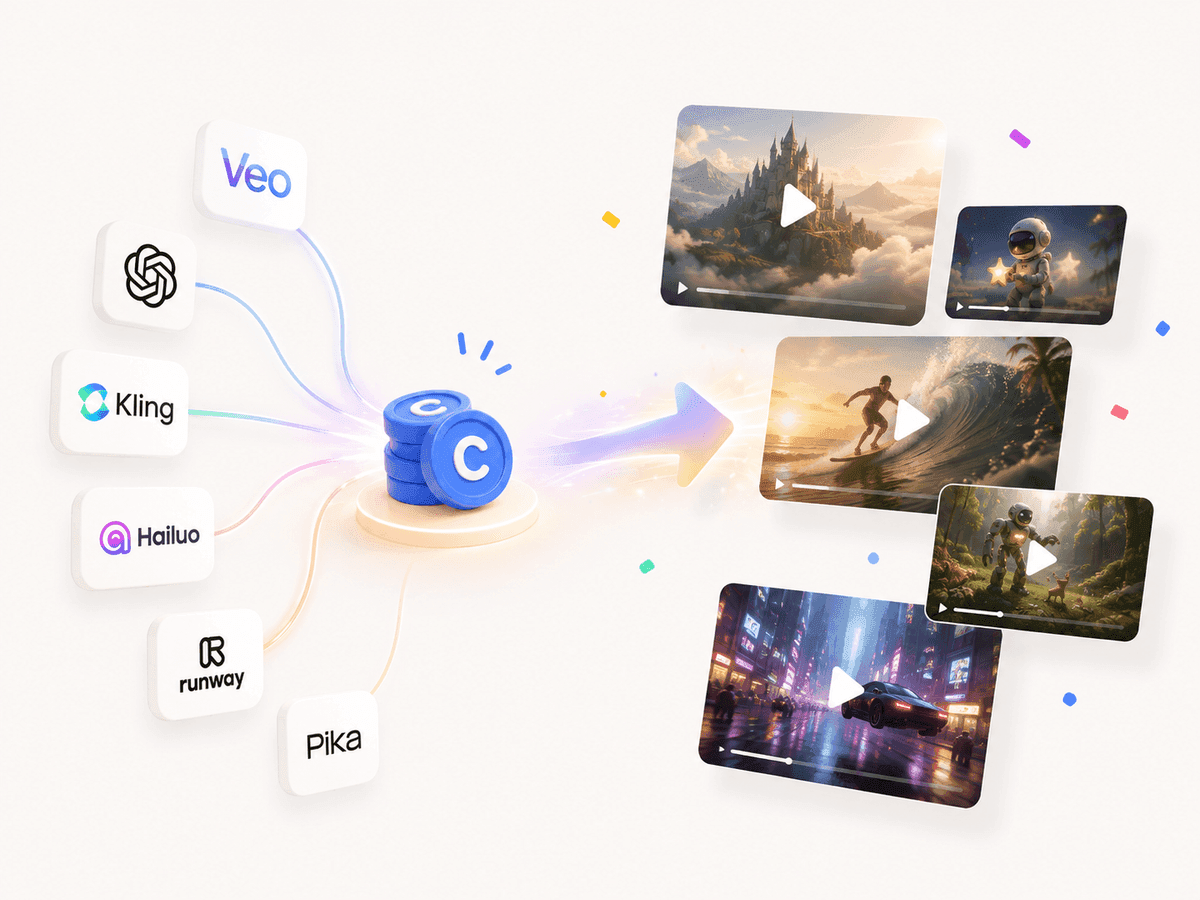
Add an optional prompt to direct how your image moves — camera pans, zooms, atmosphere, and cinematic effects — or skip it entirely and let AI animate the uploaded image for you. Full creative control when you want it, one-click motion when you do not.
Start creating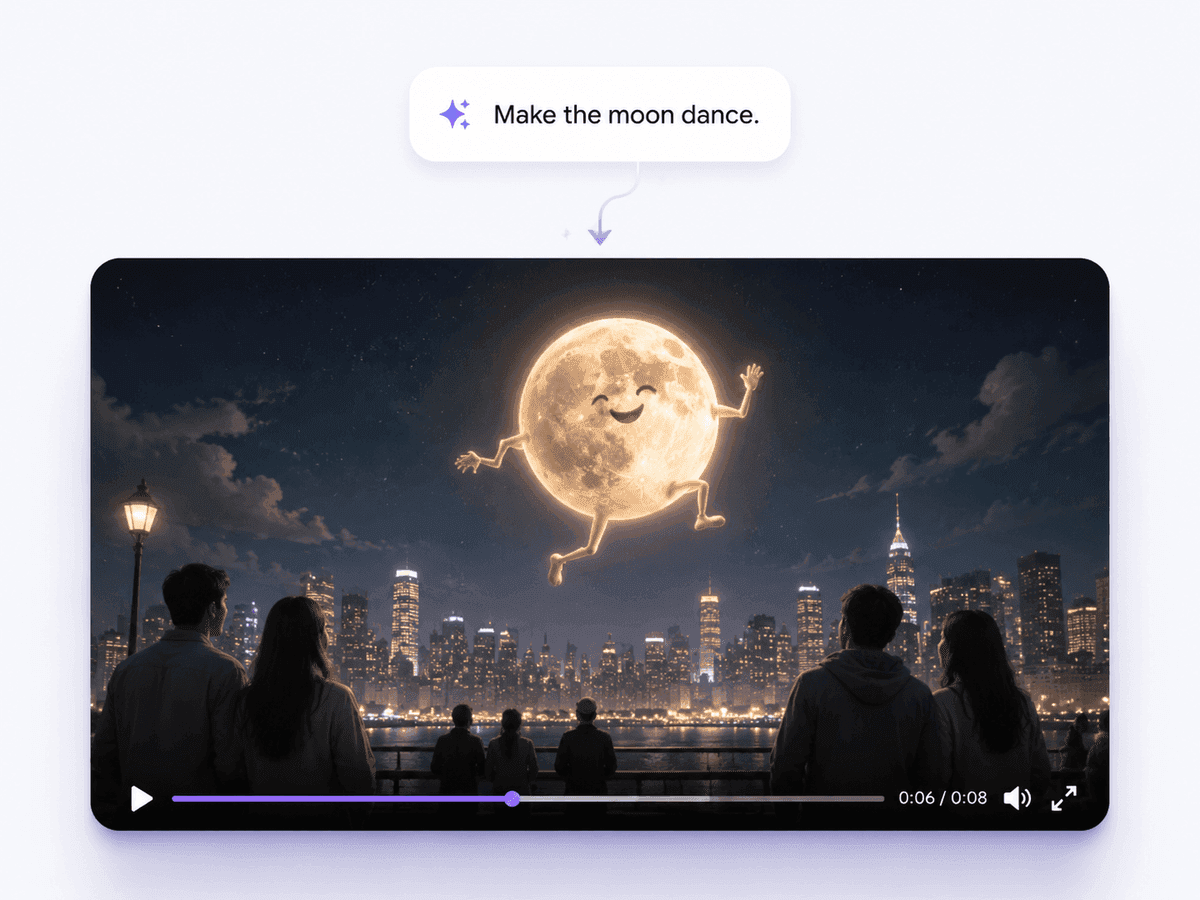
FAQ
An AI image to video generator turns a still image into a short moving video. Upload a photo, logo, product shot, or artwork and the AI adds motion — camera movement, animation, and cinematic effects — while keeping your original subject and composition.
Upload your image, optionally describe the motion you want, and generate. If you do not add a prompt, the AI falls back to animating the uploaded image automatically, so you can create a video from just the image itself.
No. Once an image is attached you can generate right away with no text prompt, and the AI animates it for you. Adding a prompt is optional and simply gives you more control over the motion, camera direction, and style.
Your uploaded image can be sent to leading video models like Veo, Seedance, Kling, Grok, Hailuo, and more. Multi-Model lets you animate the same image with several models at once and compare how each one brings it to life.
Yes. Add multiple reference images to give the model more visual context — helpful for keeping characters, products, styles, and environments consistent across the generated video.
Clear, high-resolution images with a well-defined subject animate best. Photos, logos, illustrations, and product shots all work — the sharper the input, the more natural the resulting motion.