How to Change the Color of an Existing Logo Without Redesigning It
Learn how to change the color of an existing logo without redesigning it, then prepare the versions your brand needs for different backgrounds and production uses.
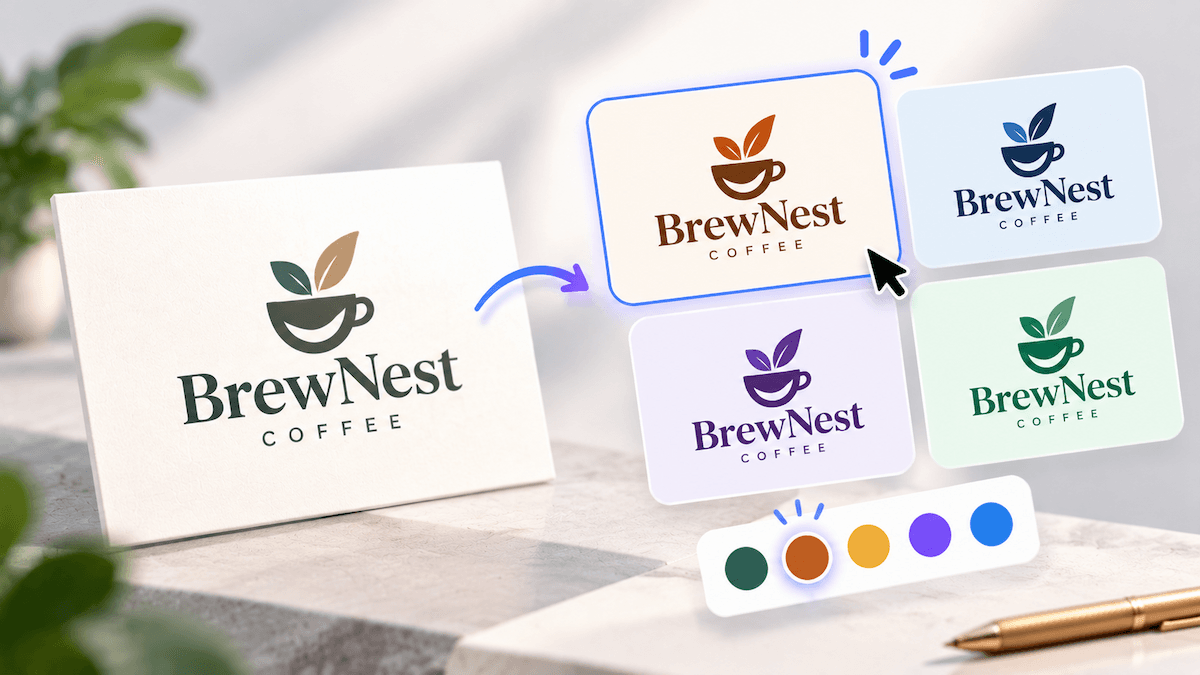
If your logo’s shape and layout already work, changing its color usually does not require a redesign. Upload a clean PNG, JPG, or WEBP to LogoAI’s free logo color changer, click the color swatch you want to replace, choose a new color with the picker, and preview the result before downloading. The tool works best for flat logos with clear color areas; logos built around complex gradients, shadows, glows, or photographic details may lose information when recolored and may need to be redrawn.
Which logo color versions does a business usually need?
Most businesses do not need a separate logo for every possible background. They need a small set of dependable versions that keep the same shape, spacing, and recognition across different situations.
| Logo version | Common uses | Why keep it |
|---|---|---|
| Full-color logo | Website headers, social profiles, packaging, presentations | This is the main version people associate with the brand. |
| Black logo | Invoices, documents, stamps, one-color printing, engraving | Black reproduces reliably when color is unavailable or too expensive. |
| White or reversed logo | Dark website headers, photos, videos, dark mode, sponsor walls | A reversed version stays visible when the background is dark or busy. |
| Single brand-color logo | Stickers, embroidery, screen printing, simple merchandise | One ink keeps production simple while preserving the brand’s identity. |
| Grayscale logo | Documents or vendors that specifically request gray output | Grayscale can be useful when the production process supports tones of gray. |
A practical minimum set is a full-color logo, a black version, and a white reversed version. Add a single brand-color version when you expect embroidery, engraving, or one-ink printing. Treat grayscale as an optional production file, not as a replacement for a true black or white version.
Start with the cleanest logo file you have
Recoloring is only as reliable as the source image. Use the sharpest logo file available, preferably one with a transparent background. A screenshot or a heavily compressed JPG can leave blurry edges that become more obvious after the color changes.
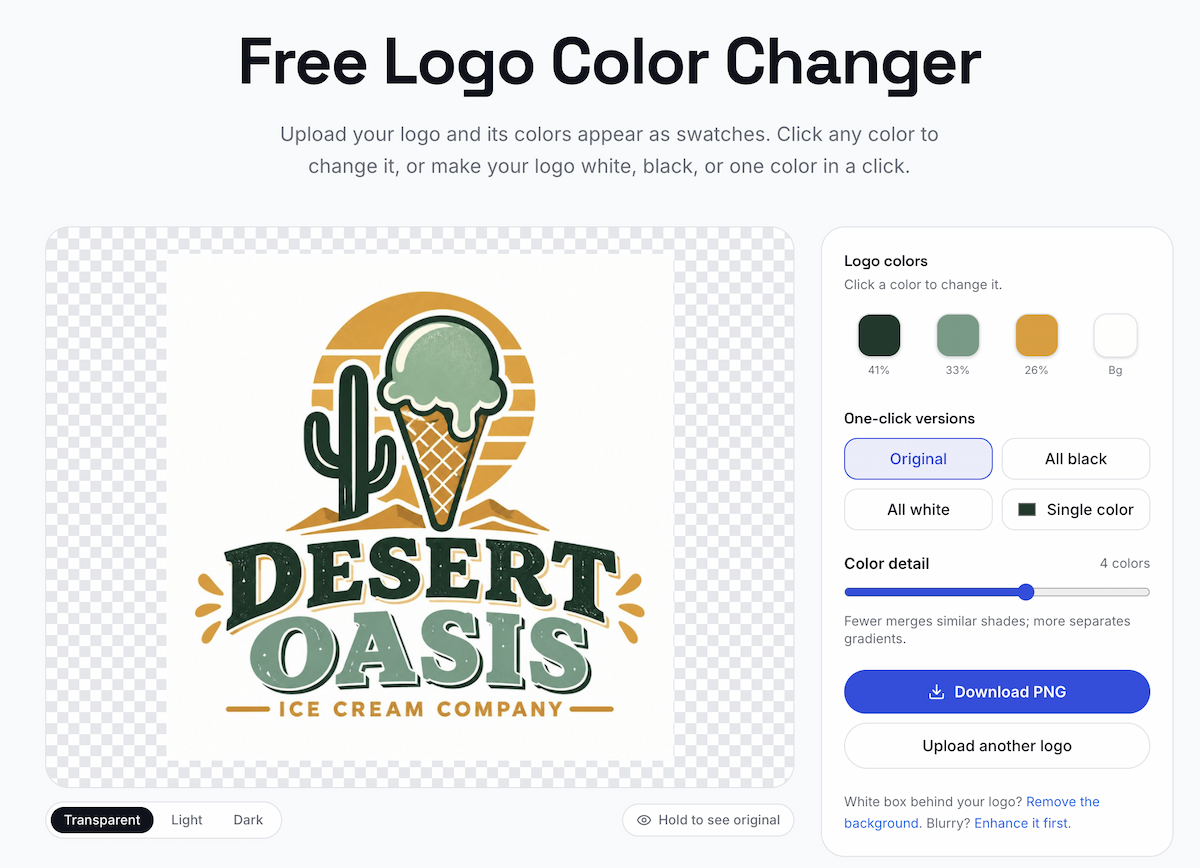
The Color Changer preview shows the detected swatches and one-click logo versions. Click the image to open the tool.
If the logo sits inside a white or colored box, remove that background before recoloring. Otherwise, the box can remain attached to the logo and make a white or reversed version difficult to use. LogoAI’s logo background remover can help prepare a cleaner transparent file before you change the colors.
Keep the color change focused on the existing design
The goal of recoloring is to change the visual treatment while keeping the logo recognizable. Start by identifying which colors carry the hierarchy of the mark: the dominant color, the accent, and any color used to separate overlapping shapes.
When you pick replacements, check that adjacent parts do not collapse into one shape. A darker color next to another dark color may remove the negative space that made the original logo readable. A very light accent may disappear at small sizes even if it looks clear in a large preview.
You do not have to rebuild the entire palette every time. If the brand already has approved colors, use the picker to move the existing logo toward that system while keeping the original full-color file as the reference version.
Check every version where customers will see it
A color change is ready when it survives the actual placements the business needs. Before downloading, review each version on a light background, a dark background, and a transparent preview. Then shrink it to the approximate size of a social avatar, website header, or favicon and check whether the name and symbol remain distinct.
Use these quick checks:
- Contrast: Can every letter and shape be read without zooming in?
- Separation: Do neighboring shapes remain visually separate after the color swap?
- Transparency: Is there an unwanted white or colored box around the mark?
- Consistency: Does the new color still match the website, packaging, or other approved brand assets?
- Production fit: Will the selected version work for the printer, embroiderer, or merchandise supplier?
Keep the original full-color file alongside the new versions. That gives future collaborators a clear source of truth and prevents a black or reversed variant from becoming the only surviving file.
When is recoloring not enough?
A color swap is a good fit when the logo’s shapes already work and the main problem is the color treatment. It is less suitable when the identity depends on subtle shading, a glossy highlight, a glow, or many small tones. Those details may merge when several colors become one, leaving a mark that no longer reads the way it did before.
If the logo needs a genuine one-color redraw rather than a pixel-level color change, consider the logo file options in LogoAI’s Brand Kit. A redraw can simplify the shapes and preserve negative space for production uses such as embroidery, engraving, and one-color printing.
The simplest color-version plan
For most small businesses, start with three dependable files: the approved full-color logo, a black version for light backgrounds and simple production, and a white reversed version for dark backgrounds. Add a single brand-color version when a supplier or merchandise application needs one ink.
Changing a logo’s color is a small edit, but choosing the right versions turns that edit into a usable brand system. Recolor the existing mark when its structure is sound, test each result in context, and keep the files together so the right version is easy to use.
Ready to create your own logo?
Turn your brand name into professional logo concepts in seconds with LogoAI.
Generate my logo