Why Is My Logo Blurry? A Practical Fix for Web, Social, and Print
A blurry logo usually needs a larger, sharper PNG—or a vector file when it must scale without limits. Learn when to use LogoAI’s Logo Enhancer, when to vectorize, and how to check the result.
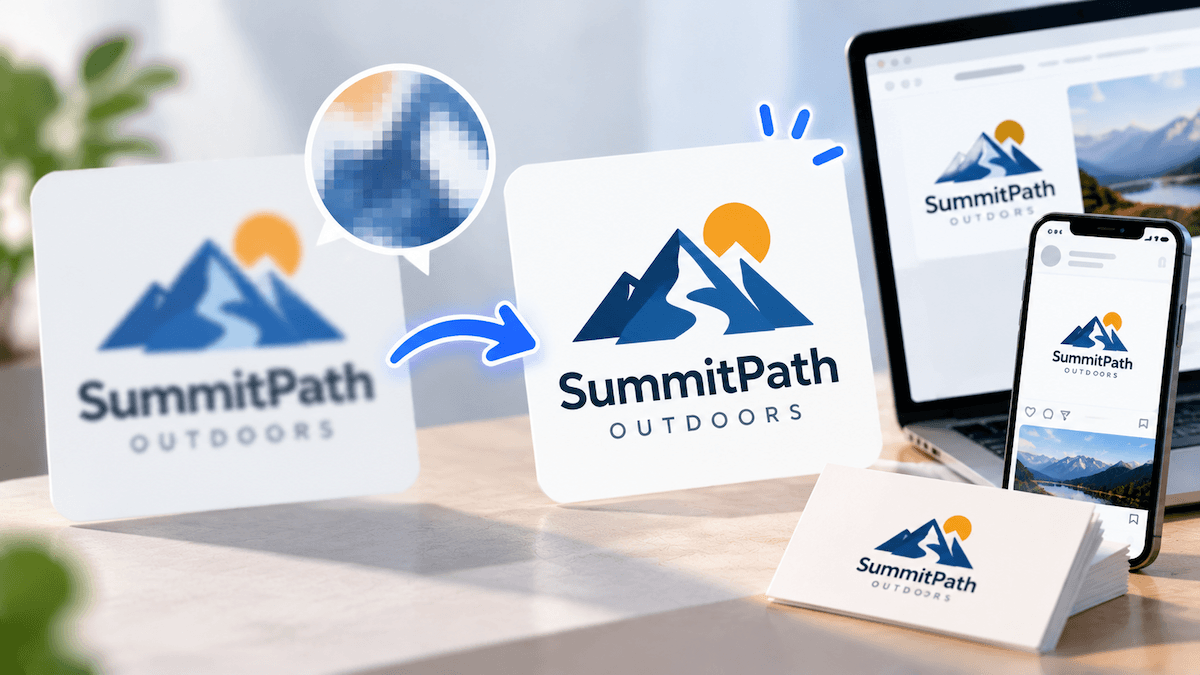
When a logo looks blurry after you upload it, the right fix depends on where the softness appears. If the original file is small or compressed but the artwork is still recognizable, start with an AI logo enhancer. It upscales the uploaded logo and sharpens its edges, lines, and lettering, then gives you a higher-resolution PNG. If the logo must grow to any size for signage, embroidery, or cutting, you need an SVG instead, so use a vector workflow after checking the enhanced result.
The practical rule is simple: use an enhancer for a sharper raster file, and use a vectorizer when unlimited scaling is part of the job.
First, find out where the logo becomes blurry
A quick comparison prevents you from fixing the wrong file. Open the original at 100% on your computer, place it on the website or profile where it looks soft, and inspect a test print or print proof if the final use is physical.
| What you see | Most likely cause | Best next step |
|---|---|---|
| The logo is blurry everywhere, including the original file | The source is low resolution, enlarged, or heavily compressed | Enhance the largest original file you can find |
| It is sharp on your computer but blurry on one social profile or website | The platform resized, cropped, or recompressed the upload | Export a correctly sized PNG and check the platform’s crop rules |
| It looks fine on screen but fuzzy on a sign, label, or package | A raster file is being enlarged beyond its useful resolution | Use a vector file for the production artwork |
| Small text or thin strokes look wrong after enhancement | The source does not contain enough readable detail | Compare with the original and consider recreating the logo |
A platform can make a good file look soft, but it cannot add back detail that was never in the source. Test the file in the place where customers will actually see it.
How to sharpen a blurry logo with LogoAI
LogoAI’s Logo Enhancer is designed for the common case where you have a usable logo, but the only file you can find is a small or pixelated image.
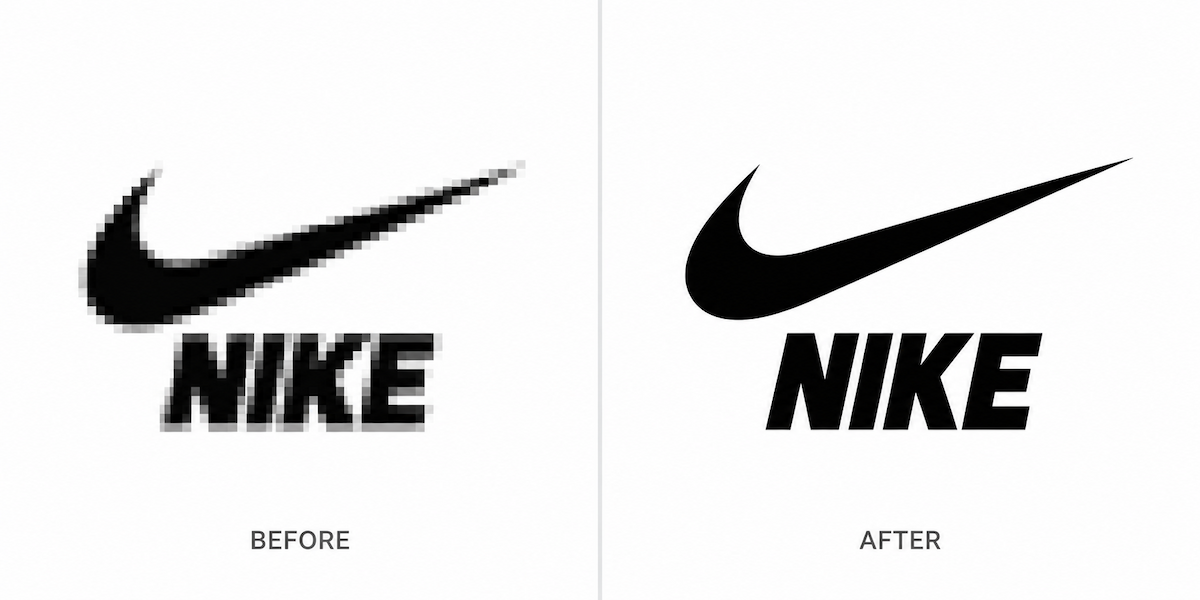
Example: a low-resolution logo can look visibly clearer after enhancement, but always check small lettering and fine edges before delivery.
1. Start with the largest clean source
Use the original download, brand-kit export, or the largest file sent by your designer. Avoid a screenshot, a thumbnail copied from a website, or a logo that has already been saved through several messaging apps. A larger source gives the enhancer more edge and lettering information to work with.
The live tool accepts JPG, PNG, WEBP, GIF, and BMP files up to 15MB. If you have an SVG or AI master, export a large PNG from that master instead of upscaling a smaller preview.
2. Upload and enhance the file
Drop the logo into the enhancer, choose the file, or paste it into the upload area. LogoAI then upscales the image and sharpens the existing edges, lines, and lettering automatically. The tool is intended to improve the logo you supplied: it preserves the existing design and colors rather than turning the mark into a new concept.
This is useful for a website header, a retina screen, a social profile, a document, a mockup, or other everyday placements where a clear PNG is the format you need.
3. Inspect the result at real size
Download the high-resolution PNG and inspect it at 100%. Check the parts that reveal mistakes fastest:
- small words and letter spacing
- thin outlines and gaps
- corners, joins, and rounded shapes
- transparent edges against both light and dark backgrounds
- the logo at the size it will occupy in the final layout
A larger canvas does not automatically make every damaged logo usable. If letters are already unreadable, or if compression has merged separate shapes, compare the enhanced version with the original before handing it to a printer or uploading it to a brand system.
When should you enhance a logo, and when should you vectorize it?
The two workflows solve different problems.
| If you need… | Choose… | Why |
|---|---|---|
| A sharper file for a website, profile image, social post, or digital mockup | LogoAI’s Logo Enhancer | It produces a larger, sharper PNG while keeping the existing fine detail and gradients |
| A logo that can scale for a large sign, packaging dieline, embroidery, or cutting | vectorize the logo into an SVG | It converts the artwork into an SVG made from scalable paths |
| A cleaner source for both digital and production use | Enhance first, then vectorize if the artwork remains clear | The vector step starts from a sharper reference, while the SVG handles unlimited size |
A PNG can be sharp at its exported resolution and still become soft when enlarged again. An SVG avoids pixel scaling, but vectorization may simplify gradients and fine texture into shapes. Confirm that the lettering and key forms still match your approved logo before using the SVG in production.
Why does a logo look blurry on social media?
Profile systems often fit a square upload into a circular or rounded crop, then resize and compress it. A file that is technically large can still look poor if the mark is placed too close to the edge or if tiny type is doing too much work.
Prepare a clean PNG with transparent or approved background, leave enough breathing room for the crop, and view it inside the platform’s preview before publishing. If the logo is sharp in the source and the preview is soft only after upload, the platform’s processing is likely part of the result. Keep the enhanced master so you can test the platform’s recommended dimensions without repeatedly exporting from a compressed copy.
What if the enhanced logo is still not good enough?
Enhancement has a useful limit: it can make existing edges clearer, but it cannot reliably reconstruct missing letters, exact geometry, or an approved color from a severely damaged image. If the source is tiny, distorted, or covered by artifacts, recreating the mark may be faster than trying more rounds of enlargement.
For a new direction, redesign the logo with AI and compare the result with your existing brand assets before adopting it. Keep the original artwork, the approved color values, and the final production file together so future exports start from a clean master.
A final blurry-logo check
Before delivery, confirm four things:
- The file is the largest clean source available, not a screenshot or thumbnail.
- The enhanced PNG is sharp at 100% and at its real placement size.
- The lettering, colors, spacing, and transparent edges still match the approved logo.
- A vector file is supplied when the logo will be enlarged, embroidered, cut, or sent to a printer that requires scalable artwork.
If your immediate task is a website, social profile, or digital mockup, begin with LogoAI’s Logo Enhancer and validate the PNG in context. If the next task involves unlimited physical scaling, make the vector decision before production begins.
Ready to create your own logo?
Turn your brand name into professional logo concepts in seconds with LogoAI.
Generate my logo