Animate Your Logo in Minutes: Copy-and-Use Prompts for Gemini Omni 1.2 Flash
Upload a logo, describe one clear motion, and create a short animation video with optional audio using Gemini Omni 1.2 Flash.
Turn a static logo into a short animated video with Gemini Omni 1.2 Flash. Simply upload your logo, describe a movement that fits its design, and generate a clip with optional audio. From a playful blink to an energetic leap, a simple motion can make an existing logo more engaging without starting the design from scratch.
Why Gemini Omni 1.2 Flash Works for Logo Animation
Unlike a full brand intro that builds a scene around your logo, logo animation focuses on bringing the existing mark to life. Gemini Omni 1.2 Flash makes this process straightforward:
- Start with an existing logo: Upload your logo as a reference instead of recreating it from a text description.
- Describe motion in plain English: Use simple actions such as blinking, bouncing, leaping, or swooping.
- Add sound automatically: Generate audio alongside the animation when audio is enabled.
With the Gemini video generator, you can upload a logo image and enter a text prompt to create your animation.
Gemini Omni 1.2 Flash supports clips from 3 to 15 seconds, up to five reference images, and 16:9 or 9:16 output. LogoAI's interface currently opens with a 6-second, 360p setting, while the model configuration also includes a 1080p option.
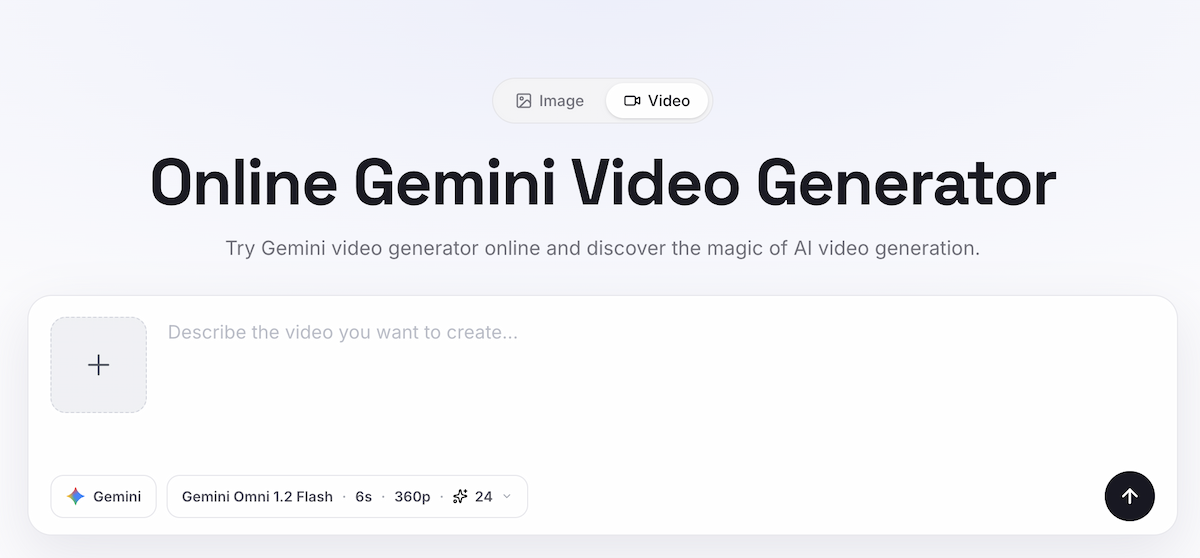
The Gemini video generator interface for creating a logo animation.
For the best results, keep three things in mind:
- Choose one main action: Focus on a single movement, such as a blink, bounce, leap, or swoop.
- Preserve the original design: Keep the logo's shape, colors, text, and background unchanged.
- Keep the full logo visible: Avoid excessive movement and leave enough space around the mark.
If you'd rather let AI suggest a complete scene and animation direction, try the Logo Intro Maker.
A Copy-and-Use Prompt for Any Logo
Start by writing one sentence describing the animation action you want. For a 3-second clip, focus on a single movement rather than a sequence of actions.
When animating from an uploaded image, Google recommends focusing the prompt on motion rather than re-describing the subject, background, or visual style already present in the image. This helps keep the instructions clear and avoids unnecessary repetition. See Google's official image-to-video best practices.
Use this simple prompt structure:
[Describe your desired animation action in one sentence.] Keep the original logo design and background color unchanged. Show the full logo with comfortable padding. Start and end with the original logo.
The action is entirely up to you. The remaining instructions help preserve the original brand design, keep the logo fully visible, and ensure the animation returns to its original appearance.
Six Logo Animation Examples
The following six clips are supplied examples paired with the prompts below. Use only logos you own or have permission to animate.
Crocodile: blink, tail wag, and snap
Make the crocodile blink, wag its tail, and snap playfully. Keep the white background and original illustration style.
Three short actions keep the sequence readable, while the white-background constraint keeps the frame stable.
KFC-style mascot: eat and smile
Animate the illustrated mascot in the uploaded logo eating a chicken drumstick and smiling happily. Keep white background.
The final smile gives the clip a clear ending.
Pringles-style mascot: wink and moustache wiggle
Make the mascot wink and let his moustache wiggle playfully on its own. No hands or extra limbs. Keep the white background and original design.
The negative constraint helps prevent invented limbs.
PUMA: leap and return
Make the puma perform a powerful, energetic forward leap, then land back in its original position. Keep the original logo design and background color unchanged. Do not alter its shape or appearance. Show the full logo clearly with comfortable padding on all sides.
Return-to-position and padding help keep the full mark visible during the leap.
Blue bird: bounce and swoop
Make the blue bird bounce playfully and perform a smooth, gentle swoop. Keep the logo's original design and background color unchanged.
“Smooth” and “gentle” keep the movement controlled.
Apple: bounce and leaf wiggle
Make the apple gently bounce while its leaf wiggles playfully. Keep the original logo design and background color unchanged.
The prompt separates the motion of the mark and its leaf while preserving the design.
Where you can use the video
- Video intros and end cards
- Reels, Stories, and social posts
- Website headers and landing pages
- Presentations and product launches
- Short brand clips for ads or announcements
If you need a longer brand-intro workflow, see how to turn a logo into a brand intro video.
Ready to create your own logo?
Turn your brand name into professional logo concepts in seconds with LogoAI.
Generate my logo