20 Black Friday Marketing Ideas for Small Businesses (AI Image Prompts)
Use 20 copy-and-paste AI image prompts to turn your logo and product photos into Black Friday offer graphics, social posts, banners, and in-store visuals.
These 20 Black Friday marketing ideas help small businesses turn an existing logo, product photo, or shop photo into campaign visuals. Each includes a copy-and-paste AI image prompt and tells you what to upload. Start with an offer you can honor, then reuse its colors and imagery across your website, social posts, email, and storefront.
The prompts cover percentage discounts, bundles, gifts with purchase, free shipping, and other offers. If you are still deciding what to run, Shopify's Black Friday promotion ideas describe how those offers work. Set the real terms before you design the graphic.
How to use these Black Friday AI prompts
For a small campaign, start with one offer graphic from ideas 5–10, a launch post from idea 13, and the website, email, or store asset you need from ideas 16–18. Reuse your brand color and source photos so the designs feel connected.
Each idea tells you what image to upload. Add it to LogoAI’s multi-model image generator, paste the prompt, and replace the bracketed fields with your actual product, packaging, brand color, or confirmed offer. Choose an aspect ratio for where the image will appear. If a prompt needs several images, select a model that supports multiple references.
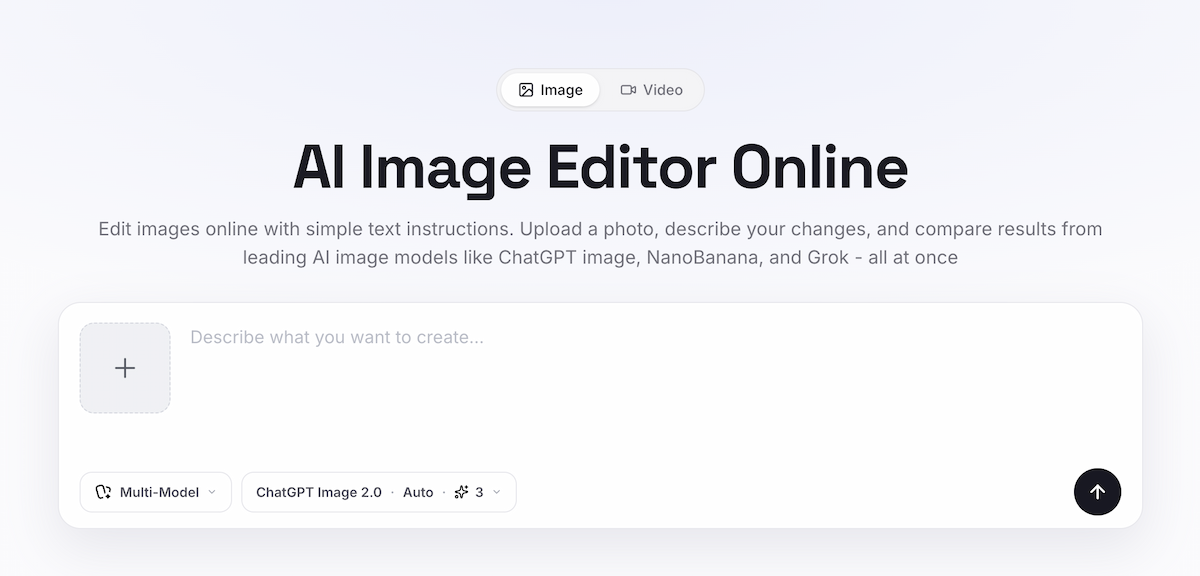
Try the same prompt with different compatible models and compare the results. Keep the version that represents your product accurately and leaves room for the offer. Add final prices, dates, eligibility, and other terms in your finished design, then check them before publishing.
Black Friday logo ideas that keep your brand recognizable
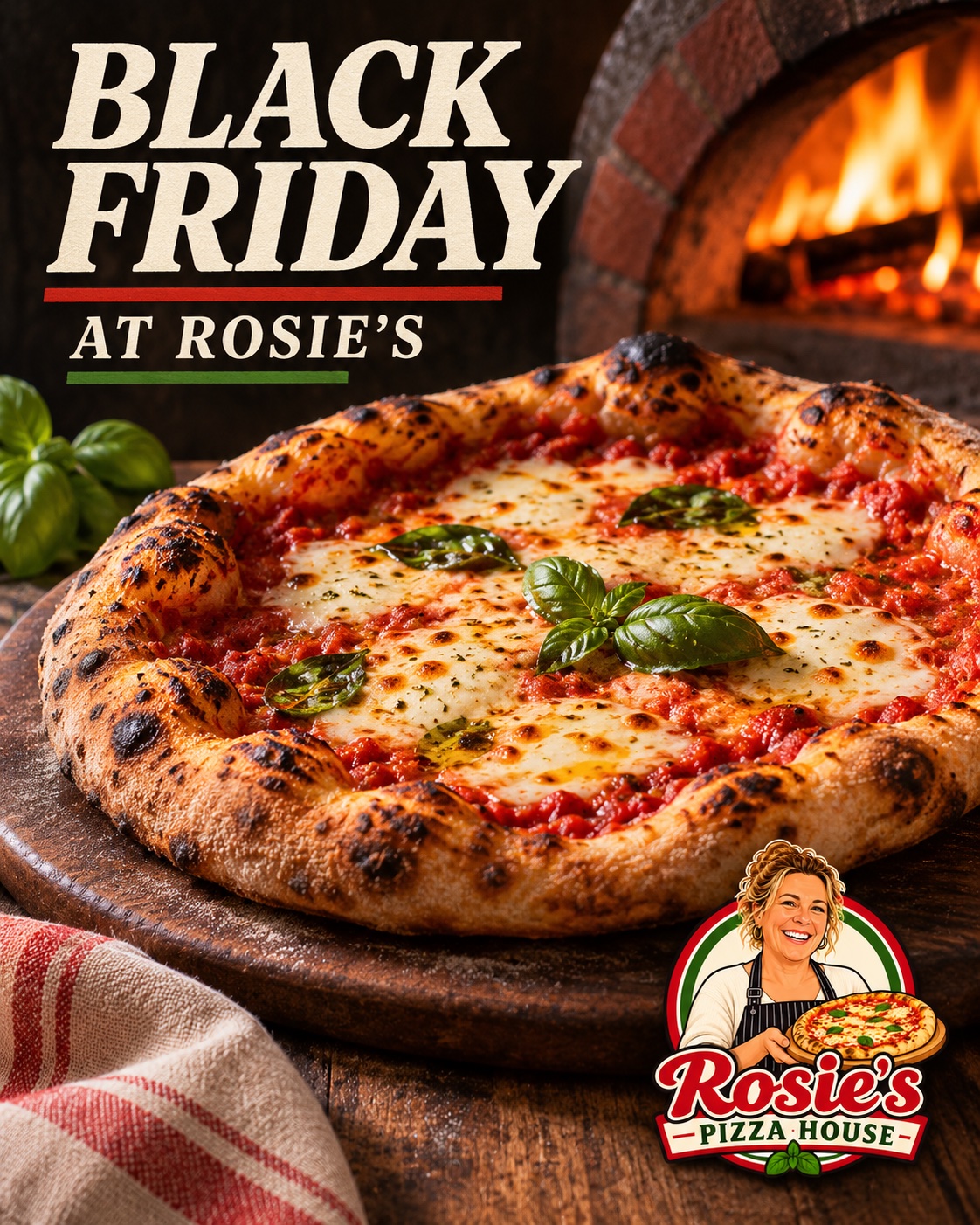
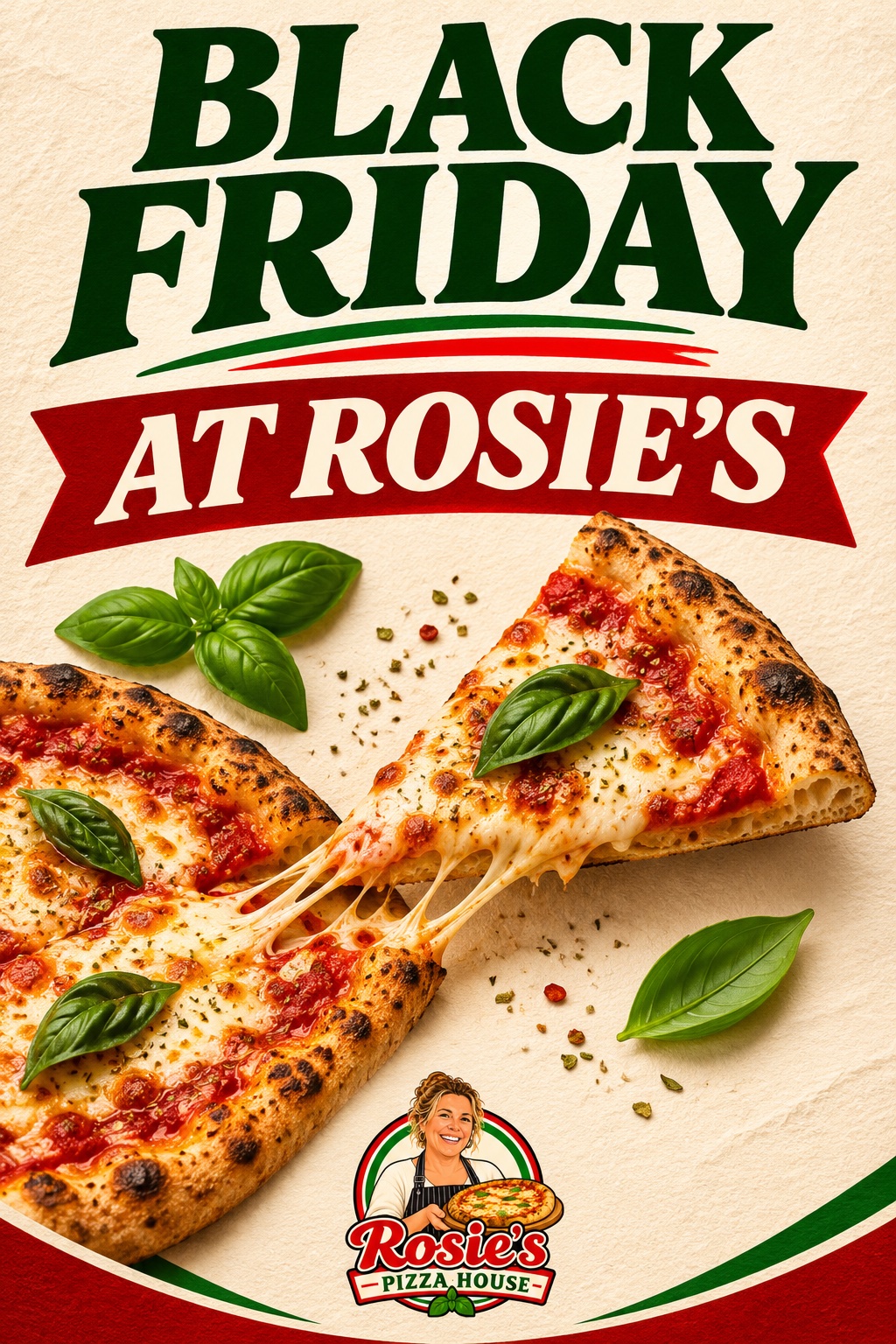
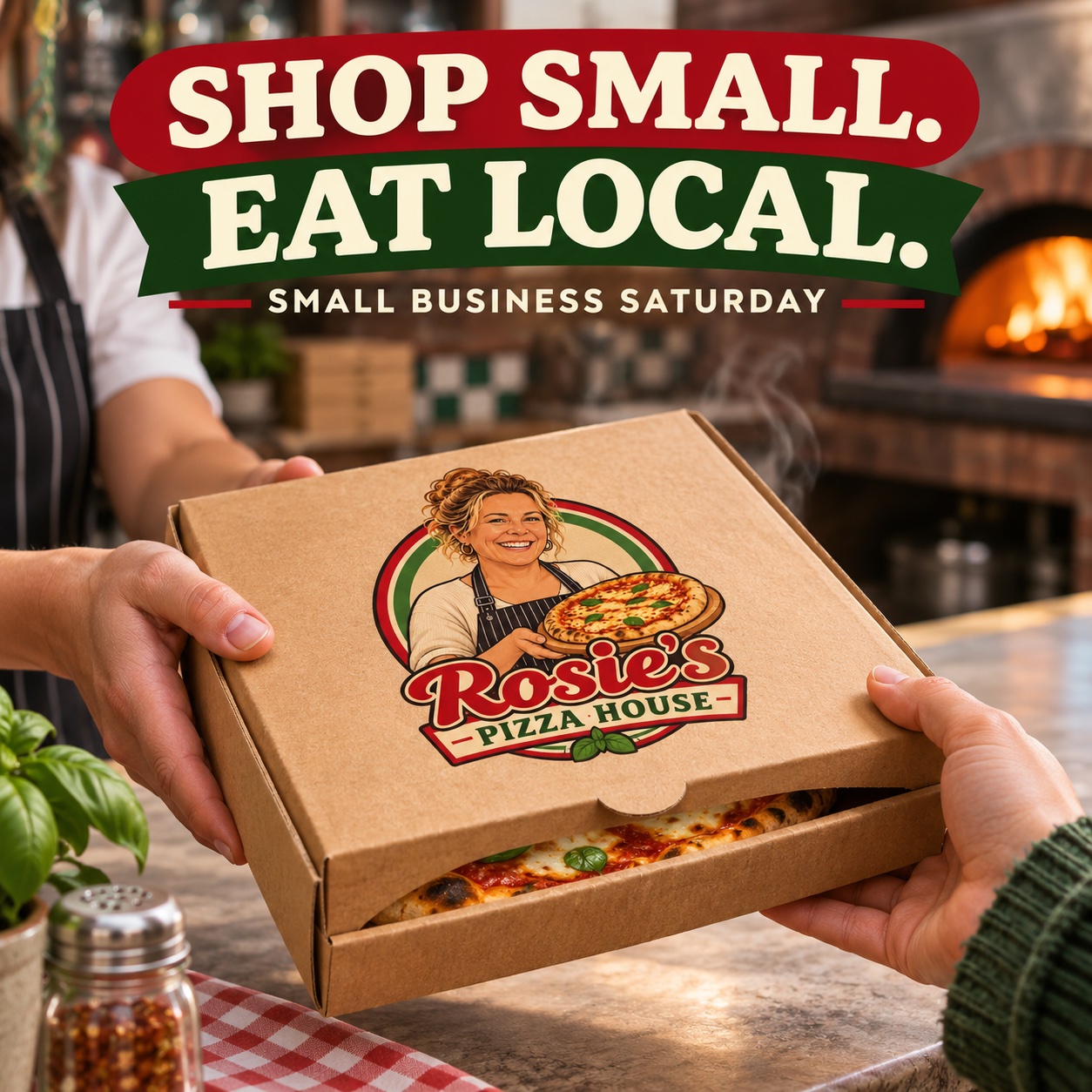
These ideas create temporary campaign artwork around your current mark. Keep the original logo file for the final version if the generated lettering or symbol drifts. The Rosie’s Pizza House examples use a supplied logo; pictured food, storefront, and campaign copy are illustrative.
1. Seasonal logo on packaging
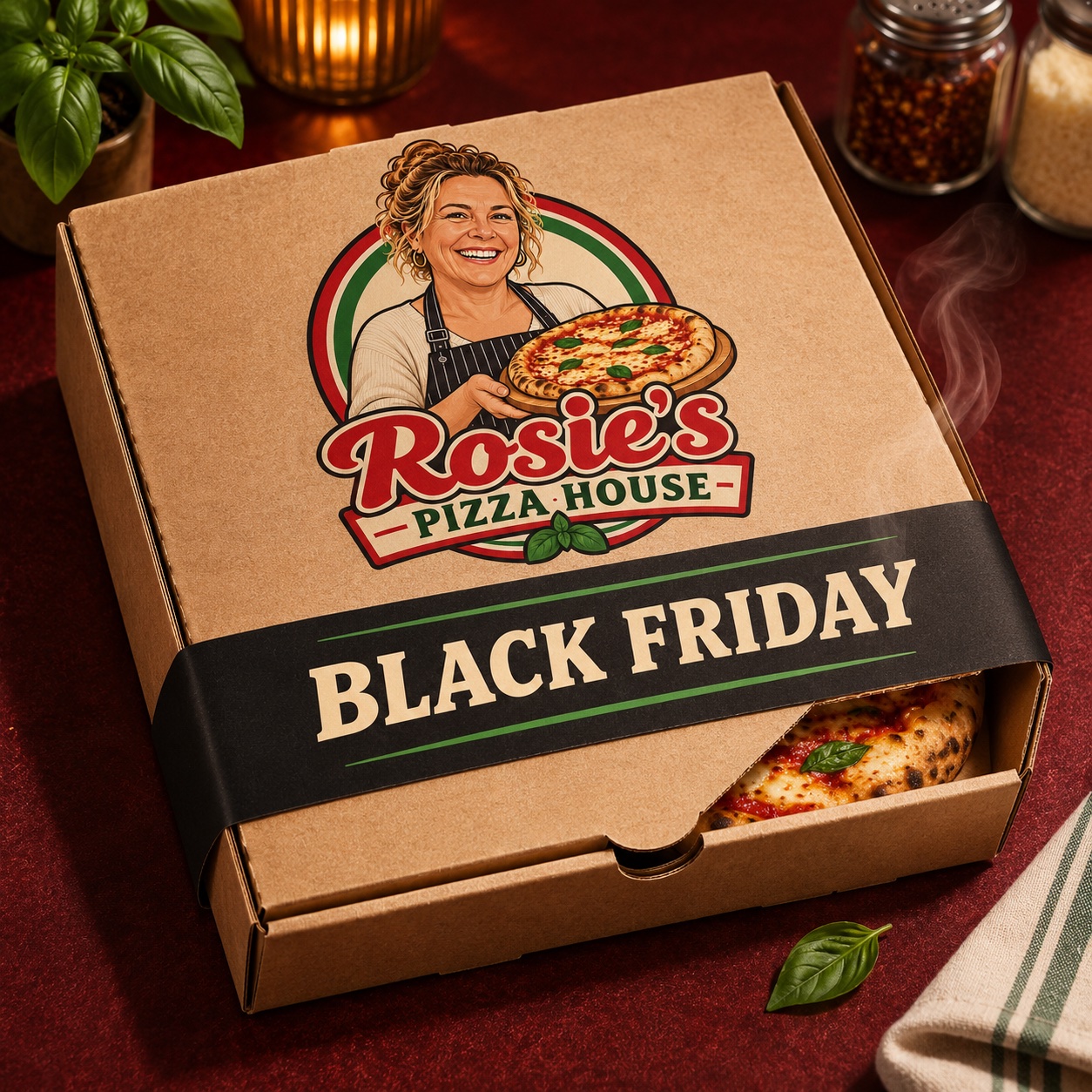
Put a removable campaign sleeve around packaging you already use, keeping your core logo recognizable. Upload: your clear, current logo.
Use the uploaded logo as the brand artwork on a realistic [PACKAGING TYPE]. Preserve its wordmark, icon, proportions, and recognizable colors. Add a removable matte-black paper sleeve around the package with the exact words “BLACK FRIDAY” in clear cream lettering. Show the actual product only if a product photo was uploaded. Warm, tactile square composition; no invented price, discount, or other text.
2. Gift-wrap logo reveal
A gift tag gives a small shop's Black Friday post a warmer feel, especially when the offer includes gifts or gift-ready products. Upload: your logo.
Create a Black Friday gift-wrap visual around the uploaded logo. Show the logo clearly on a small gift tag attached to elegant wrapping in [BRAND COLOR], black, and warm neutral tones. Preserve the logo's shape and spelling. Leave open space below for the actual offer to be added later. Square social-post composition.
3. Seasonal profile icon
Small circular profile crops can cut off a long wordmark. Use a standalone symbol to keep branding consistent across platforms. Upload: the icon version of your logo.
Adapt the uploaded logo icon into a temporary Black Friday social profile image. Center the original icon at a large readable size inside a circular dark background, with one thin [BRAND COLOR] halo and minimal festive sparkle. Keep the icon recognizable at thumbnail size. No new lettering, discount numbers, or unrelated illustrations.
4. Storefront sale sign
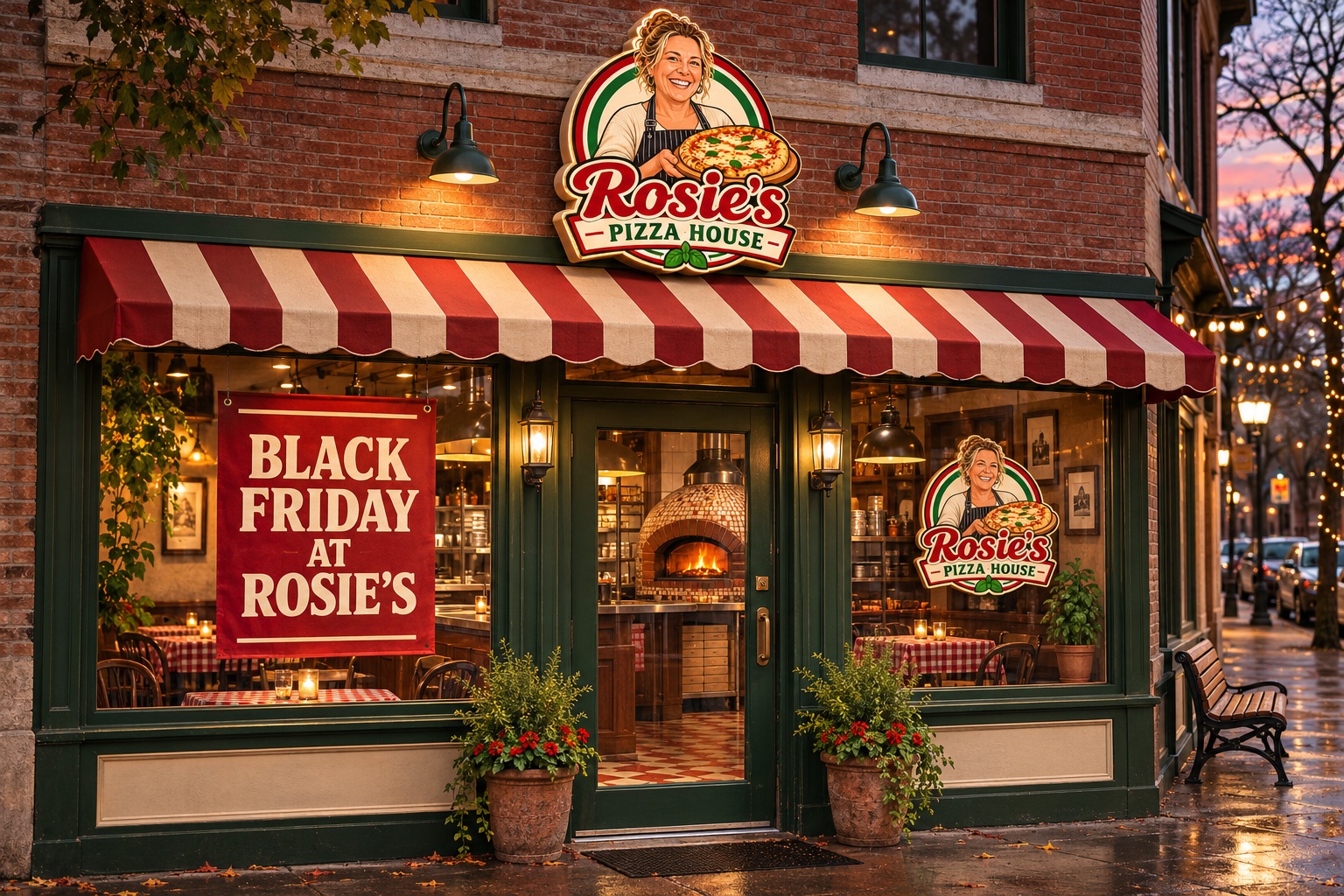
Preview how the campaign identity might appear in your window before making a real sign. Upload: your logo and a straight-on storefront photo, if your selected model accepts two references.
Use the uploaded storefront photo and logo as references. Create a realistic Black Friday window-display concept with the logo clearly visible on a clean sign, black-and-[BRAND COLOR] decor, and room for a real offer poster. Preserve the storefront architecture and avoid changing the business name. Eye-level, inviting local-shop mood.
Black Friday visuals for discounts, bundles, and perks
Pick the visual that matches the offer you have set up. A picture of two products can explain a bundle, but the image alone cannot establish the checkout price or eligibility rules.
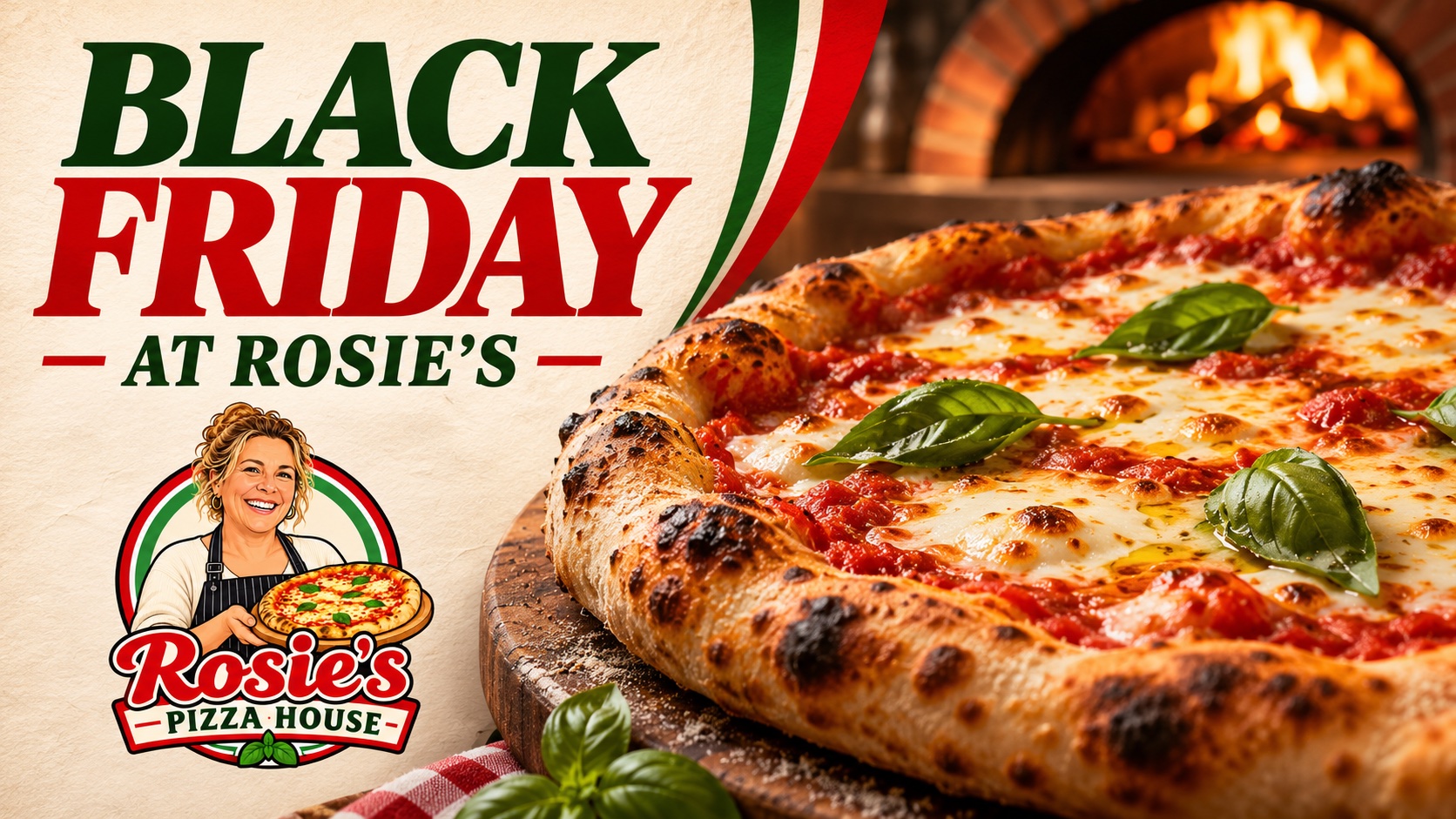
5. Percentage-off hero image
Put one featured item beside your real discount headline for a homepage or ad banner. Upload: a clean photo of that product.
Edit the uploaded [PRODUCT] photo into a Black Friday campaign hero. Keep the product's shape, packaging, and color true to the reference. Place it on a dramatic matte-black set with one [BRAND COLOR] accent. On the left, render only this short, verified headline: "[VERIFIED OFFER]". Leave clear space below for exact dates and terms to be added after generation. Wide website-banner composition.
6. Tiered savings graphic
Three distinct panels help customers scan a confirmed spend-and-save offer. Upload: two or three relevant product photos; use a model that supports multiple references.
Arrange the uploaded products into three clearly separated visual tiers on a clean background using [BRAND COLOR] and a neutral color. Keep every product recognizable and equal in scale. Leave three blank label panels for the merchant's actual spend thresholds and savings. Simple visual hierarchy, mobile-friendly square layout, no generated prices or percentages.
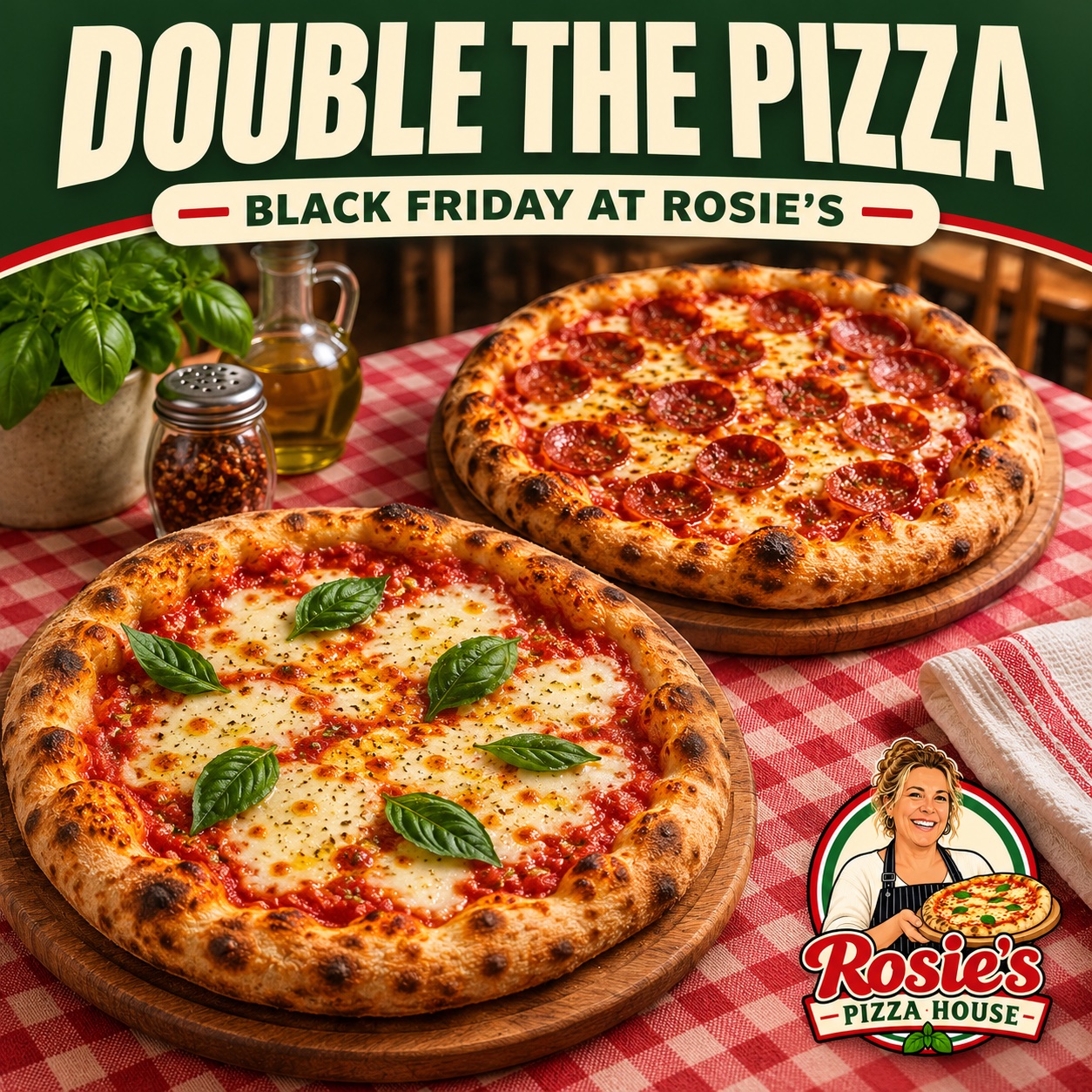
7. Buy-one-get-one pair
Show the two units clearly so the offer is understandable at a glance. Upload: a photo of the eligible product.
Turn the uploaded product photo into a visual for a verified buy-one-get-one offer. Show two matching units side by side, preserving their packaging and color, with a tasteful connecting ribbon in [BRAND COLOR]. Render only the short headline "[VERIFIED OFFER]" above them. Leave a clean footer for exact eligibility terms to be added later. Bright, friendly retail style.
8. Bundle spotlight
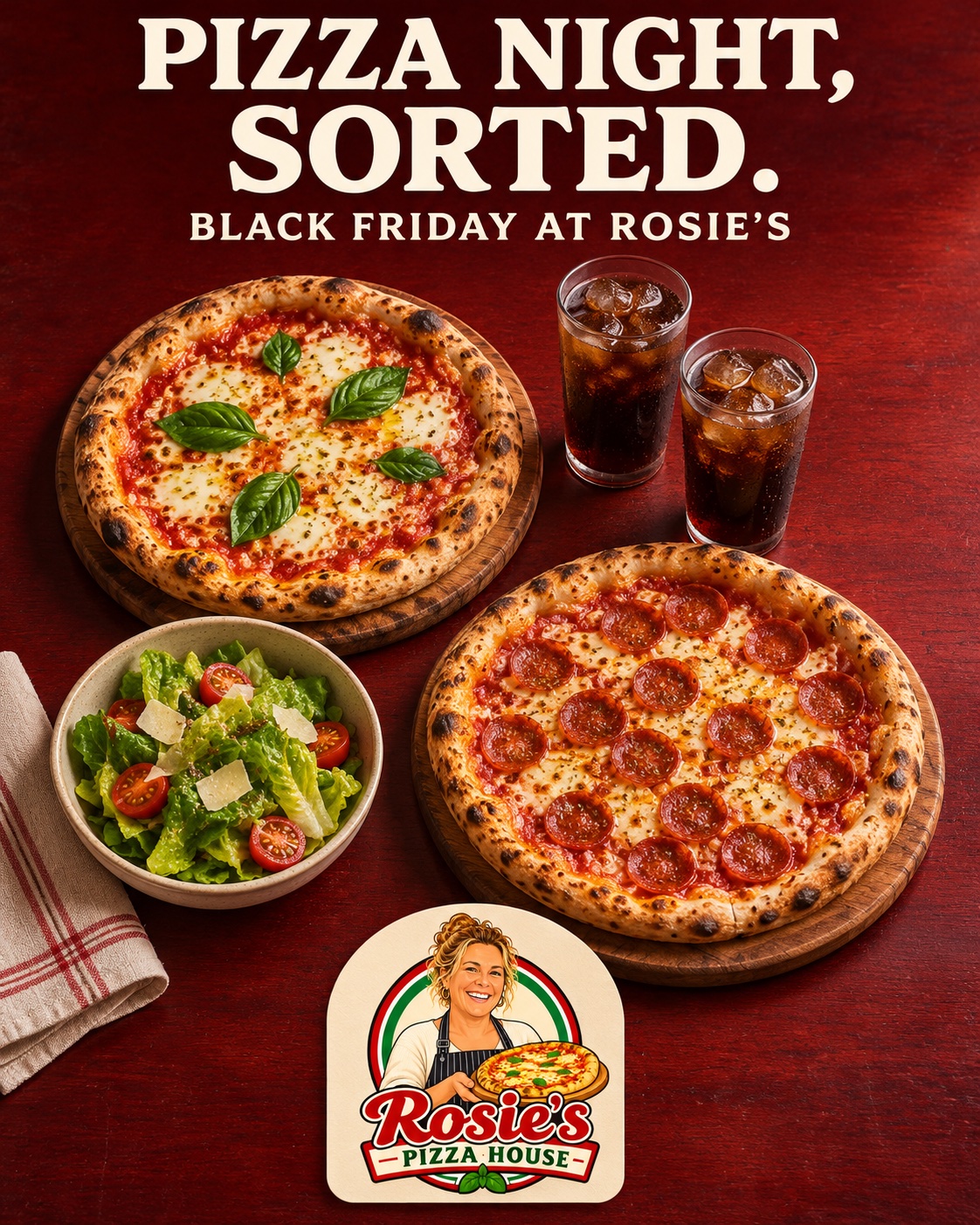
Use this when two specific products are sold together. Upload: photos of both products, using a model that accepts multiple references.
Create a Black Friday bundle spotlight using the uploaded [PRODUCT A] and [PRODUCT B] images as references. Arrange them as a cohesive set on a tabletop that suits the brand, with [BRAND COLOR] accents. Keep each product recognizable. Add only the short headline "[VERIFIED OFFER]"; leave a blank card area for the exact bundle price and contents to be added later.
9. Gift-with-purchase reveal
Make the actual gift visible, then state the qualifying spend or product in the final graphic. Upload: the main product and the gift item.
Use the uploaded main product and actual gift item as references. Show the main product in front with the gift partially revealed from an elegant box behind it, using [BRAND COLOR] ribbon. Add only the short headline "[VERIFIED OFFER]" and leave room for exact qualification terms. Do not invent other gifts, labels, or conditions.
10. Free-shipping visual
A delivery box makes the shipping offer visible. Put thresholds and exclusions in the final layout. Upload: your product photo.
Create a Black Friday free-shipping campaign image around the uploaded product. Place the original product beside an unbranded delivery box with a [BRAND COLOR] ribbon. Add only the short, verified headline "[VERIFIED OFFER]". Leave a blank area for the actual shipping threshold, region, and deadline. Clean 4:5 social-feed composition.
Social post ideas from Black Friday teaser to last call
Reuse a product and your brand color across these posts. Change the crop and message as the sale moves from teaser to launch to closing day.
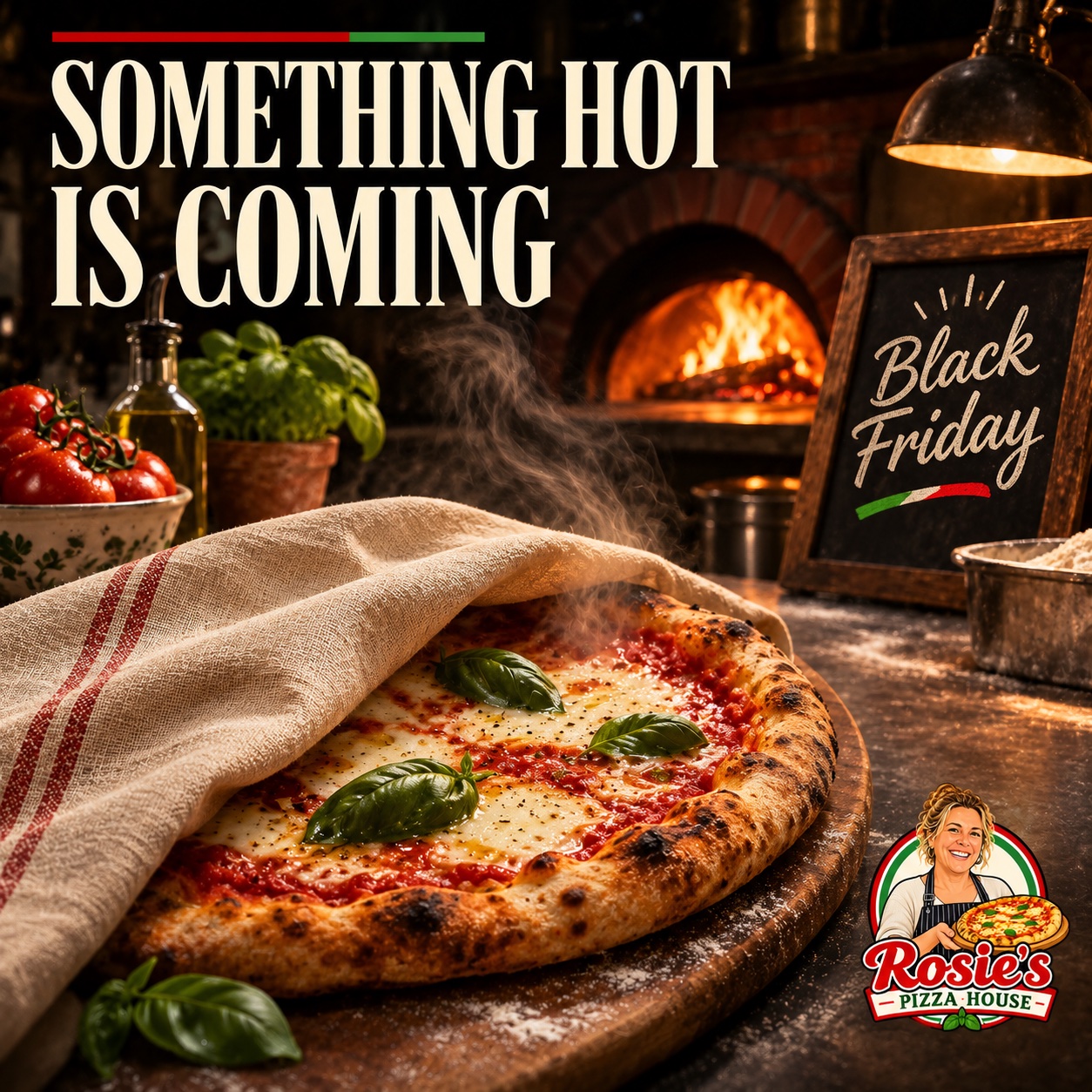
11. Mystery teaser
Show enough of the product for regular customers to recognize it, while leaving the launch date to add later. Upload: a product photo.
Use the uploaded product as a reference and create a Black Friday teaser. Show an intriguing partial view of the real product emerging from shadow, with a thin [BRAND COLOR] accent. Leave a clear area for the merchant to add a teaser headline and verified launch date. Square composition; no invented text or offer terms.
12. Early-access invitation
Reserve this for an early-access offer you really plan to honor. Upload: your logo or a relevant product photo.
Create an early-access Black Friday invitation visual using the uploaded logo or product as reference. Use the brand's colors with restrained lighting, a clear focal point, and two empty text areas for the actual member eligibility and opening time. Make it feel exclusive but welcoming. Do not add prices, countdown numbers, or fake membership claims.
13. Sale-is-live post
For launch day, give the featured product and a single short offer the most space. Upload: your featured product photo.
Transform the uploaded product photo into an energetic Black Friday launch post. Preserve the product's appearance and packaging; add bold [BRAND COLOR] geometric shapes and clean contrast. Render only the verified short headline "[VERIFIED OFFER]" in a clear top zone, keeping the product as the hero. Square format; leave exact terms for a later text layer.
14. Real customer favorite
Pair a popular product with an approved customer quote, if you have one. Upload: the product photo.
Create a Black Friday "customer favorite" visual around the uploaded product. Show a warm, realistic lifestyle setting with the product clearly visible and a reserved blank quote area. Do not invent a review, rating, sales figure, or customer identity. The merchant will add only an approved real quote, or remove the quote area.
15. Last-day reminder
Keep the same look as your launch image so customers can connect the two posts. Upload: the campaign visual you already made.
Make a last-day Black Friday reminder from the uploaded campaign image. Preserve the same product, logo style, [BRAND COLOR], and overall visual identity. Increase contrast and urgency with a subtle closing spotlight, while leaving one large blank area for the verified end time and offer terms. Vertical Story composition; no fabricated countdown timer or scarcity claim.
Black Friday assets for your website, email, and shop
Adapt the same confirmed offer to each placement. A wide website hero needs space for a headline; a poster needs a message people can read from across the shop.
16. Collection-wide homepage banner
Use a collection banner when the promotion covers several products. Upload: your logo and two or three eligible product photos, using a model that accepts multiple references.
Create a wide Black Friday homepage banner using the uploaded logo and product photos as references. Arrange the products as one collection while keeping their shapes, packaging, and colors accurate. Use [BRAND COLOR] and a neutral background that suits the brand. Leave a clear area on the left for the merchant to add the verified collection offer, CTA, dates, and terms later. Do not invent products or text.
17. Email header
Keep this image simpler than the homepage banner; people may see it at phone width. Upload: a product photo or the campaign image you want to adapt.
Adapt the uploaded product or campaign image into a compact Black Friday email header. Keep one clear focal product, recognizable [BRAND COLOR], and enough negative space for a short real headline. Use clean lighting and a simple background that will remain legible on mobile. No tiny text, generated discount figures, or decorative clutter.
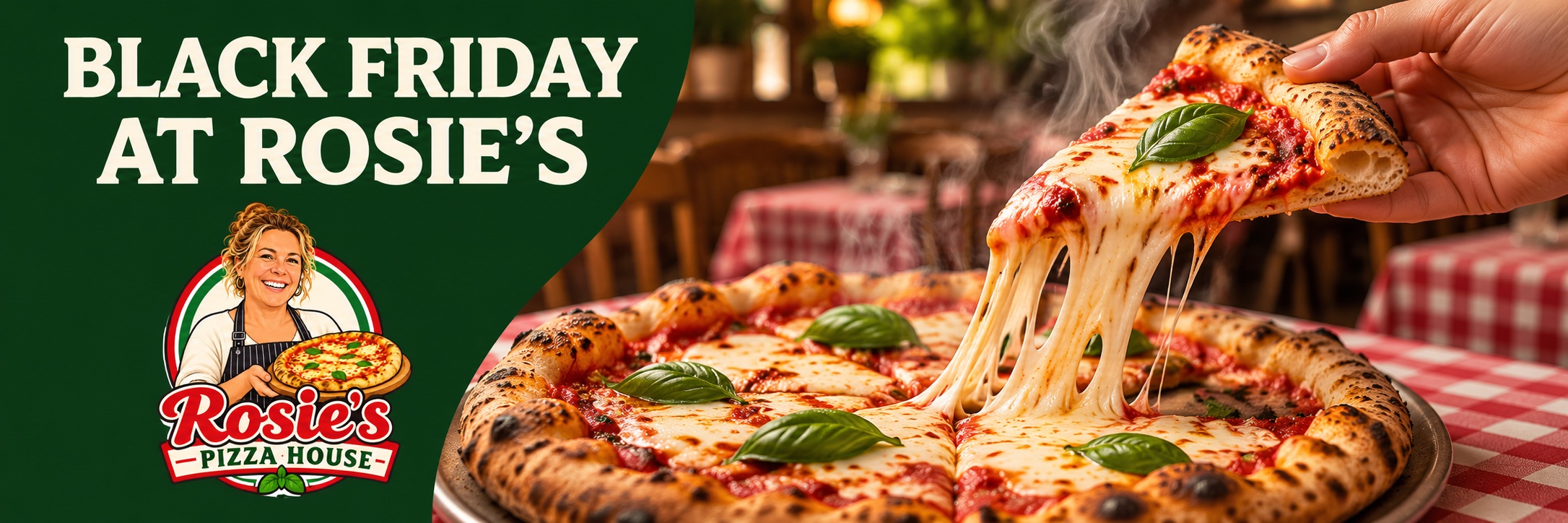
18. In-store poster
Give the real offer a prominent place and save fine print for a readable final layout. Upload: your logo plus a product or storefront photo.
Design a Black Friday in-store poster concept using the uploaded logo and product or storefront as references. Make the product and the short verified headline "[VERIFIED OFFER]" readable from several steps away, with strong contrast and a [BRAND COLOR] accent. Preserve the business identity. Leave a broad blank panel for exact dates and terms; no generated fine print.
Small Business Saturday and Cyber Monday follow-up ideas
Keep the recognizable campaign elements, then update the message for the day. Do not carry Friday's dates or terms into a new offer by accident.
19. Small Business Saturday post
Let people see the real shop or team behind the sale. Upload: your own storefront or team photo.
Create a Small Business Saturday post from the uploaded real shop or team photo. Preserve the people, storefront, and business identity. Add warm [BRAND COLOR] accents and natural light. Leave a clear area for the merchant to add a headline, real Saturday hours, or verified offer terms. No invented staff, claims, or text.
20. Cyber Monday carryover
Adapt your strongest Black Friday image if the Monday offer uses the same product. Upload: the campaign image you used on Friday.
Adapt the uploaded Black Friday hero image into a Cyber Monday version. Keep the same actual product, logo treatment, [BRAND COLOR], and campaign style, but shift the setting toward a clean digital storefront mood with subtle screen-like light. Leave blank space for the verified Monday offer and end time. Do not reuse Friday dates or invent a new discount.
Check AI-generated Black Friday images before publishing
Compare the generated image with your source files. Check the logo's lettering and proportions, the product's color and packaging, and the number of items shown. Read every generated headline character by character. Add and verify the offer dates, prices, thresholds, eligibility, and shipping rules in the final layout. Use an actual customer quote only with permission.
Open each image at the size your customer will see. If you need a different crop, you can crop the finished image before placing it in a channel layout. When an AI result changes the mark or mangles the offer, place the original logo and accurate text over the final artwork. Save the version you approved for each channel so Friday's terms do not appear in a Saturday or Monday post.
Ready to create your own logo?
Turn your brand name into professional logo concepts in seconds with LogoAI.
Generate my logo