How to Turn a Logo into a Sticker for Packaging and Merch
Turn an existing logo into a production-ready sticker for packaging or merch with practical guidance on file preparation, shape, size, material, exports, and proofing.
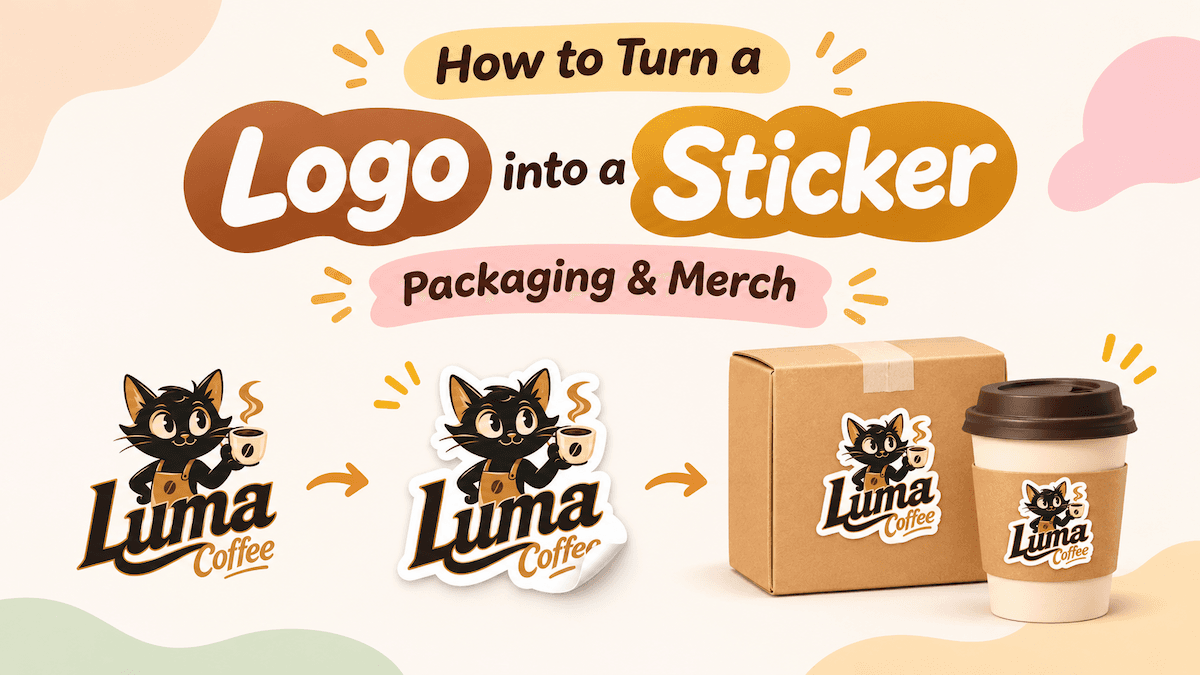
Already have a logo? You can turn it into custom stickers for product packaging, shipping boxes, giveaways, and merchandise without redesigning it from scratch.
The process is straightforward: choose a shape and size for the use case, adjust the sticker's border, export the files your printer needs, and check the result at its actual size. Whether you run a small business, an online store, or a growing brand, a logo sticker can add a branded detail to everyday packaging and products.
Start with how you plan to use your logo stickers
Before creating a sticker, decide where it will go. The application affects the shape, size, material, and adhesive you should choose.
| Use case | Recommended shape | What to consider |
|---|---|---|
| Packaging seals | Circle or rounded | The seal fits boxes, bags, and tissue paper |
| Product labels | Rounded or oval | The shape leaves room for the full logo or wordmark |
| Shipping boxes and mailers | Circle or die-cut | You can add branding without replacing the packaging |
| Giveaways and promotions | Die-cut or circle | The sticker looks complete as a standalone item |
| Merchandise | Die-cut | The outline follows the logo and works well on laptops and accessories |
For a small business, stickers can add a branded detail to existing packaging without requiring custom-printed boxes or bags. A small-batch packaging approach can also make it easier to test the quantity and design before committing to a larger order.
Decide whether the sticker is mainly decorative, functional, or meant to withstand frequent handling. A small packaging seal has different requirements from a sticker for a water bottle or laptop.
Turn your existing logo into a sticker with LogoAI
You do not need to recreate your logo in a professional design application just to make a sticker. LogoAI's Sticker Maker lets you turn an existing logo into a sticker through an online workflow that keeps the original logo artwork and adds the selected shape and border.
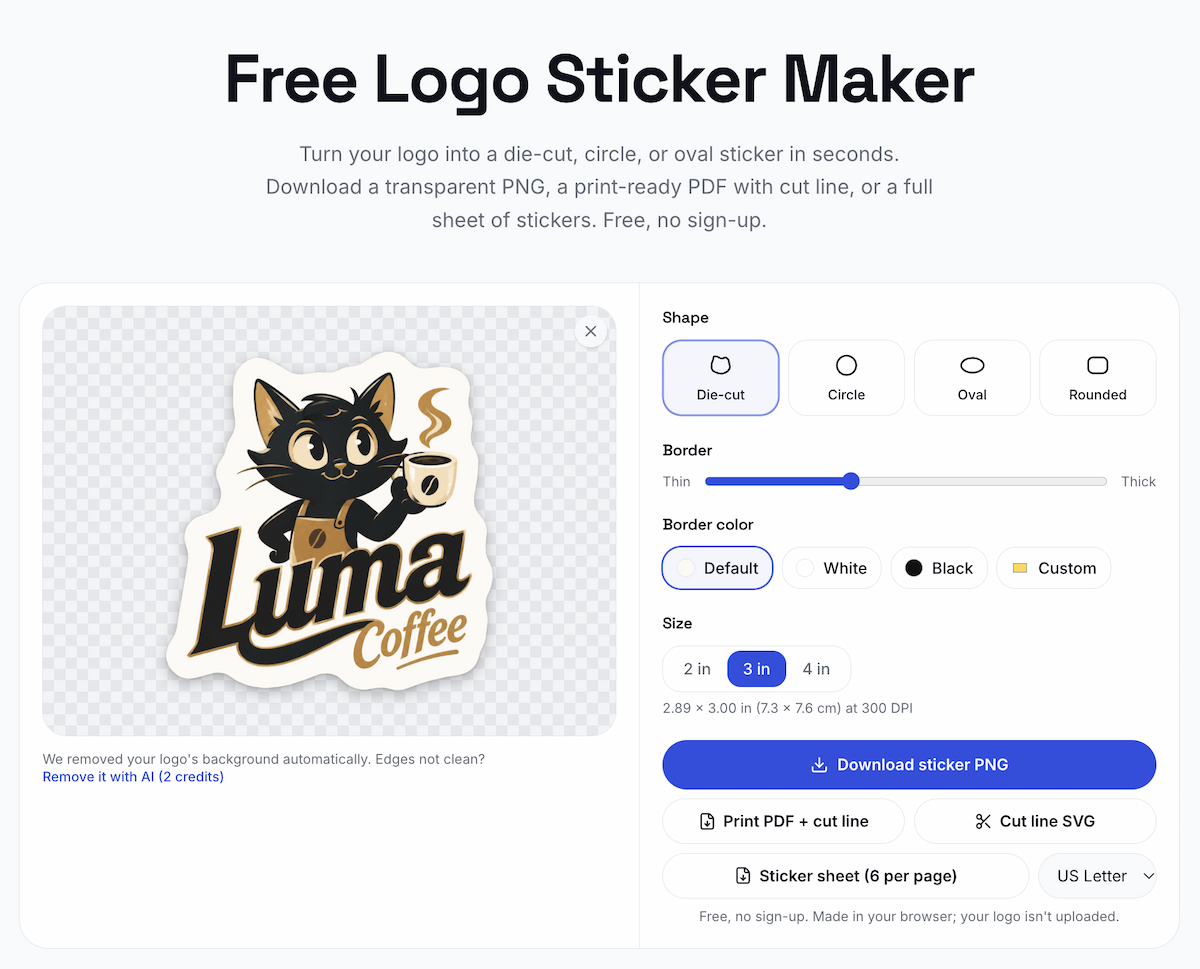
The Sticker Maker interface includes shape, border, size, and export controls.
Upload your existing logo
Upload a PNG, JPG, or WEBP file, or paste an image directly into the tool. A high-resolution logo with a transparent background is a useful starting point, especially when you want the sticker outline to follow the original artwork.
If the image has a white or solid-color background, the Sticker Maker page says that it can remove that background automatically. For a more complex photo or textured background, use a logo background remover first and inspect the edges before creating the sticker.
If the original logo is blurry or too small, improve the source file before adding a border. You can fix a blurry logo by starting with a sharper file or using an appropriate enhancement or vector workflow. Upscaling a weak source does not restore details that were never captured, so check the result at the final sticker size.
Choose your sticker shape
The Sticker Maker offers four shapes:
- Die-cut: Follows the outline of the logo. It suits promotional stickers, giveaways, laptops, and merchandise.
- Circle: A classic option for packaging seals, badges, and logos with compact proportions.
- Oval: Works well for horizontal wordmarks that need more width than a circle provides.
- Rounded: A rounded rectangle for product labels, packaging, and wider logo designs.
Each shape changes the empty space around the same logo. A circular sticker can work as a packaging seal, while a die-cut version can preserve the silhouette of an icon or symbol. Choose the shape that fits both the placement and the way the sticker will be handled.
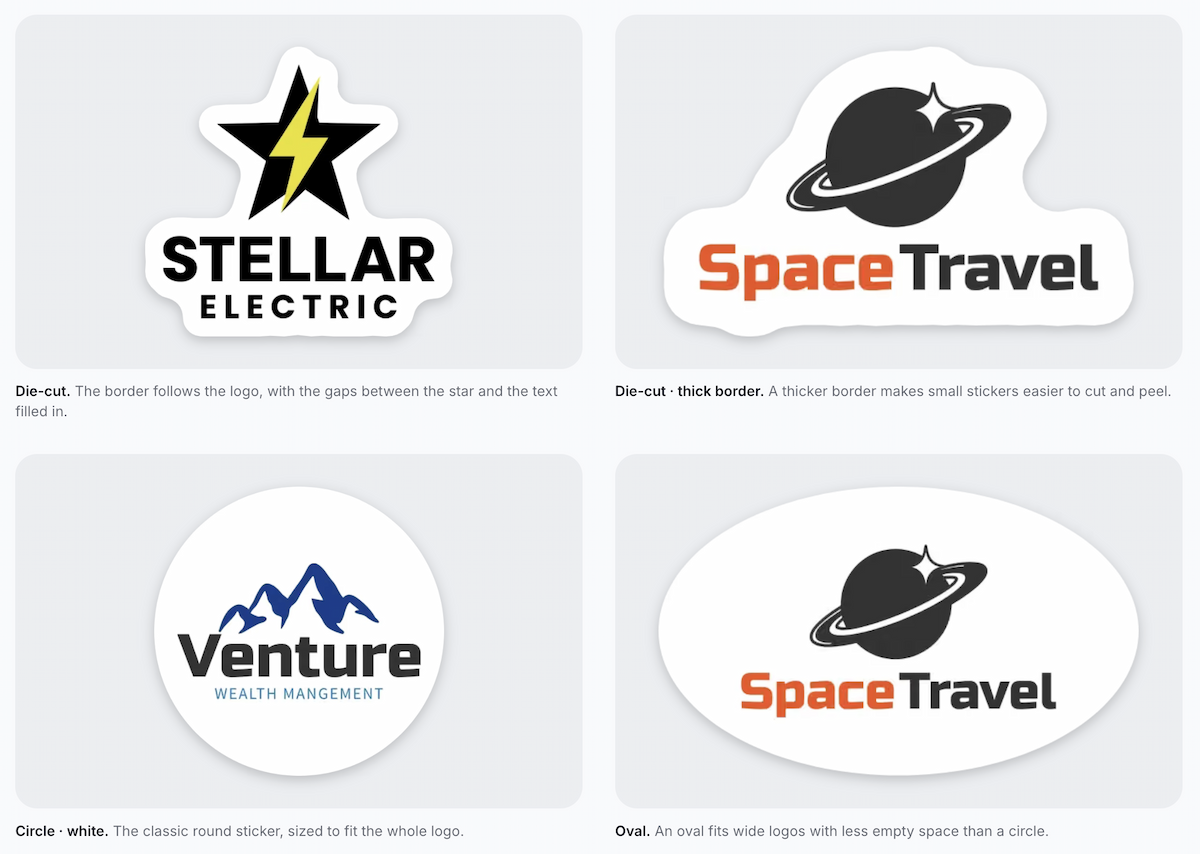
Examples of die-cut, circle, and oval treatments applied to existing logos.
Customize the border and size
The border separates the logo from the surface behind it and gives the finished sticker a defined edge. LogoAI lets you adjust the border width, choose a border color, and select a 2, 3, or 4 inch sticker size.
A white border can help a colorful logo stand out against darker packaging. A tighter border can keep a compact sticker from taking up more space than necessary. The right setting depends on the logo's proportions and the surface behind it.
Check the preview at its intended size before finalizing it:
- Is the name or tagline readable without zooming in?
- Do thin strokes remain open instead of filling in?
- Does the border leave enough space around the outermost parts of the logo?
The Sticker Maker's printing tips warn that small text under 2 inches may be hard to read. Use that as a prompt to test your own artwork, not as a universal minimum for every printer or logo. If a complete wordmark only works at 4 inches, make a simplified sticker version for smaller packaging.
Download your finished sticker
After reviewing the design, download the format that matches the next step:
- Transparent PNG: Useful for previews and compatible printing workflows.
- Print-ready PDF: Includes 1/8 inch of bleed and a
CutContourcut line. - Cut-line SVG: Provides a cutting outline for compatible cutting workflows.
- Sticker sheet: Places multiple stickers together for printing or small-batch production.
The Sticker Maker page describes free sticker creation and downloads without account registration or a watermark. It prepares the artwork files; physical printing remains a separate step with your chosen printer.
Choose the right sticker material and finish
After creating the artwork, choose the physical material. Different materials suit different surfaces, handling conditions, and moisture exposure.
Paper vs. vinyl stickers
Paper stickers can suit indoor packaging, product inserts, thank-you cards, and short-term labels where durability is not the main concern.
Vinyl stickers may be a better fit for applications that involve more handling or moisture, depending on the material and adhesive. They can work for laptops, water bottles, and some merchandise applications.
Matte vs. glossy finish
The surface finish changes how the sticker looks in different light:
- Matte has less reflection and can suit minimalist packaging or surfaces that are viewed under bright light.
- Glossy has a more reflective surface and can make colors appear more vivid.
Neither finish works best for every use. Consider the brand's visual style, the surface, and the way the sticker will be handled.
Ask the printer about available materials, adhesive options, finishes, minimum sizes, and whether it supports the cut line in your file. Creating the sticker artwork and printing the physical sticker are separate steps. LogoAI prepares the design files, while the printer handles material selection and production.
Export your logo sticker files for printing
A preview image may look correct on screen while a printer still needs information about the final dimensions, bleed, and cutting outline. Keep a preview file and a production file so you can review the artwork and hand off the correct file.
Transparent PNG
A transparent PNG keeps the sticker artwork separate from a solid background. It is useful for:
- Previewing the finished sticker.
- Home printing workflows.
- Online printing services that accept transparent PNG files.
- Compatible print-then-cut workflows.
Print-ready PDF
A print-ready PDF is useful when a printer needs a fixed page with bleed and a cut path. LogoAI's Sticker Maker exports a PDF with 1/8 inch of bleed and a CutContour cut line. Confirm that your printer accepts that format and cut-line naming convention, and follow its template if it supplies one.
Cut-line SVG
A cut-line SVG provides a separate outline for compatible cutting workflows. It is useful when a cutting machine or production process needs an SVG path to follow.
The SVG is a cutting path, not automatically a complete vector version of the original logo. If you need the logo itself to scale as vector artwork, request or create a real vector logo file separately.
Sticker sheet
A sticker sheet places multiple copies together for home printing or small-batch production. Check the sheet dimensions and printer margins before printing. A commercial printer may prefer individual sticker files, a sheet layout, or its own template.
What are bleed, safe area, and cut lines?
Three terms matter when you prepare a file for professional printing:
- Bleed: Extra artwork that extends beyond the final cutting boundary. It helps prevent an unwanted white edge if the cut shifts slightly.
- Safe area: The space inside the cutting boundary where important logo details and text should remain.
- Cut line: The outline that tells the cutting machine where the sticker should be trimmed.
If your printer provides its own template or production specifications, follow those requirements even when they differ from a general export setting.
Check your sticker before printing
A sticker that looks good on a large monitor may not work at its actual size. Review the design before ordering a large quantity, and request a digital or physical proof when the order is important.
Use this checklist:
- Is the original logo still recognizable?
- Are the logo proportions correct?
- Is the text readable at the final sticker size?
- Are thin lines and small details still visible?
- Has the background been removed cleanly?
- Are there unwanted white edges, halos, or stray pixels?
- Is the border width consistent?
- Does the border color contrast with the logo and the surface?
- Is the shape suitable for its intended use?
- Are the dimensions correct?
- Does the PDF include the required bleed and cut line?
- Is the material suitable for the surface?
- Have you checked the printer's production specifications?
If possible, order a small test batch before committing to a larger quantity. Place a sample on the actual packaging, product, laptop, or other surface where you intend to use it. Check it from the distance at which a customer will see it, then adjust the size or simplify the artwork if necessary.
Frequently asked questions
Can I make a sticker from a PNG logo?
Yes. A transparent PNG is a convenient starting point for a logo sticker. You can upload it to the Sticker Maker and customize the shape, border, and size. JPG and WEBP files are also supported. If the image has an unwanted background, remove it before continuing.
Should a logo sticker have a border?
A border separates the logo from the surrounding surface and creates a clear sticker outline. White borders are common, but you can also choose a color that suits the logo and packaging. The best border width depends on the logo's proportions and final size.
How small can logo text be on a sticker?
There is no universal minimum font size for every logo, printer, and material. Small text can become difficult to read when the logo is reduced, especially with thin lettering or tight spacing. Check the design at its actual size and consider removing a tagline from smaller stickers.
What is the difference between a die-cut sticker and a sticker sheet?
A die-cut sticker is cut around the individual sticker's outline, following the shape of the artwork. A sticker sheet contains multiple stickers arranged on one sheet. Die-cut stickers suit individual giveaways and merchandise, while sticker sheets are convenient for printing or organizing multiple copies.
Do packaging stickers and merchandise stickers need the same material?
Not necessarily. Paper may be sufficient for indoor packaging and short-term labels, while vinyl or another durable material may suit frequently handled products. Consider moisture exposure, the application surface, and the adhesive before choosing a material.
What files should I send to a sticker printer?
Ask the printer for its preferred format and template. Common options include a transparent PNG, a print-ready PDF with bleed and a cut line, or a separate cut-line SVG for compatible cutting workflows. Send the version that matches the printer's specification.
Can I make logo stickers for free without signing up?
Yes. The LogoAI Sticker Maker page describes free sticker creation and downloads without account registration or a watermark. You can upload an existing logo, customize its shape and border, and export sticker files. Physical printing is handled separately by your chosen provider.
Ready to create your own logo?
Turn your brand name into professional logo concepts in seconds with LogoAI.
Generate my logo