LogoAI Mockup vs. Traditional Mockup Generators: What’s Different?
A practical comparison of LogoAI Mockup and template-based tools, explaining reference-led generation, personalized scene tags, and Brand Video.
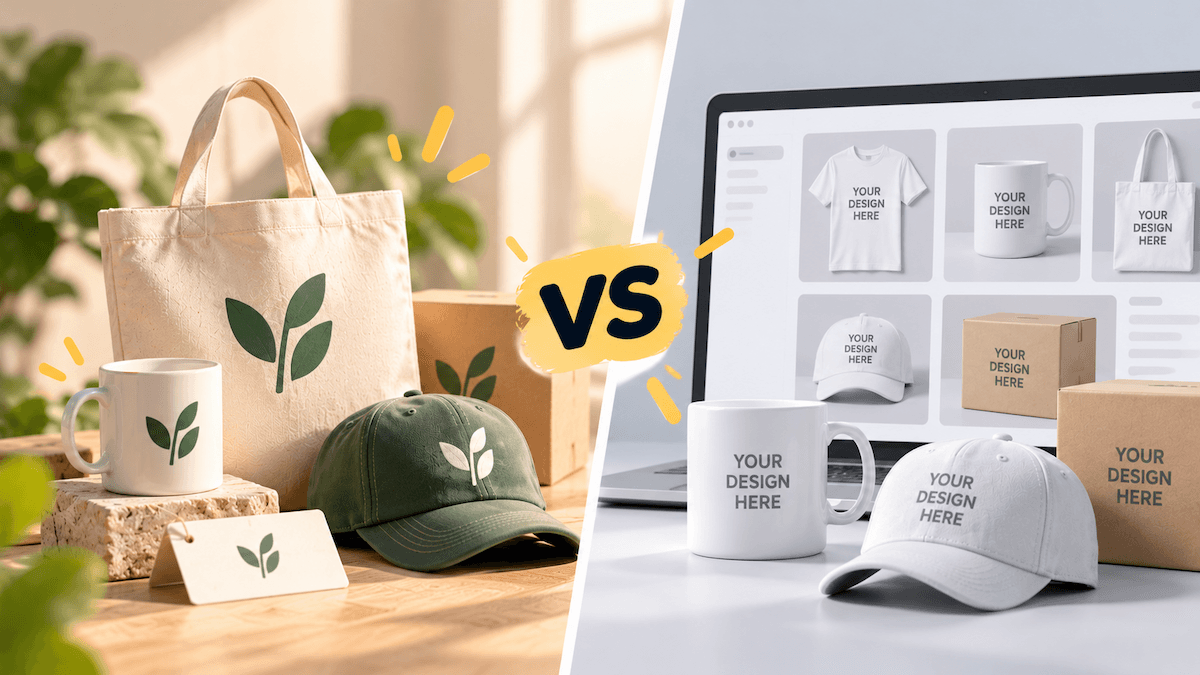
A logo can look finished on a blank artboard and still feel wrong once it appears on a storefront, a shirt, a business card, or a phone screen. The setting changes how people read its size, contrast, detail, and personality. That is why a mockup is useful before a brand identity is presented or produced: it puts the mark into a situation where its strengths and weak points are easier to see.
Mockup tools take different approaches to this step. Some begin with a fixed layout and ask you to place your artwork inside it. Others begin with a scene or image that helps shape a new visual result. LogoAI combines familiar mockup categories with reference-led generation, then offers text tags for exploring additional brand applications and Brand Video directions.
How does the mockup workflow differ?
A traditional mockup workflow is usually application-first. You decide that you need a business card, a T-shirt, a phone screen, or a storefront, find a matching template, and place your logo into the prepared composition. This is useful when the format is already decided and you want a predictable presentation.
LogoAI starts with the same familiar categories, so you do not have to begin with an open-ended prompt. You can browse examples for business cards, T-shirt mockups, iPhone screens, websites, billboards, and other common brand applications. The difference appears after you choose an example. The selected image is treated as a reference for the new scene, rather than as a fixed template for a simple logo swap.
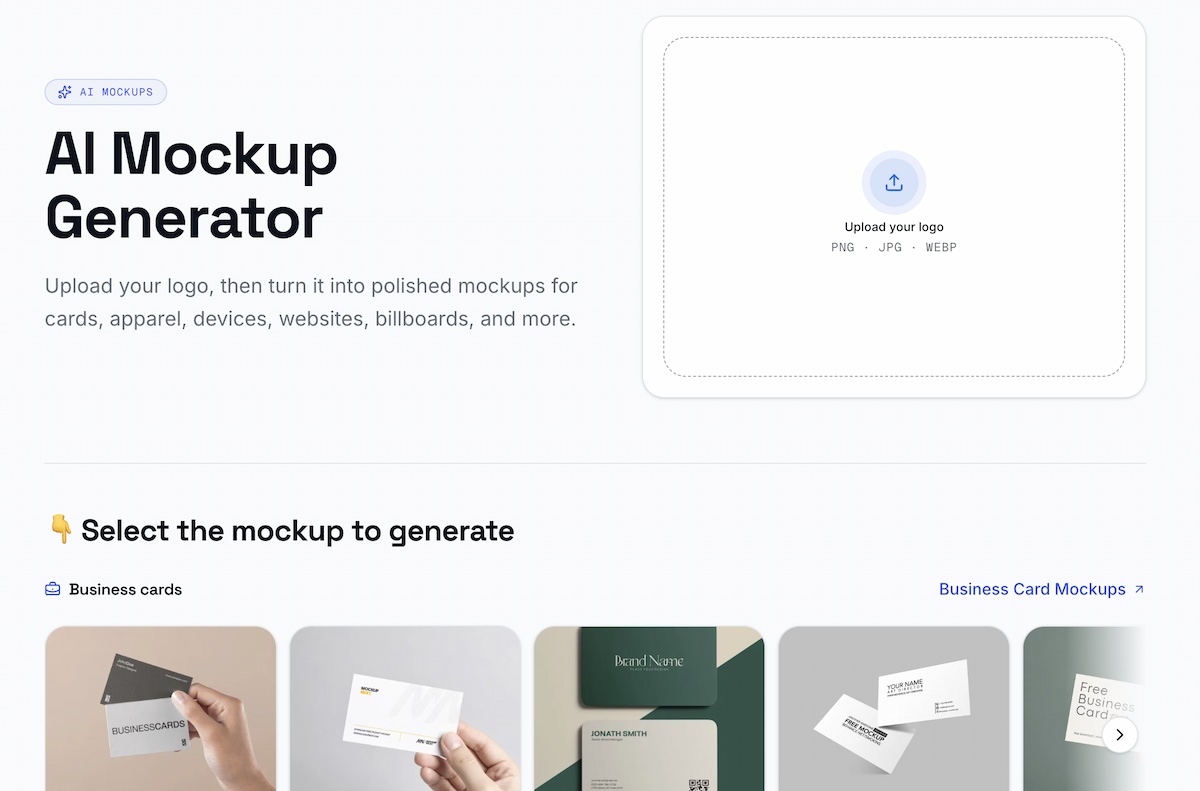
The mockup generator starts with a logo upload and familiar scene categories.
In the choose a mockup scene, the reference can guide the setting, perspective, lighting, materials, and overall arrangement. A storefront image can suggest the environment and camera angle. A clothing image can suggest how the garment is shown. A product scene can suggest the surface and light. LogoAI then generates a new mockup built around the uploaded logo.
This gives the user two useful levels of control. The category provides a clear starting point, while the reference image provides a visual direction that may not exist as an exact template in a library. The result is still an exploration image, but the route to that image is more specific than choosing a generic layout and inserting artwork.
LogoAI Mockup uses a chosen image to guide a new brand scene; it does not treat that image as a fixed template.
How does LogoAI guide your mockup choices?
LogoAI gives you two different ways to decide what to generate. One is visual: you choose a reference image to communicate the kind of scene you want. The other is verbal: you choose a text tag to explore another possible brand application.
Reference images provide visual direction
Upload a logo, choose a category or an example, and use the image as a visual reference. LogoAI reads the reference for its composition, perspective, lighting, materials, and overall arrangement, then generates a new image with your logo. The brand shown in the reference is not the asset being reused; the reference supplies direction for the new scene.
This is helpful when you know the feeling or setting you want but do not want to describe every camera, material, and lighting decision in words. A storefront image can point toward a particular environment, a garment photo can show how the clothing should be presented, and a stationery scene can suggest the kind of brand application you want to explore.
Text tags show more possible applications
After you upload and analyze the logo, LogoAI can surface additional mockup suggestions as tags. These tags come from the logo and its brand context; they do not depend on having generated a first scene. They show more possible applications, such as stationery, merchandise, signage, packaging, or digital brand scenes, and leave the choice of what to generate with the user.
The two options work alongside the conventional categories. A category gives you a familiar starting point, a reference image gives you a visual direction, and a text tag opens another brand application to consider. This is also the kind of cross-platform consistency discussed in LogoAI’s guide to keeping branding consistent across platforms.
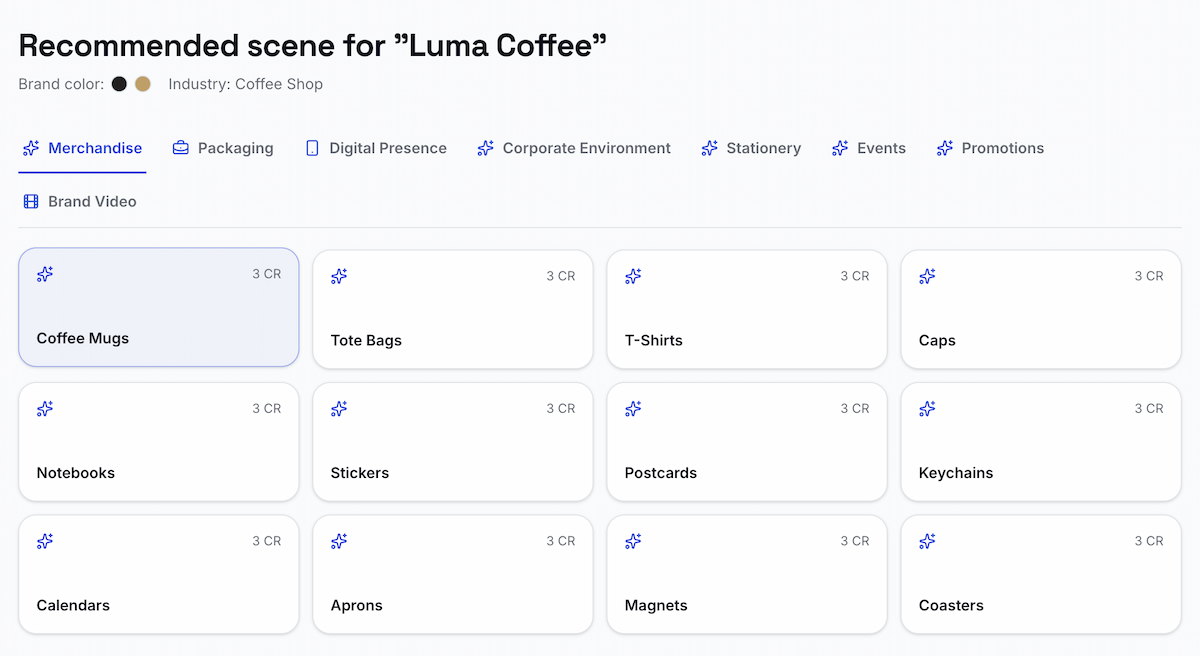
Recommended tags turn a logo analysis into possible brand applications.
When is LogoAI Mockup useful?
LogoAI Mockup is useful when you have a logo but have not yet decided how it should appear across your brand. You only need to upload the logo to start: browse a familiar category, choose a reference image for visual direction, or select a recommended tag to explore another application. This helps solve three common problems at once: choosing which scenes to review, moving beyond a limited template library, and seeing how one identity could extend to stationery, merchandise, signage, digital media, or a short Brand Video.
A mockup remains a visual preview. It cannot confirm exact print color, material behavior, sign dimensions, embroidery detail, cutting paths, or supplier tolerances. Use it to make and communicate a design decision, then use the production partner’s specifications and proofing process for the final manufacturing decision. Adobe’s explanation of proofing colors shows why a screen preview and a color-managed print proof answer different questions.
If you are extending the same logo into a wider identity, you can keep the rest of your brand assets together, including related logo files, symbols, colors, social assets, and mockups.
Ready to create your own logo?
Turn your brand name into professional logo concepts in seconds with LogoAI.
Generate my logo