How to Make a Favicon from Your Existing Logo? PNG, ICO and Website HTML
Turn an existing logo into a clear favicon with automatic symbol cropping, real-size previews, a complete PNG and ICO download package, and ready-to-paste website HTML.
Your logo can look sharp on a homepage and turn into a blur in a 16-pixel browser tab. LogoAI's free Logo to Favicon Generator is built for that exact problem. Upload the logo you already have, let the tool find and crop its symbol, preview the result in the places people will see it, and download the complete favicon package in one ZIP.
You do not need to redraw the logo or prepare every size by hand. The tool accepts PNG, JPG, and WEBP uploads, or a logo pasted from your clipboard. The processing happens in your browser, so the logo is not uploaded, and the download has no credits or watermark.
Turn the logo into browser-ready files
1. Upload the logo you already use
Open the free logo to favicon tool and add your sharpest PNG, JPG, or WEBP export. Use the original file when possible. A larger, cleaner source gives the crop better edges than a small screenshot copied from a webpage.
2. Let smart crop find the symbol
A full wordmark usually becomes unreadable when it is squeezed into a square. The tool finds the symbol in your logo and crops it automatically. Adjust the square if needed so the complete mark stays inside the frame with a small amount of padding.
The crop should work as a standalone symbol. An icon or emblem is usually the strongest starting point. A monogram or single letter can work when its shape is distinctive. Keep the original full logo for larger placements, and keep transparent and single-color source versions for other brand contexts. A transparent version prevents a visible box around the mark, while a single-color version can stay readable when a gradient loses contrast.
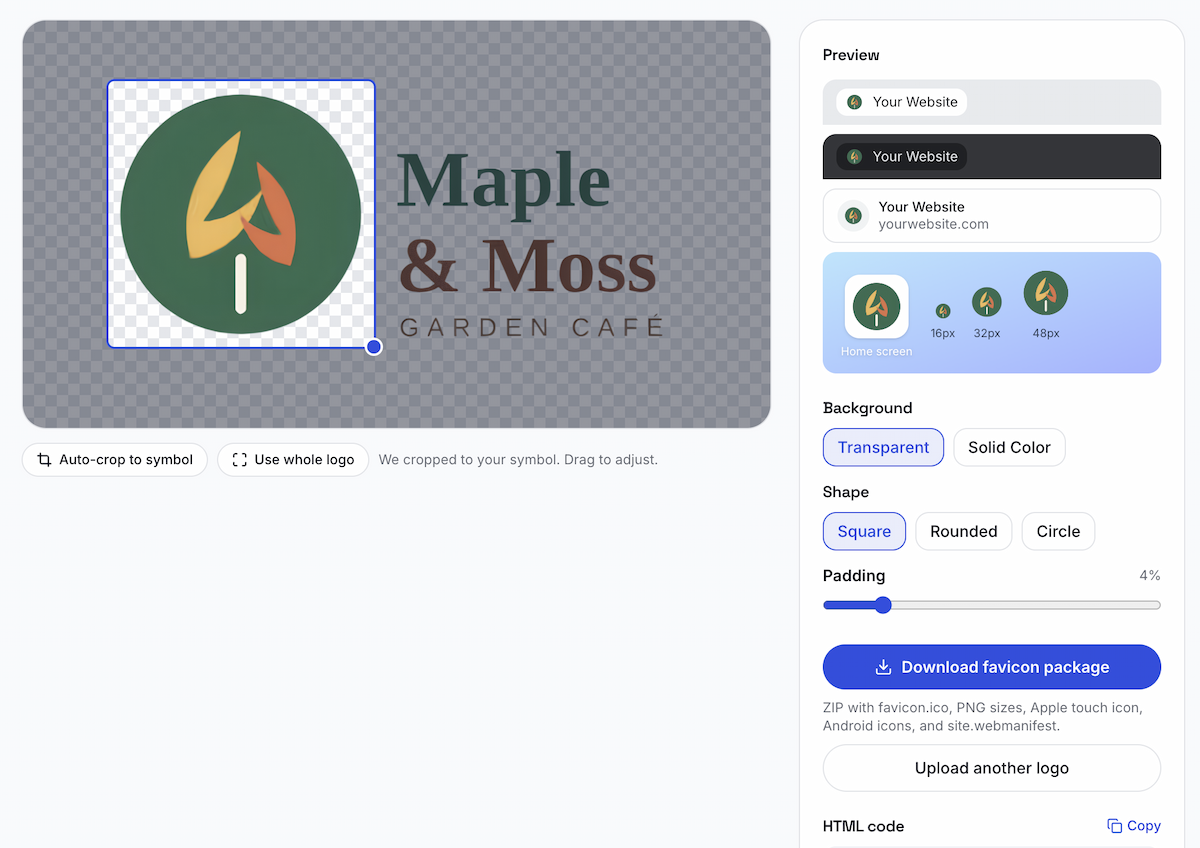
Auto-crop, background, shape, padding, previews, and favicon package download.
Those same sizing and background issues affect social avatars and website headers too, a pattern explored in our article on logo consistency across platforms.
3. See the favicon at real size
The live preview shows the result in light and dark browser tabs, a Google search result, and a phone home screen. Check the favicon at 16 × 16 and 32 × 32 pixels before you download it:
- The outside shape is easy to recognize.
- The main colors remain separate.
- Thin strokes and small letters do not turn into noise.
- The icon stays visible against a dark tab.
If the 16-pixel preview looks muddy, adjust the crop or simplify the source symbol. Enlarging a preview will not restore details that disappear at the actual size.
4. Download every file in one ZIP
When the previews look clear, download the package. It includes the files most sites need:
| File | Use it for |
|---|---|
favicon.ico |
Browser tabs and bookmarks, including older browsers |
favicon-16x16.png |
Small browser tabs |
favicon-32x32.png |
Larger browser tabs and search results |
apple-touch-icon.png |
iPhone and iPad home screens |
android-chrome-192x192.png |
Android home screens |
android-chrome-512x512.png |
Installed web apps and splash screens |
site.webmanifest |
Tells supported browsers which icons to use |
The package also includes the HTML code. You can use the generated snippet instead of writing the paths from memory.
Add the favicon to your website HTML
Upload the downloaded files to the location used by your site. For a simple static page, place the icon links inside the <head> element:
<head>
  <link rel="icon" href="/favicon.ico" sizes="any">
  <link rel="icon" type="image/png" sizes="32x32" href="/favicon-32x32.png">
  <link rel="icon" type="image/png" sizes="16x16" href="/favicon-16x16.png">
  <link rel="apple-touch-icon" href="/apple-touch-icon.png">
  <link rel="manifest" href="/site.webmanifest">
</head>
The generated HTML snippet is the best reference for your downloaded filenames. For a basic explanation of placing a favicon link in a static page's <head>, see this static HTML favicon setup.
If your site serves favicon.ico from its root directory, browsers can often find that file automatically. The explicit links make the other sizes and device icons available as well.
Check the favicon after deployment
Open the live site in a new browser tab and check the tab icon, bookmark entry, and address bar. Test on both a light and dark browser theme if your logo uses a dark or low-contrast color.
A cached favicon can make a correct change look missing. Refresh the page, open a private window, or test from another browser before changing the artwork again. If the icon still does not appear, check that the file paths in the HTML match the uploaded filenames and that the files are being served from the live site.
If the source logo needs a cleanup step first, use free logo tools to remove a background, sharpen a low-resolution file, or change its color, then return to the favicon workflow.
Your existing logo is ready for a favicon when its symbol stays recognizable at 16 pixels, the preview holds up in light and dark contexts, and the generated files are linked from the live page.
Ready to create your own logo?
Turn your brand name into professional logo concepts in seconds with LogoAI.
Generate my logo