Dark Mode Logo Generator
Upload your logo to see how it looks on dark, free. Then let AI lighten only the parts that disappear, keeping your brand colors, or make a clean white version.
1. Your logo
Dark mode logo examples
Real results from the dark mode logo generator. The logo stays the same; only the parts that would disappear on dark are made lighter.
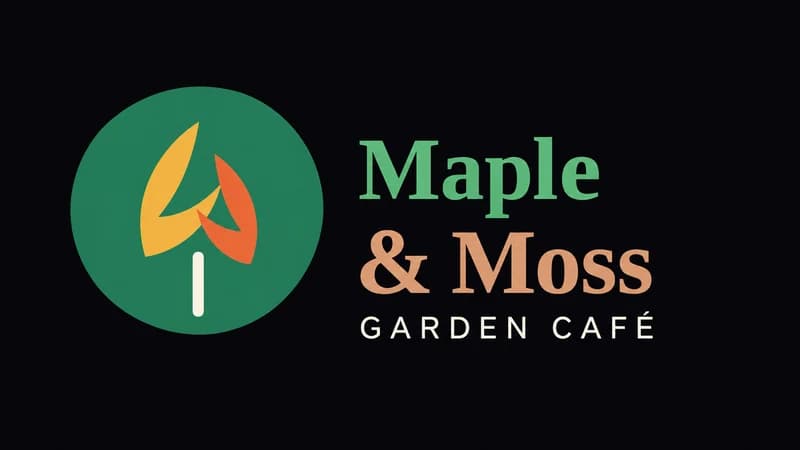
Keep my colors · Black. Dark green and brown text lightened; the symbol keeps its brand colors.
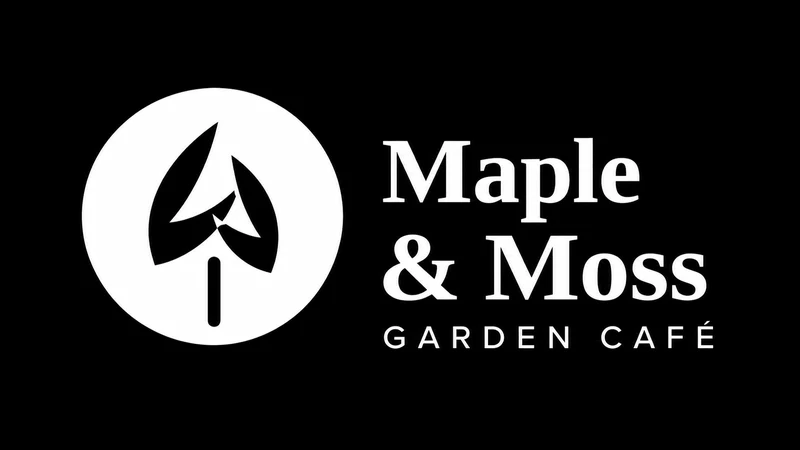
All white · Black. A clean white logo, with the leaves kept as cut-outs.
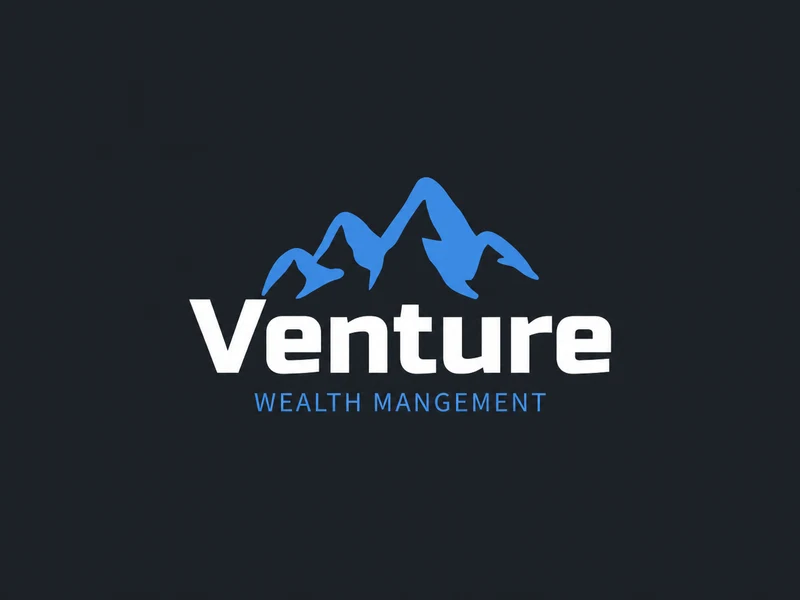
Keep my colors · Charcoal. Black text turned white; the mountains became a lighter blue.
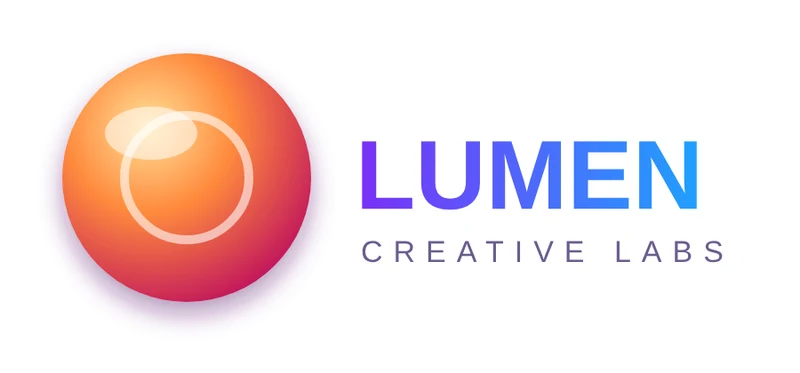
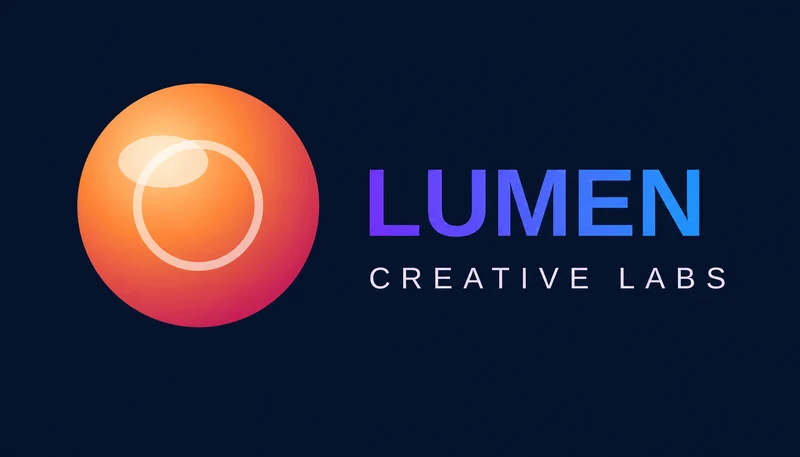
Keep my colors · Navy. The gradient stays as it is; only the small dark text was lightened.
How to make a dark mode logo in 3 steps
1. Upload your logo
Drop in, click to choose, or paste a PNG, JPG, or WEBP logo. See instantly how it looks on dark.
2. Pick a background and style
Choose black, charcoal, navy, or your own color, then keep your brand colors or go all white.
3. Download your dark mode logo
Get a high-resolution PNG, or remove the background for a transparent version.
Where you need a logo for dark backgrounds
Websites and online stores
Dark website headers, dark themes, and the "dark mode logo" setting in Shopify and site-builder themes.
Gmail, Apple Mail, and Outlook darken emails in dark mode, so dark logos in your header and signature can vanish.
Apps and SaaS tools
Jira, GitLab, Zoho, and many other tools ask for a separate logo for dark mode.
Video and presentations
Dark slide templates, video intros, and social posts with dark backgrounds.
Tips for a great dark mode logo
- Check your logo on dark before you change it. If everything already stands out, you may only need an all-white version.
- Keep my colors suits colorful logos; All white is the classic choice for one-color and very dark logos.
- Use a transparent PNG wherever you can, so your logo sits cleanly on any dark color without a box behind it.
- Look at it small. Thin lines and small text are the first to disappear on dark backgrounds.
- Keep both versions together, so your team always uses the right one on light and dark backgrounds.
Simple one-color logo? You can turn it white for free with the logo color changer.
Dark mode logo FAQ
What is a dark mode logo?
A dark mode logo is a version of your logo made to stay clear on dark backgrounds. Usually the dark parts, like black or navy text, are lightened or turned white, while the rest of the logo keeps its brand colors.
How do I make my logo work on a dark background?
Upload your logo, pick a dark background, and choose Keep my colors or All white. The generator lightens only the parts that would be hard to see and keeps everything else the same.
Will it change my logo design?
No. Your shapes, text, and layout stay the same. Only colors that would disappear on the dark background are made lighter, or with All white, the whole logo becomes white.
Can I get a transparent dark mode logo?
Yes. Open any result and choose Remove BG to download a transparent PNG, ready to upload to your website, email tool, or app.
Is the dark mode logo generator free?
Checking how your logo looks on dark is free. Generating a dark mode version is free to try with a LogoAI account; after the free trial, each image uses a few credits.
Should I use a white logo or keep my colors?
Keep your colors when your logo is colorful and only some parts are too dark. Go all white for one-color logos, or when you want the simplest, most consistent look, like many big brands do.