ChatGPT Images 2.6: What's New and How to Choose Between Flare and Sunburst
Learn what Images 2.6 adds, compare GPT-Image-2.6 Flare with Sunburst, and choose the right model for fast iteration or detailed editing.
Images 2.6 is the right starting point when you want faster generation and more reliable edits. Choose GPT-Image-2.6 Flare for quick concept work and repeated variations. Choose GPT-Image-2.6 Sunburst when image detail and consistency across edits matter more than speed.
OpenAI released Images 2.6 in ChatGPT, Codex, and the API on November 4, 2026. The update adds faster generation, more controlled editing, GIF creation, SVG export, and two API variants with different priorities. This guide explains the changes, compares Flare with Sunburst, and shows how to compare ChatGPT image models with the same prompt.
How Flare and Sunburst differ
Both variants support image generation and editing. The practical choice depends on how many ideas you need to test and how much visual detail you need to preserve.
| Feature | GPT-Image-2.6 Flare | GPT-Image-2.6 Sunburst |
|---|---|---|
| Main priority | Speed and iteration | Detail and consistency |
| Best quality setting | Low for fast drafts | Medium or high for more detailed output |
| Useful for | Concepts, posters, product variations, and rapid testing | Detailed product visuals, complex scenes, and multi-round edits |
| Layout work | Improved layout quality for posters and product imagery | Higher-quality output at medium or high quality settings |
Choose Flare when you expect several rounds of experimentation. Choose Sunburst when a small change should leave the rest of the image stable.
What changed in Images 2.6
OpenAI describes Images 2.6 as 50% faster than the previous generation. In the API, Flare can generate an image in as little as six seconds when quality is set to low.
The update also improves consistency between editing rounds. You can replace a product background, adjust a character's setting, or revise part of a composition while preserving more of the subject's appearance.
Image markup is now available in the API as well as ChatGPT. You can mark the area that needs changing, which gives the model a more specific editing instruction.
Developers get two controls for balancing speed and detail:
- Image quality controls visual detail and fidelity.
- Complexity controls how much planning the model applies to the request. OpenAI recommends low complexity for most edits and medium or high complexity for scenes with many elements or constraints.
Images 2.6 also supports GIF creation in ChatGPT, Codex, and the API. The API can export SVG files, which are useful for designs that need to scale across websites, apps, or print.
For the release details and availability information, see OpenAI's Images 2.6 announcement.
Compare the six ChatGPT image options in LogoAI
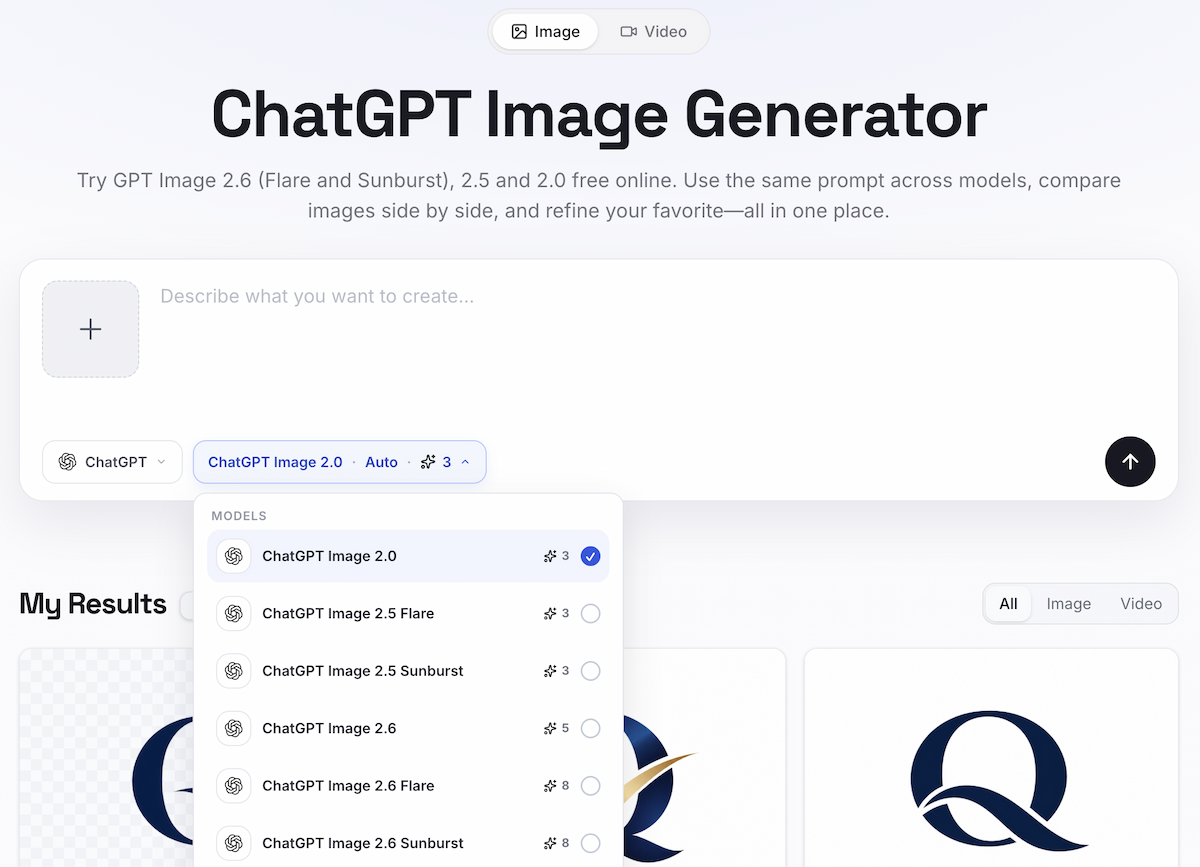
Model selector in LogoAI's ChatGPT Image Generator.
LogoAI's ChatGPT Image Generator currently lists six ChatGPT image options. The model picker shows their current credit amounts:
| Model | Credits shown in the model picker |
|---|---|
| ChatGPT Image 2.0 | 3 |
| ChatGPT Image 2.5 Flare | 3 |
| ChatGPT Image 2.5 Sunburst | 3 |
| ChatGPT Image 2.6 | 5 |
| ChatGPT Image 2.6 Flare | 8 |
| ChatGPT Image 2.6 Sunburst | 8 |
Select multiple models, submit one prompt, and compare the results side by side. This makes it easier to judge composition, text rendering, detail, and how much each model changes between edits. The credit total shown for a task can also depend on the number of images and the selected output settings, so check the picker before generating.
A simple workflow for choosing a model
Start with the task rather than the model name.
- Write one prompt that describes the subject, composition, style, and required text.
- Run it with Flare when you want to test several directions quickly.
- Run the same prompt with Sunburst when you need more detail or plan to edit the result repeatedly.
- Keep the stronger result, then make one targeted edit at a time.
When a product, character, or logo must stay recognizable, upload a reference image and name the elements that should remain unchanged. For a focused edit, specify the area to change and list the details to preserve.
Our earlier guide on editing GPT images precisely covers the same preservation problem in more detail.
What you can create with Images 2.6
Images 2.6 fits workflows that need both generation and revision:
- Product photography and seasonal campaign variations
- Posters, ads, and social media graphics
- Character designs that need to remain consistent across scenes
- Targeted edits to an existing image
- GIFs for mascots, reactions, and short social posts
- SVG assets for websites, apps, and print
For example, a small business can create a product scene with Flare, compare several backgrounds, then move the best concept to Sunburst for a detailed revision. The same finished image can become a short animation through a supported GIF or image-to-video workflow.
How to write better prompts
Describe the visual decisions that affect the result:
- Name the subject and what it is doing.
- Specify the camera angle, layout, lighting, background, and style.
- Include exact wording when the image contains a headline or label.
- Use a reference image when a product, character, or brand detail must stay consistent.
- Ask for one change at a time during editing.
A prompt such as “product image” leaves too many choices open. “Front-facing studio photograph of a blue insulated bottle on a pale stone surface, soft window light, empty space on the right for a headline” gives the model a clearer composition to follow.
Frequently asked questions
Is Images 2.6 available in ChatGPT?
Yes. OpenAI says Images 2.6 is available globally in ChatGPT and Codex across desktop, mobile, and web. GPT-Image-2.6 Flare and Sunburst are available through the API.
Should I use Flare or Sunburst?
Use Flare for fast drafts and repeated variations. Use Sunburst for detailed output and edits where preserving the subject matters.
What is the complexity setting?
Complexity controls how much planning the model applies to a request. Low complexity is suited to quick edits. Medium or high complexity can help with scenes that have many elements or constraints.
Can Images 2.6 create GIFs and SVGs?
Yes. GIF creation is supported in ChatGPT, Codex, and the API. SVG export is available through the API.
Can I compare Flare and Sunburst with one prompt?
Yes. LogoAI's model selector lets you select multiple ChatGPT image models and compare their results in one workspace.
Ready to create your own logo?
Turn your brand name into professional logo concepts in seconds with LogoAI.
Generate my logo