How to Make a Black and White Logo (Free, Step by Step)
Learn why your brand needs a black and white logo, how to make one free in minutes with a logo color changer, and what to do when gradients get in the way.
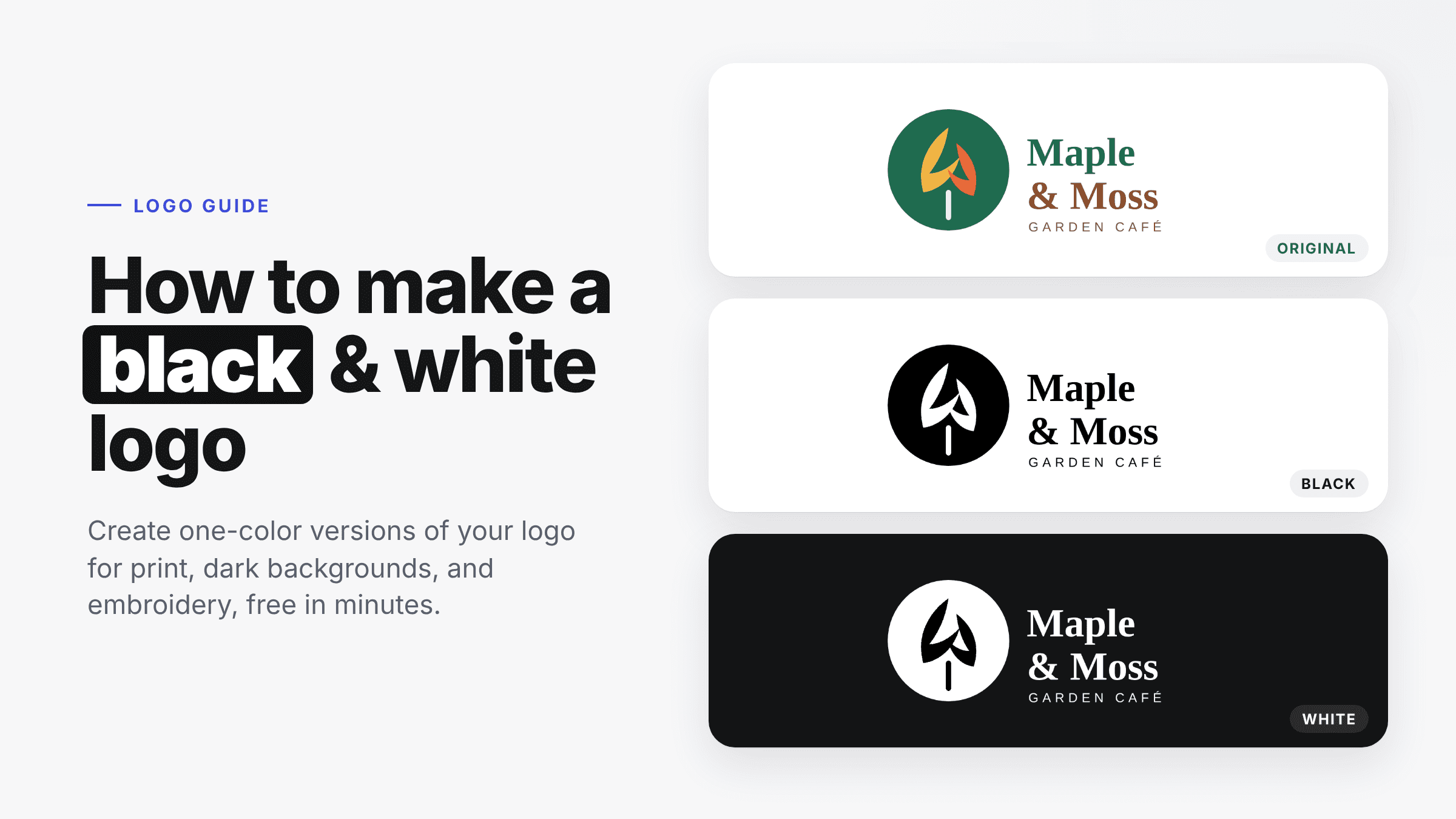
Your full-color logo looks great on your website. But sooner or later you will need it somewhere color can't go: a black-and-white invoice, a laser-engraved gift, a white logo over a dark photo, or a single-thread embroidered shirt. That's when you need a black and white version of your logo, sometimes called a one-color or single-color logo.
In this guide you'll learn why every brand needs one, how to make a black and white logo for free in a few minutes, and what to do when a simple color swap isn't enough.
What Is a Black and White Logo Version?
A black and white logo is your existing logo redrawn in just two tones: a solid black version for light backgrounds and a solid white version for dark backgrounds. A single-color logo is the same idea in one brand color instead of black.
It is not a different logo. The shapes, letters, and layout stay exactly the same; only the colors are reduced. Designers usually deliver it as part of a set of logo variations, next to your primary logo, icon, and wordmark.
Why Your Brand Needs a Black and White Logo
A one-color version isn't a nice-to-have. It's the version that shows up in more places than you'd expect:
- Printing on a budget. Receipts, invoices, faxes, and newspaper ads often print in black only. A full-color logo printed in grayscale can turn muddy and hard to read.
- Dark backgrounds. A white logo sits cleanly on a dark website header, a photo, a video intro, or a dark-mode app.
- Embroidery, engraving, and stamps. Laser engraving, rubber stamps, foil, and single-thread embroidery all reproduce one color at a time.
- Merch and screen printing. Every extra ink color raises the cost of a T-shirt or tote bag run. One color keeps it affordable.
- Partner and sponsor placements. Event banners and partner pages often show every sponsor's logo in one color so the row looks consistent.
- Testing your design. If your logo isn't recognizable in black and white, it relies too much on color. A one-color version is a quick strength test.
How to Make a Black and White Logo (Free, Step by Step)
The quickest way is LogoAI's free logo color changer. It runs right in your browser: your logo is never uploaded, and you don't need an account. We'll use a demo logo for a café called Maple & Moss.
Step 1: Upload your logo
Open the color changer and drop in your logo, click to choose a file, or paste it. A PNG with a transparent background works best.
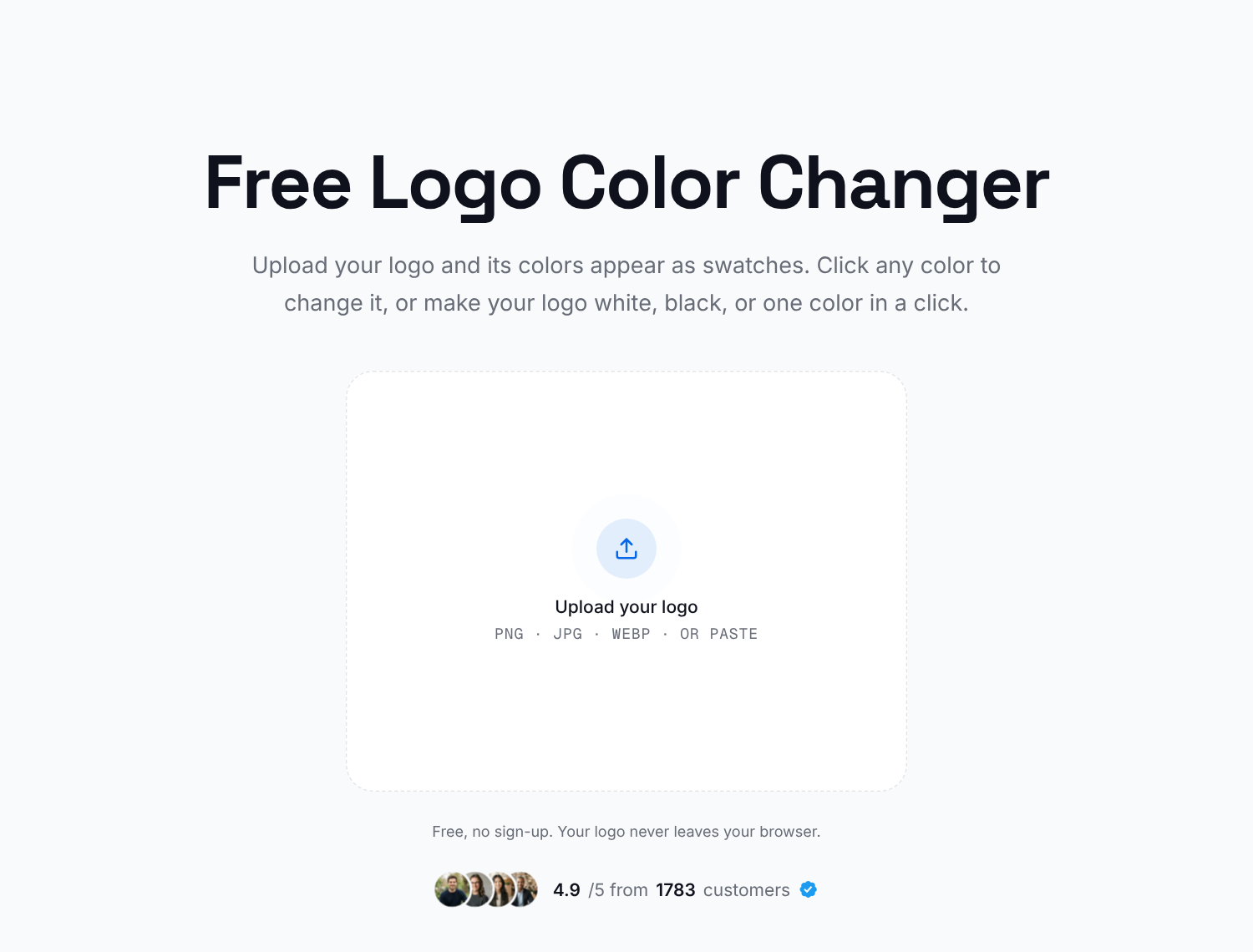
Tip: if your logo sits on a white or colored box, run it through the logo background remover first. Otherwise, a white version of your logo would sit on a white box.
Step 2: Check the detected colors
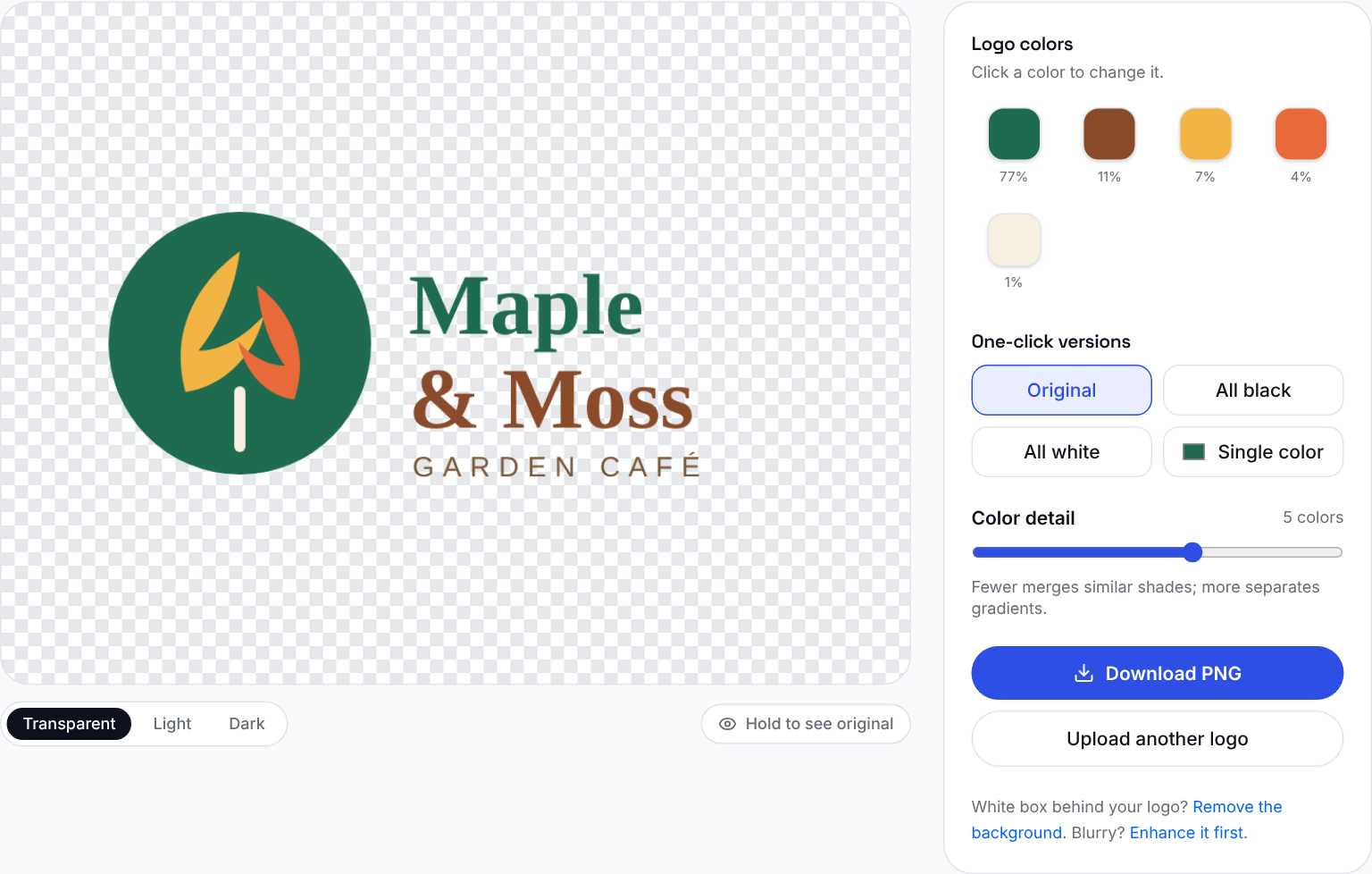
The color changer finds every main color in your logo automatically and shows them as swatches, with how much of the logo each color covers. Our demo logo has five: green, brown, yellow, orange, and cream.
Step 3: Try "All black" (and see why it isn't always enough)
The fastest route is the All black button, which turns every color in your logo black in one click. For simple logos, such as a plain wordmark, that's all you need.
But look at what happened to our logo: the leaves sit inside the green circle, so turning everything black made them disappear into a solid black dot.
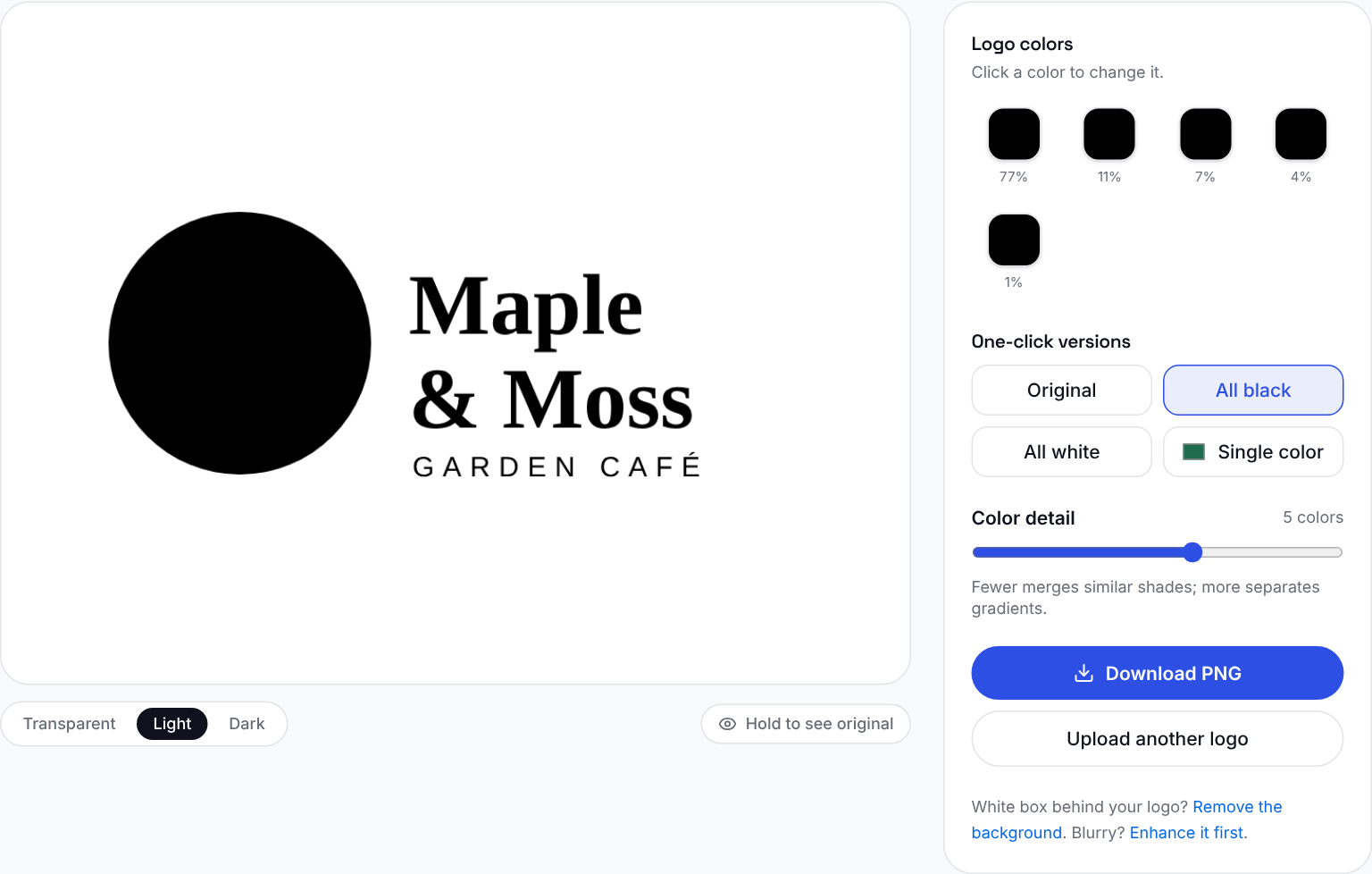
This is the most common mistake with black and white logos. Shapes that were separated by color need to be separated by contrast instead.
Step 4: Make a true black and white version
Instead of making everything black, click each swatch and choose black or white:
- Click the green swatch (the circle and "Maple") and type
#000000. - Click the brown swatch ("& Moss" and the tagline) and set it to
#000000. - Set the yellow, orange, and cream swatches (the leaves and stem) to
#FFFFFF.
Now the leaves are cut out of the black circle, and the logo reads perfectly in one ink.
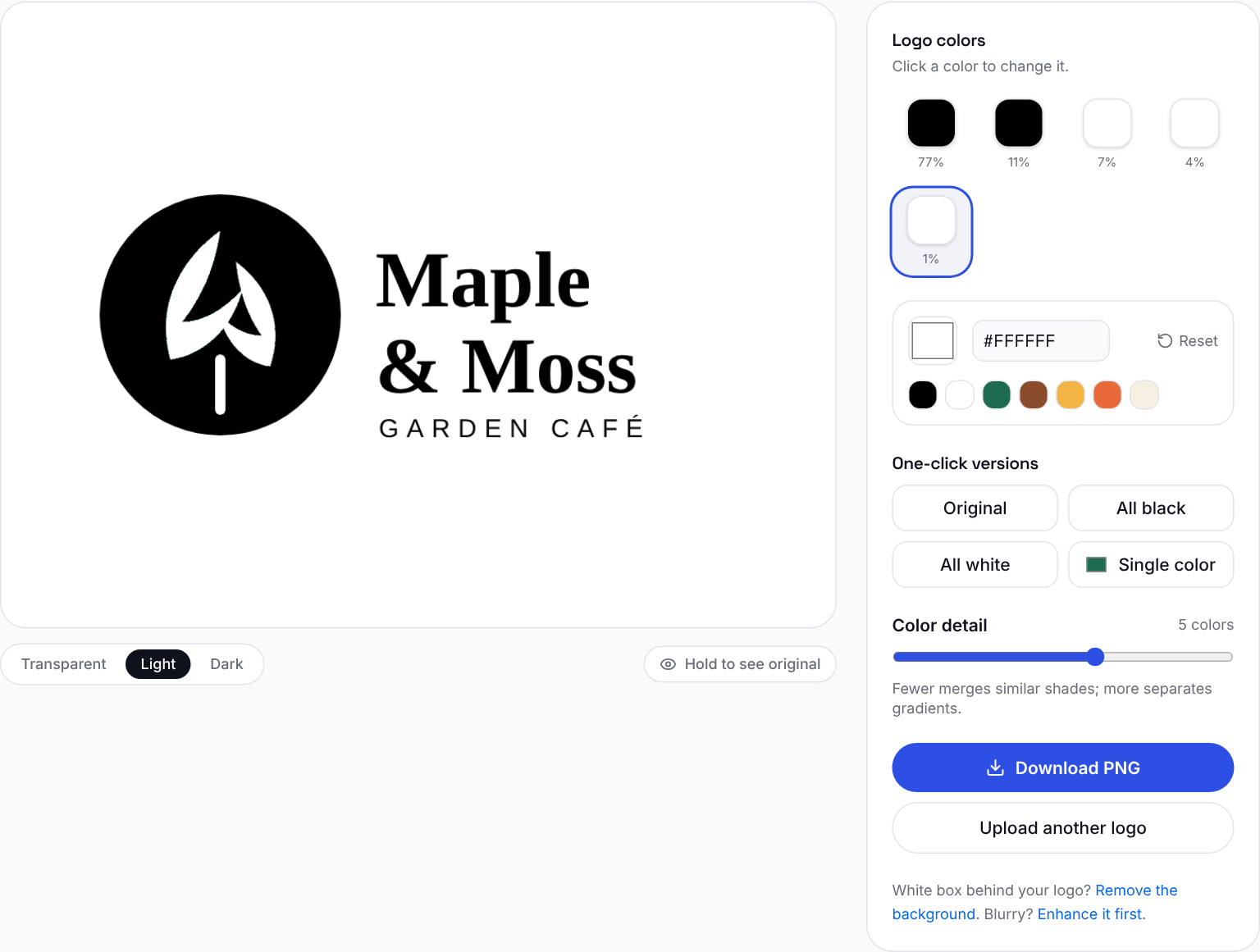
Click Download PNG to save it. The download keeps your transparent background.
Step 5: Make the white version for dark backgrounds
Flip it for dark backgrounds: set the circle and text to white, and the leaves to black. Switch the preview to Dark to check it.
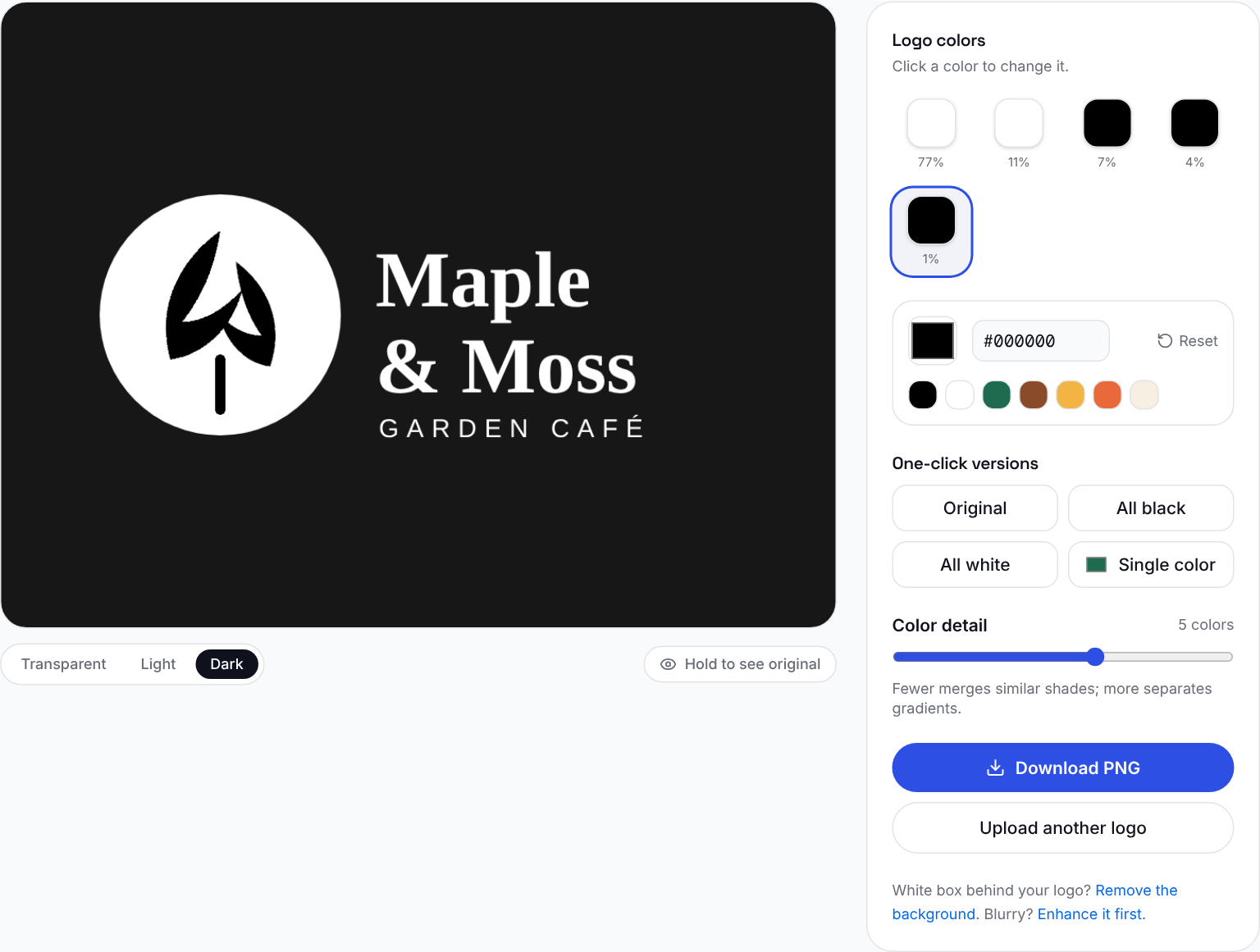
Tip: use the preview buttons (Transparent, Light, Dark) to check every version on the background it will actually be used on.
Bonus: A single-color brand version
You don't have to stick to black. Use the same steps with your main brand color for a one-color version that still feels on-brand, perfect for stamps, stickers, and embroidery.
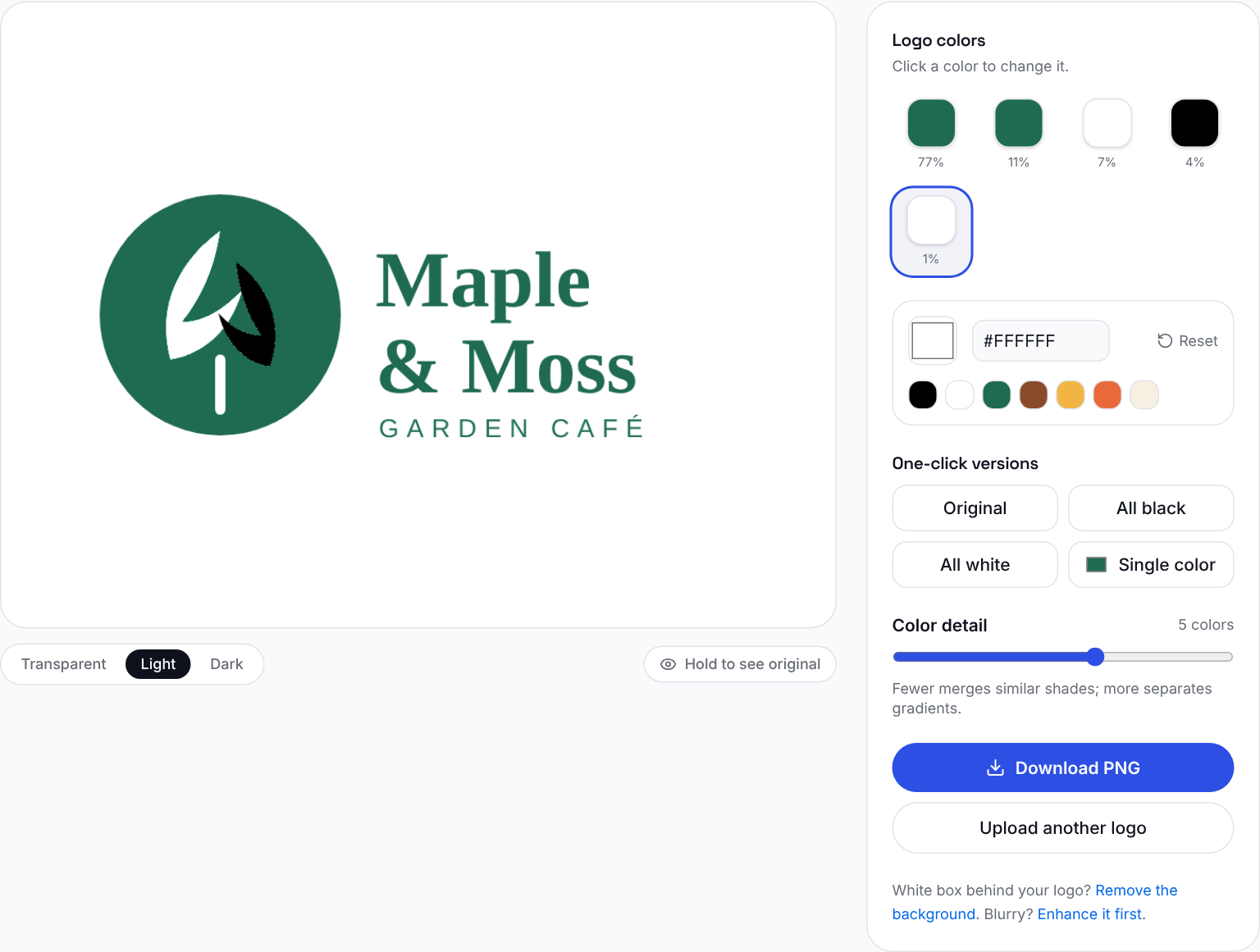
For a quick one-color version of a simple logo, use the Single color button and pick your color.
When a Color Swap Isn't Enough
Swapping colors works beautifully for flat logos with clear shapes. Some logos are harder:
- Gradients and glossy effects, where a 3D-looking sphere relies on light and shadow
- Shadows and glows that disappear or turn gray
- Photographic or illustrated logos with hundreds of shades
- Details defined only by color, like a highlight or a thin ring in a lighter tone
Here is a demo logo with a glossy gradient sphere. After All black, the highlight and the inner ring are gone, and you're left with a flat dot and a gray shadow.
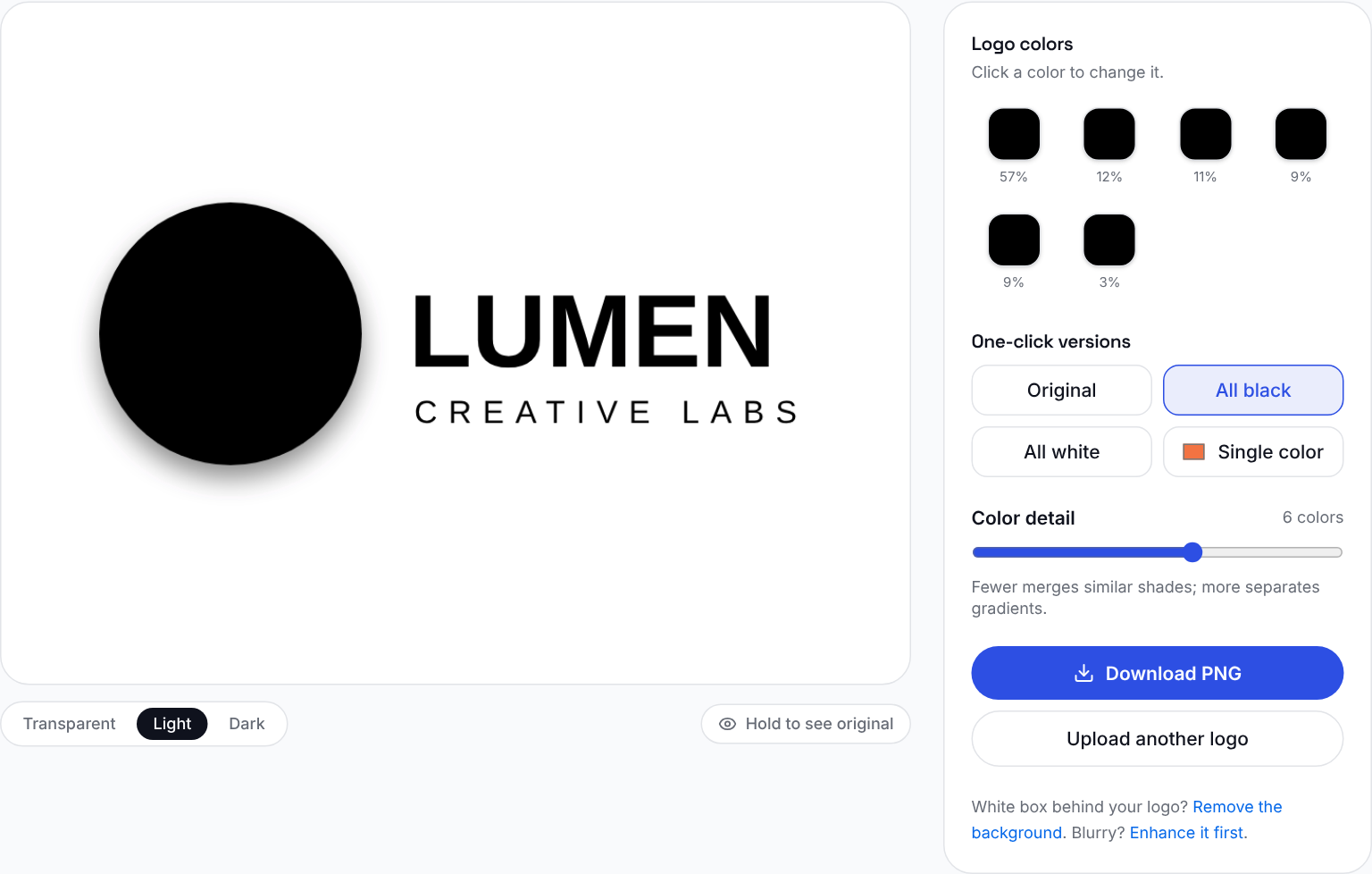
No color swap can fix this, because the detail was never a separate color. The logo needs to be redrawn as a one-color design.
Let AI Redraw It: Black and White Logos in the LogoAI Brand Kit
For logos like this, use the AI brand kit. Upload your logo and the Logo files section creates your transparent logo, a Single-color logo, and a White on color logo.
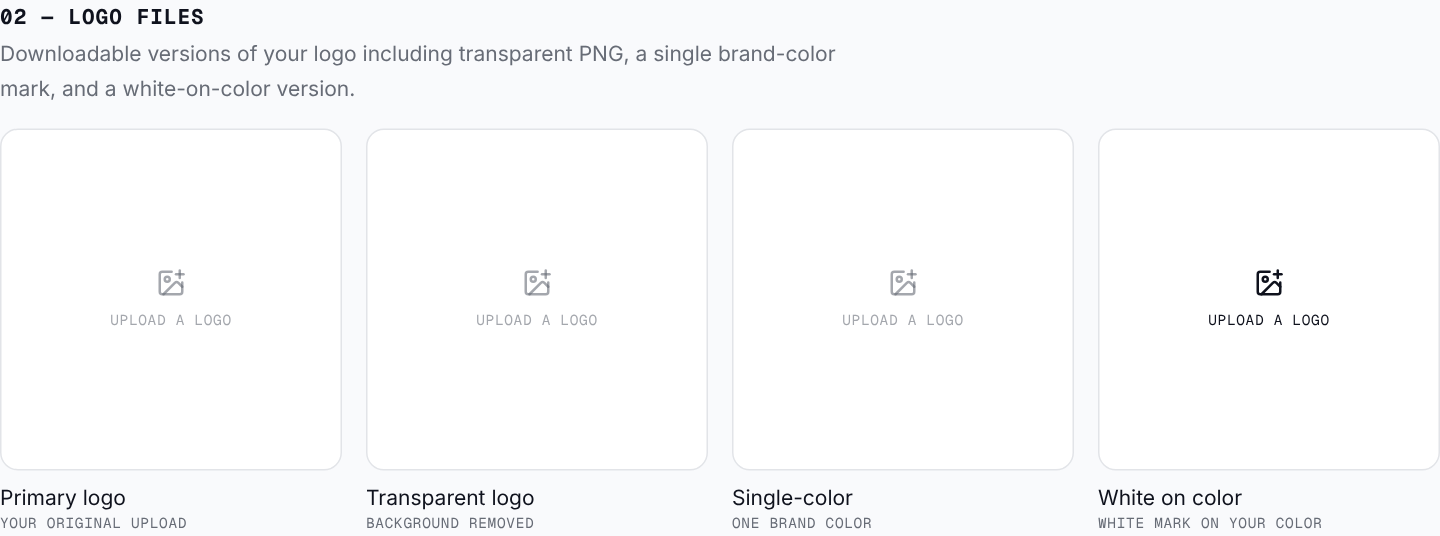
Each of these tiles has a color swatch and a Generate button:
- Single-color: pick black and click Generate. AI redraws your logo as one solid, flat color on a white background, keeping its shapes, spacing, and negative space, with no gradients, shading, or highlights.
- White on color: pick black as the background color and click Generate to get a white knockout version of your logo on solid black.
Instead of just recoloring pixels, AI rebuilds the logo as a true one-color design, so a glossy sphere becomes a clean solid shape. Generating uses credits from your LogoAI account after the free trial, and you can regenerate until you're happy. Need the AI version on a transparent background? Remove the background in one click.
Want every version at once? Logo variations automatically generates the one-color, reversed, and symbol versions your brand identity needs from a single upload.
Tips for a Great Black and White Logo
- Start from the best file you have. A large, sharp PNG gives cleaner edges. If your logo is small or blurry, use the logo enhancer first.
- Separate shapes with contrast, not color. When two parts of the logo touch, make one black and one white.
- Use pure black and pure white.
#000000and#FFFFFFprint most reliably. Very dark grays can look washed out on some printers. - Check it small. Shrink your one-color logo to favicon size. If it turns into a blob, simplify it.
- Keep a vector copy. For print shops, signs, and embroidery, convert your final PNG to SVG with the logo vectorizer.
- Save the whole set. Keep your black, white, and single-color versions together with your primary logo, so anyone working on your brand uses the right one.
Frequently Asked Questions
How do I make my logo black and white for free? Upload your logo to LogoAI's free logo color changer, then click All black or set each color swatch to black or white. Download your new logo as a PNG. No sign-up is needed.
How do I make my logo white? Use the All white button, or set each color to white, and preview it on the Dark background. If your logo has a white box behind it, remove the background first so the white version stays visible.
What's the difference between a black and white logo and a grayscale logo? A grayscale logo keeps shades of gray, so it still needs a printer that can reproduce gray tones. A true black and white logo uses only solid black and white, which works for engraving, stamps, embroidery, and one-color printing.
What is a single-color logo? A single-color logo is your logo in one color, often your main brand color, instead of black. It's used for embroidery, stickers, and one-ink printing where black would feel off-brand.
What if my logo has gradients or shadows? A color swap can't recover detail that only existed as light and shadow. Use the Single-color or White on color tile in LogoAI's AI brand kit to have AI redraw your logo as a clean one-color mark.
Make Your One-Color Logo Today
A black and white version is one of the most useful files your brand can have, and with the right tool it takes minutes. Try the free logo color changer for most logos, and let AI redraw the tricky ones.
Ready to create your own logo?
Turn your brand name into professional logo concepts in seconds with LogoAI.
Generate my logo