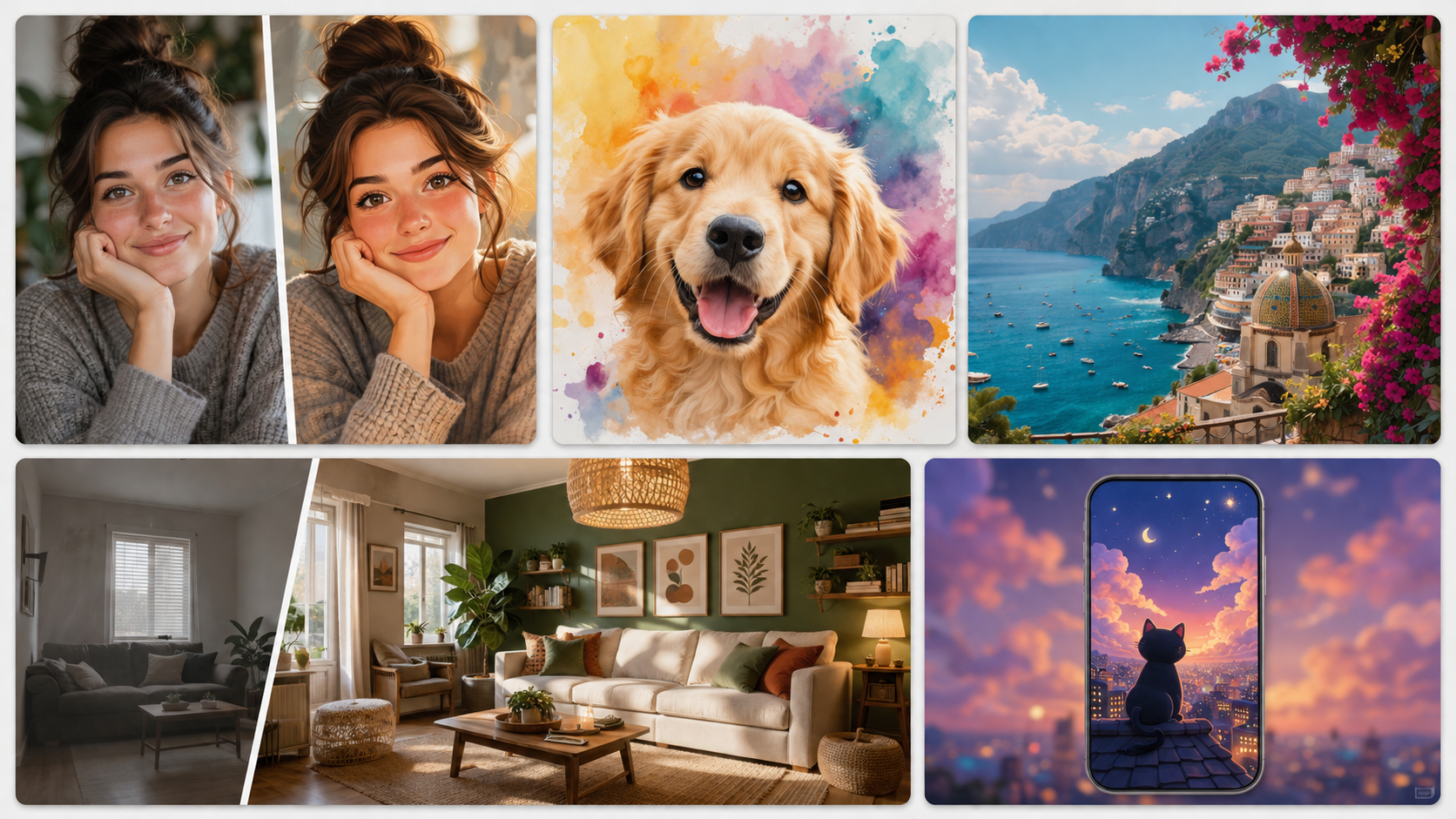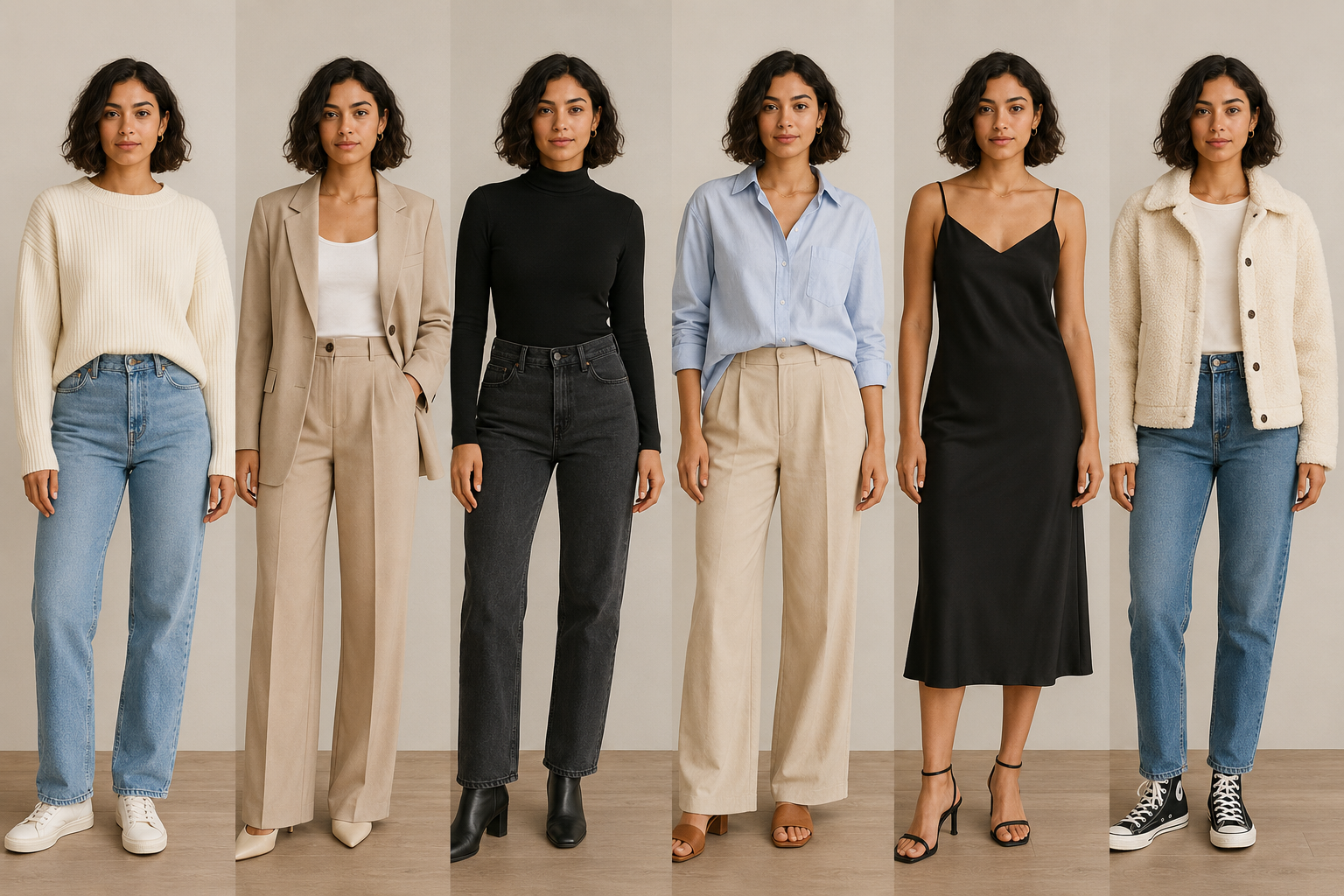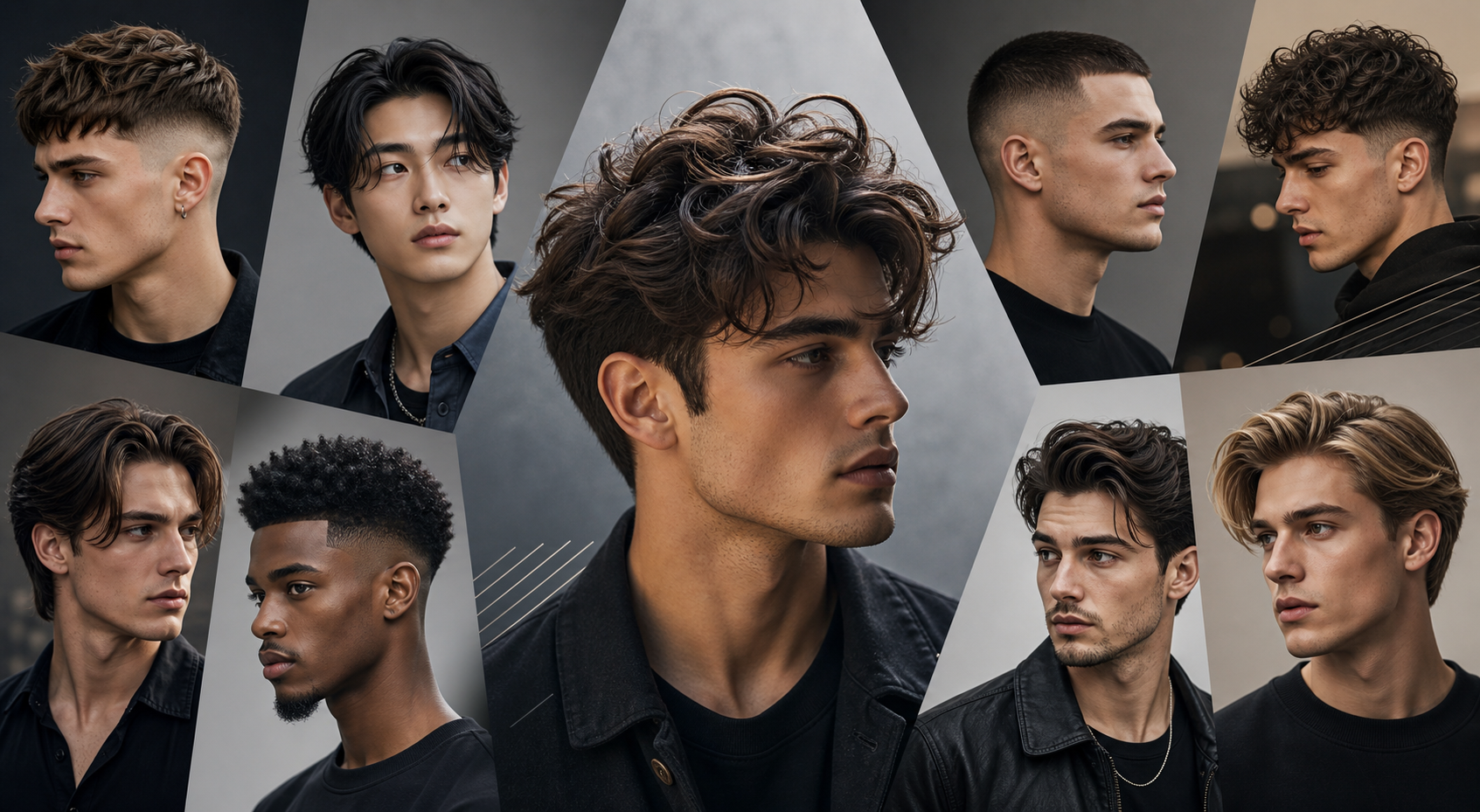


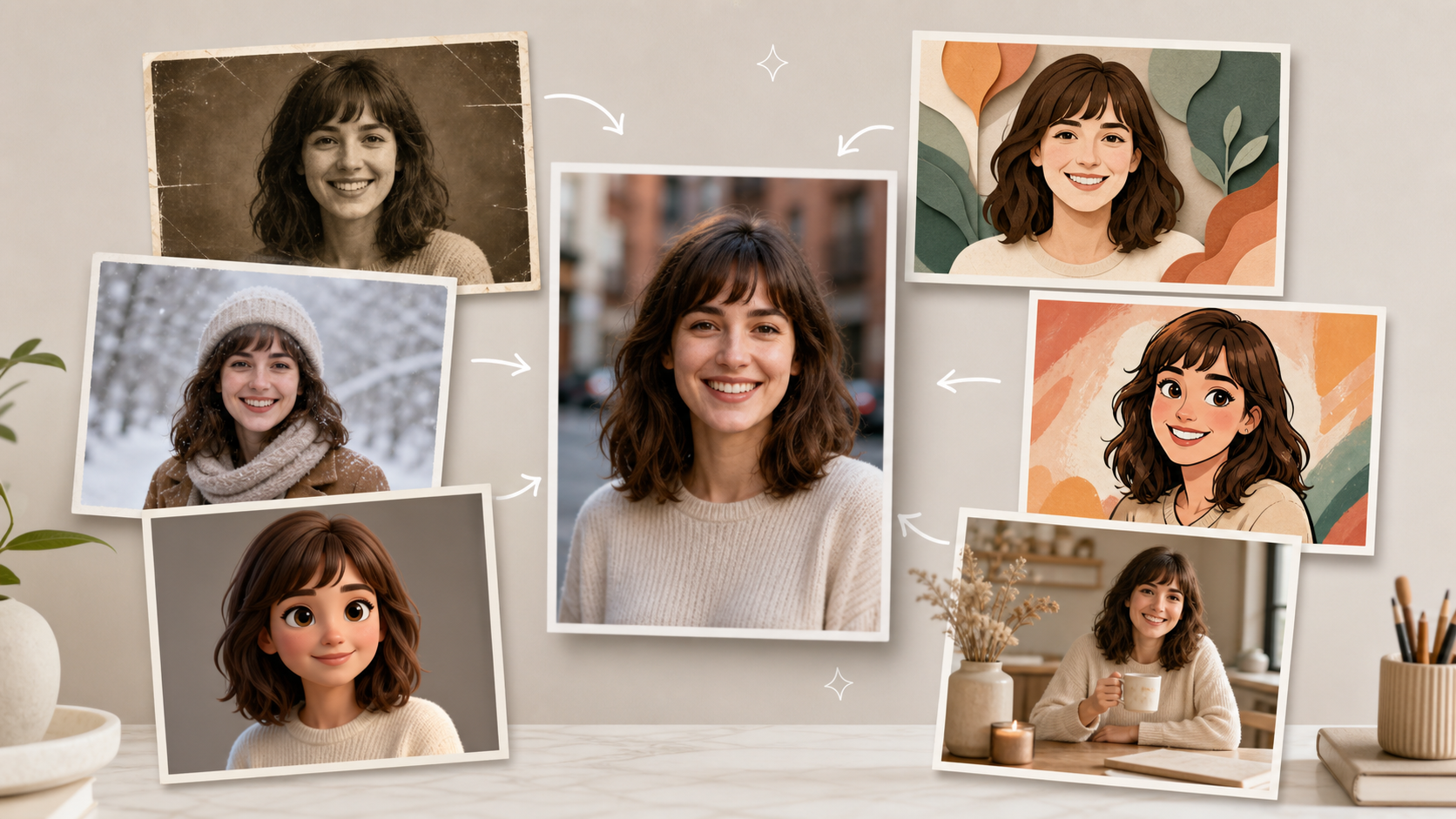
Most image edits start with a photo that is almost useful. An old family picture needs repair, a travel photo has the wrong weather, or a product shot needs a more natural setting. Instead of rebuilding the image from scratch, you can upload the original and ask for one focused change. To edit an image with ChatGPT AI, describe what should change, protect the details that matter, and refine the result only when needed.
Start with the ChatGPT Image Generator
When the edit does not fit one fixed scene, start with the ChatGPT Image Generator. Upload a regular image, describe the change you want, and say which subject details, composition, or lighting should stay the same.

1. How to Restore an Old Photo with ChatGPT
Some photos do not need a new style—they need their original detail back. Old family portraits, scanned prints, and faded snapshots can lose contrast through scratches, stains, noise, or years of color fading. the AI Photo Restoration 4K scene is a practical starting point when the goal is to make an old image clearer without turning it into a brand-new portrait.
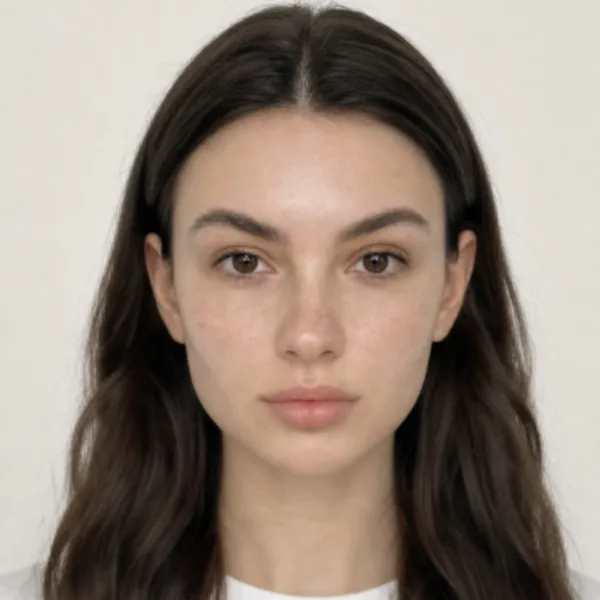 | 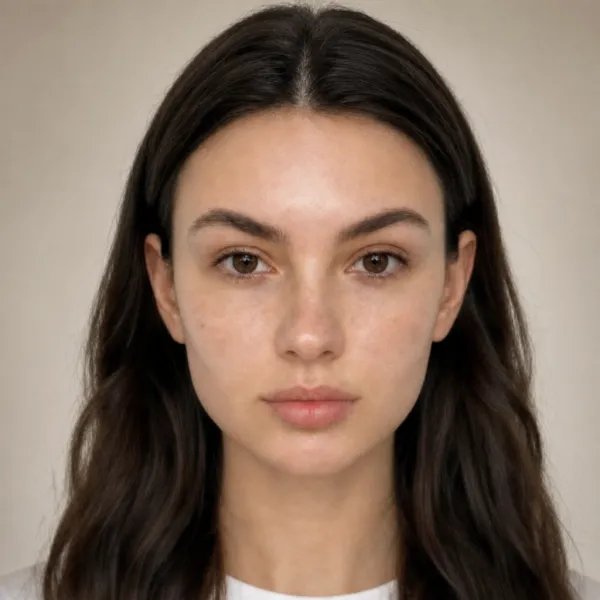 |
Prompt: Restore and enhance an old damaged photo. Remove scratches, stains, and noise. Reconstruct faded or torn areas while preserving original details. Slightly sharpen the image for better clarity, but keep it realistic. Apply natural and era-appropriate colors to skin, hair, and clothing. Use a soft, balanced background color without being too striking. The final result should look like an old photo that has been realistically restored and colorized, while respecting its original appearance.
2. How to Change the Season and Weather in a Photo
A season and weather edit can change the entire feeling of a location photo. Use this kind of edit when the architecture, person, or landscape already works but the atmosphere does not fit the story you want to tell. A summer scene can become a cooler winter setting, or a flat travel photo can gain a more distinctive seasonal mood while keeping the original composition recognizable.
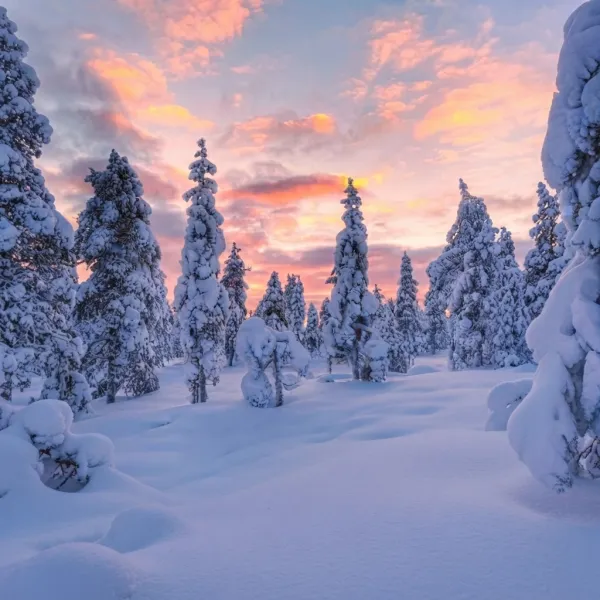 | 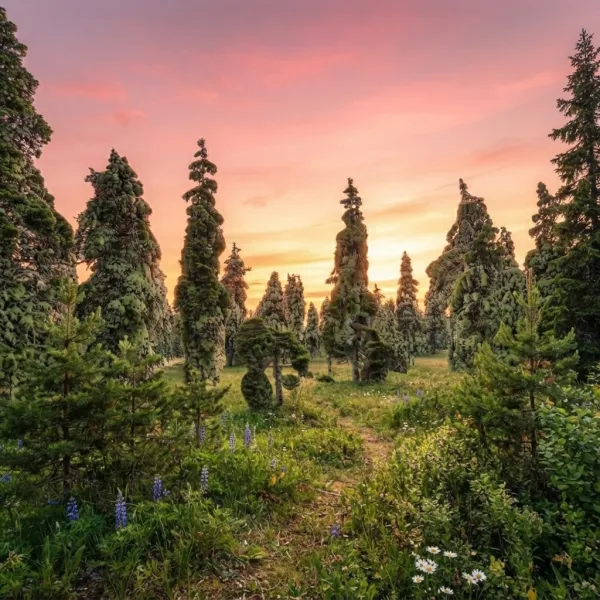 |
Prompt: Change the season and weather of this photo to summer.
3. How to Turn a Photo into a 3D Avatar
A profile photo can do more than show a face. A 3D Avatar Generator gives you a reusable visual identity for a community profile, game concept, virtual character, or playful social post. The useful part of this edit is keeping the person recognizable while changing the rendering style, hair detail, lighting, and background into a more dimensional character treatment.
 |  |
Prompt: Transform the uploaded image into a premium 3D animated avatar. Preserve the person's identity and features while creating a stylized 3D character with detailed hair, smooth textures, cinematic lighting, and a clean adaptive solid-color background.
4. How to Create a Paper-Cut Illustration from a Photo
When a regular photo feels too literal, a layered paper-cut treatment can give it a handmade, giftable quality. This works well for family images, seasonal content, children’s projects, and social posts that need a softer visual language. The key is to ask for visible paper layers and depth, not just a vague “cute illustration.”
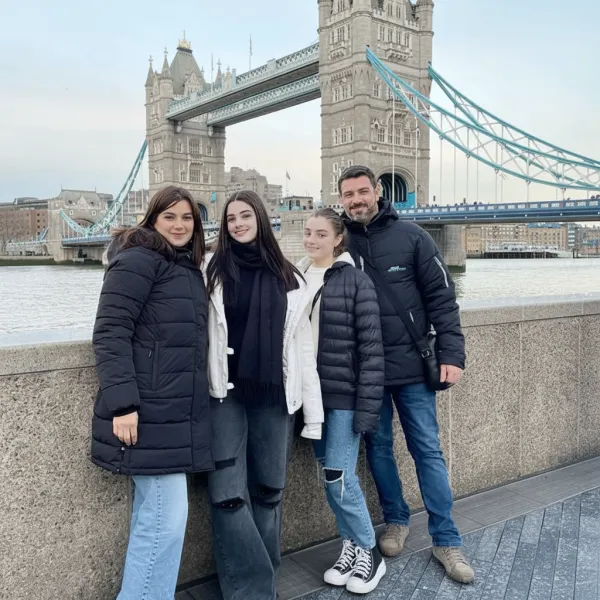 | 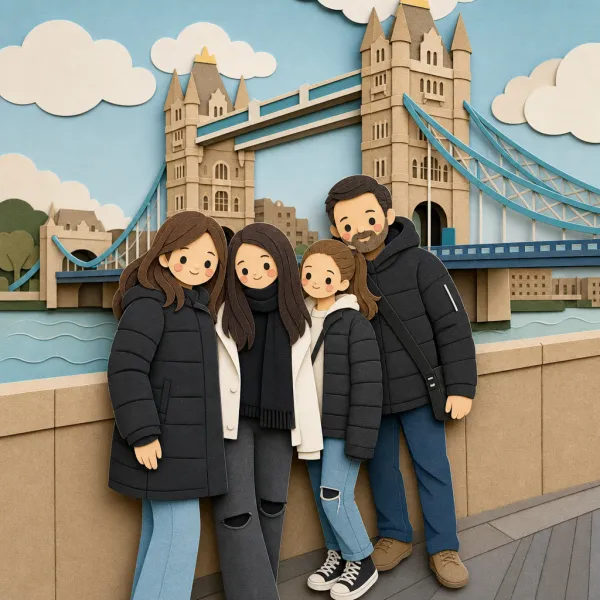 |
Prompt: Convert this images into a soft, handcrafted paper-cut layered illustration style, inspired by papercraft diorama aesthetics. Use smooth rounded shapes, simplified cute character proportions, and minimal facial details (dot eyes, blush cheeks) to create a warm, charming look. Apply stacked paper layers with visible depth, subtle shadows between layers, and clean cut edges that resemble laser-cut cardstock.
5. How to Add Playful Doodles to a Photo
Some edits should feel less polished and more personal. Doodle-style edits are useful for birthday posts, casual portraits, pet photos, and social content where hand-drawn marks can make the original scene feel more expressive. This scene keeps the underlying composition while adding illustrated gestures and cartoon energy around the subject.
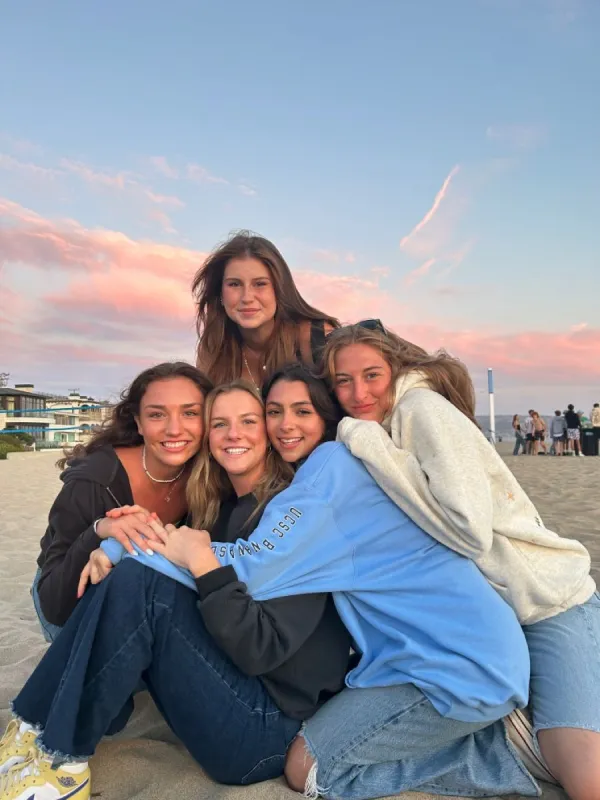 | 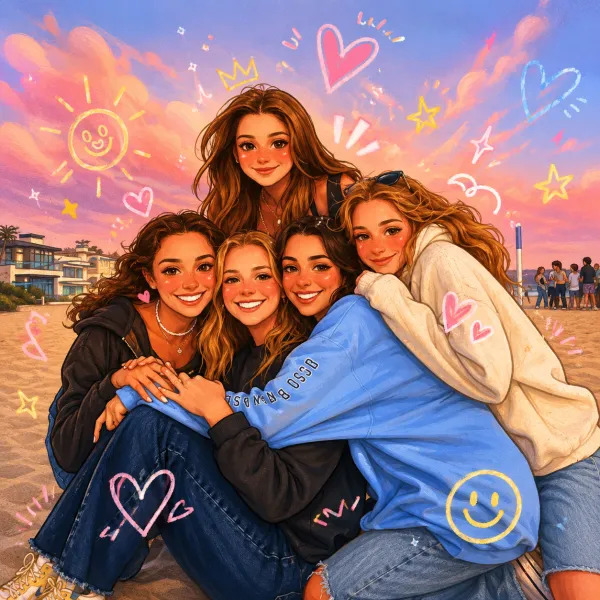 |
Prompt: Analyze the uploaded image and preserve the subject, composition, and lighting. Add playful hand-drawn doodles that interact with the subject, exaggerating poses or movements. Then transform the image into a cute cartoon-style illustration with vibrant, soft, and whimsical doodle aesthetics while keeping the original scene and character details.
6. How to Turn a Photo into an American Cartoon Style
A cartoon edit becomes more useful when it has a clear visual reference. Instead of asking for a generic cartoon, choose a defined 2D language with bold outlines, flat color, simplified features, and a recognizable expression. That makes the result easier to use as a profile image, character concept, or playful social graphic.
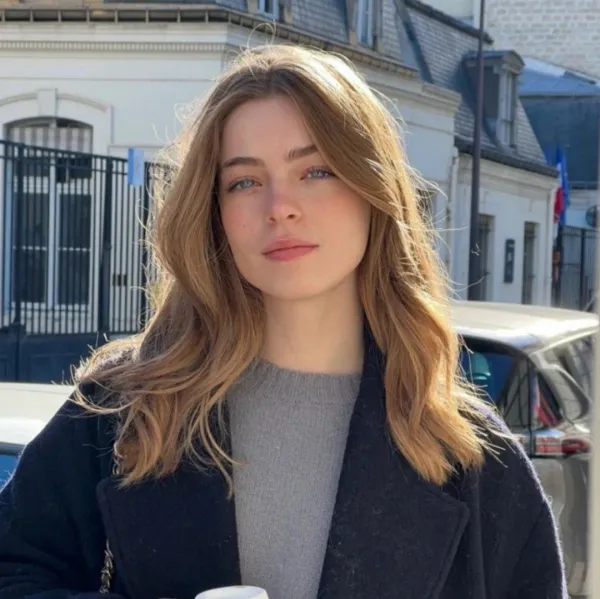 | 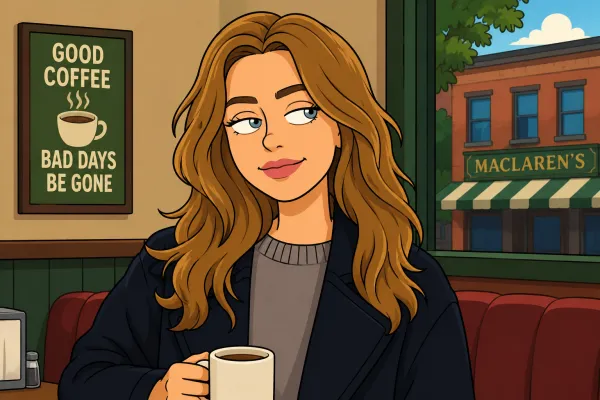 |
Prompt: Transform the uploaded image into a stylized 2D American adult animated sitcom character. Bold clean outlines, simplified facial features, flat colors, soft shading, and slightly exaggerated expressions. Keep identity recognizable, with a humorous TV cartoon vibe and simple sitcom-style background. No realism, no 3D, no heavy textures.
7. How to Place a Product in a Lifestyle Scene
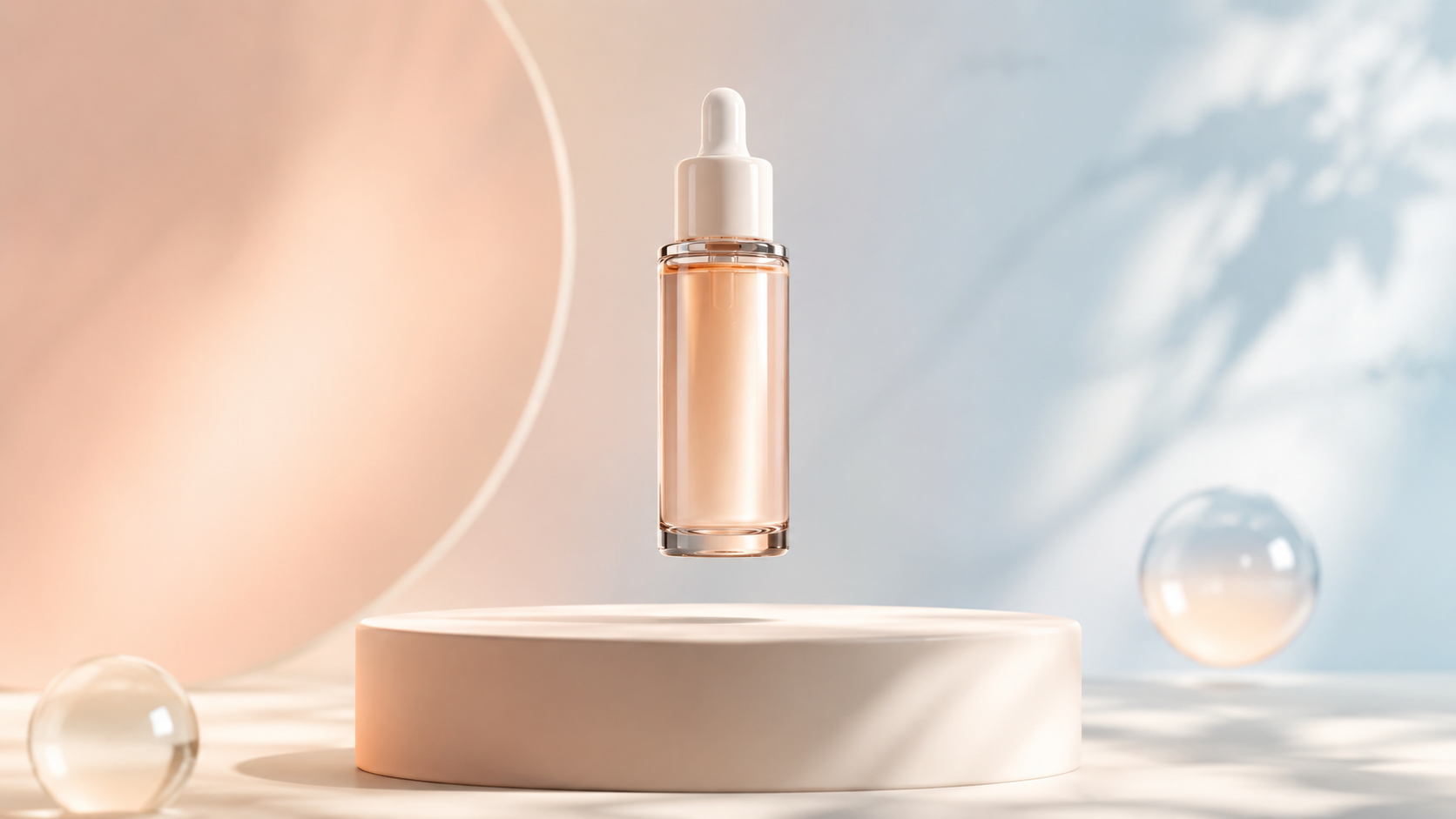
Product editing does not always mean making a white-background listing image. Sometimes the more useful change is showing the same product in a believable kitchen, office, living room, or outdoor setting. The Lifestyle Product Photo Generator helps a shopper understand where the product belongs and gives a brand more flexible material for social posts and campaign pages.
 |  |
Prompt: Place the uploaded product in a natural lifestyle setting. Automatically adapt the scene based on the product type—e.g., kitchen, living room, office, or outdoor. Include realistic props, soft natural lighting, and people interacting subtly if it fits the product. Ensure the product is the visual focus, maintaining accurate colors, textures, and proportions.
Choose the scene that matches the problem
The most reliable edit is usually the smallest useful one. Start with the scene that matches the problem in your photo, keep the subject and important details protected, and use the ChatGPT Image Generator for edits that need a more custom direction. Upload a normal image, make one focused request, and refine only the detail that still feels wrong.