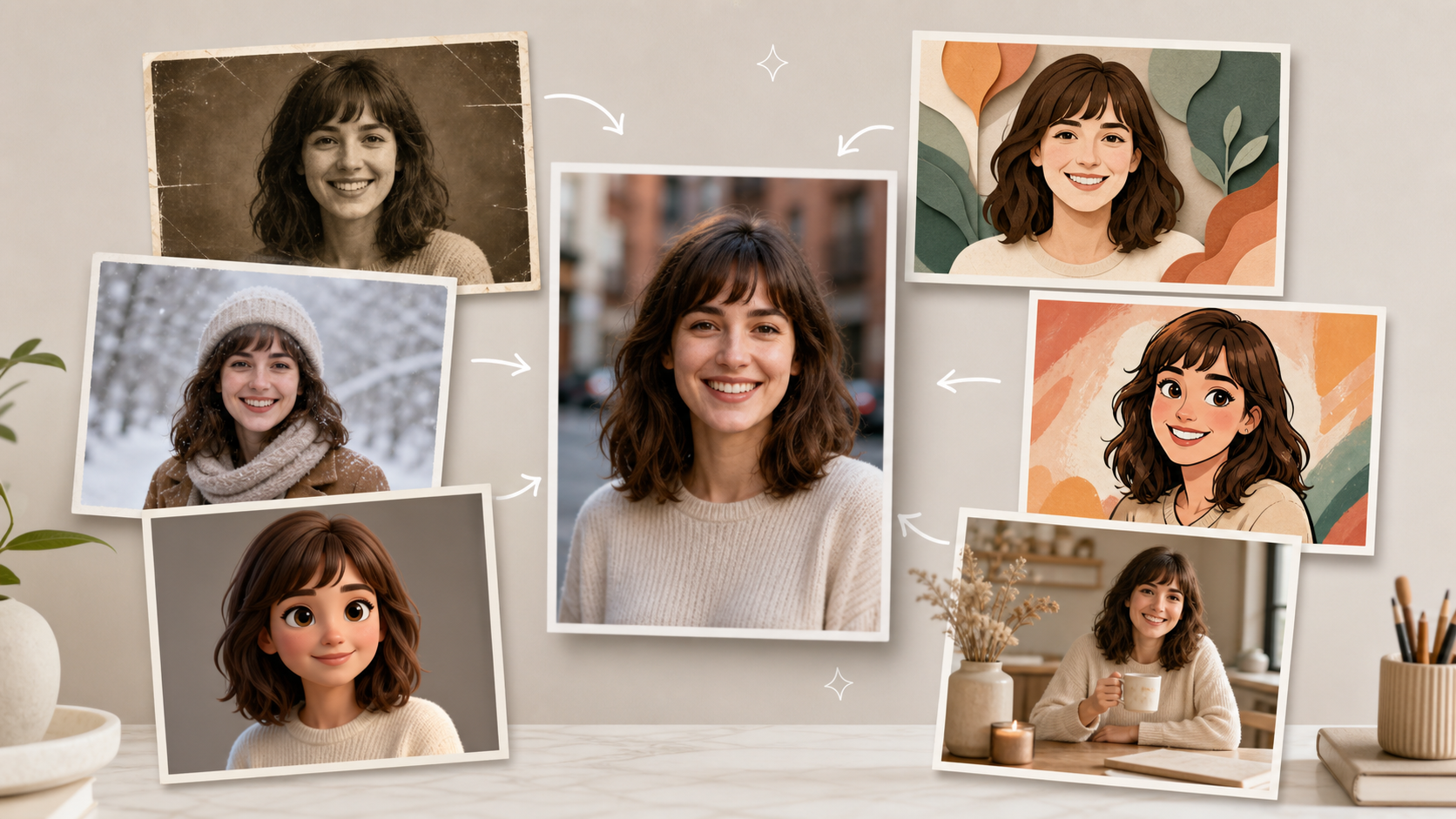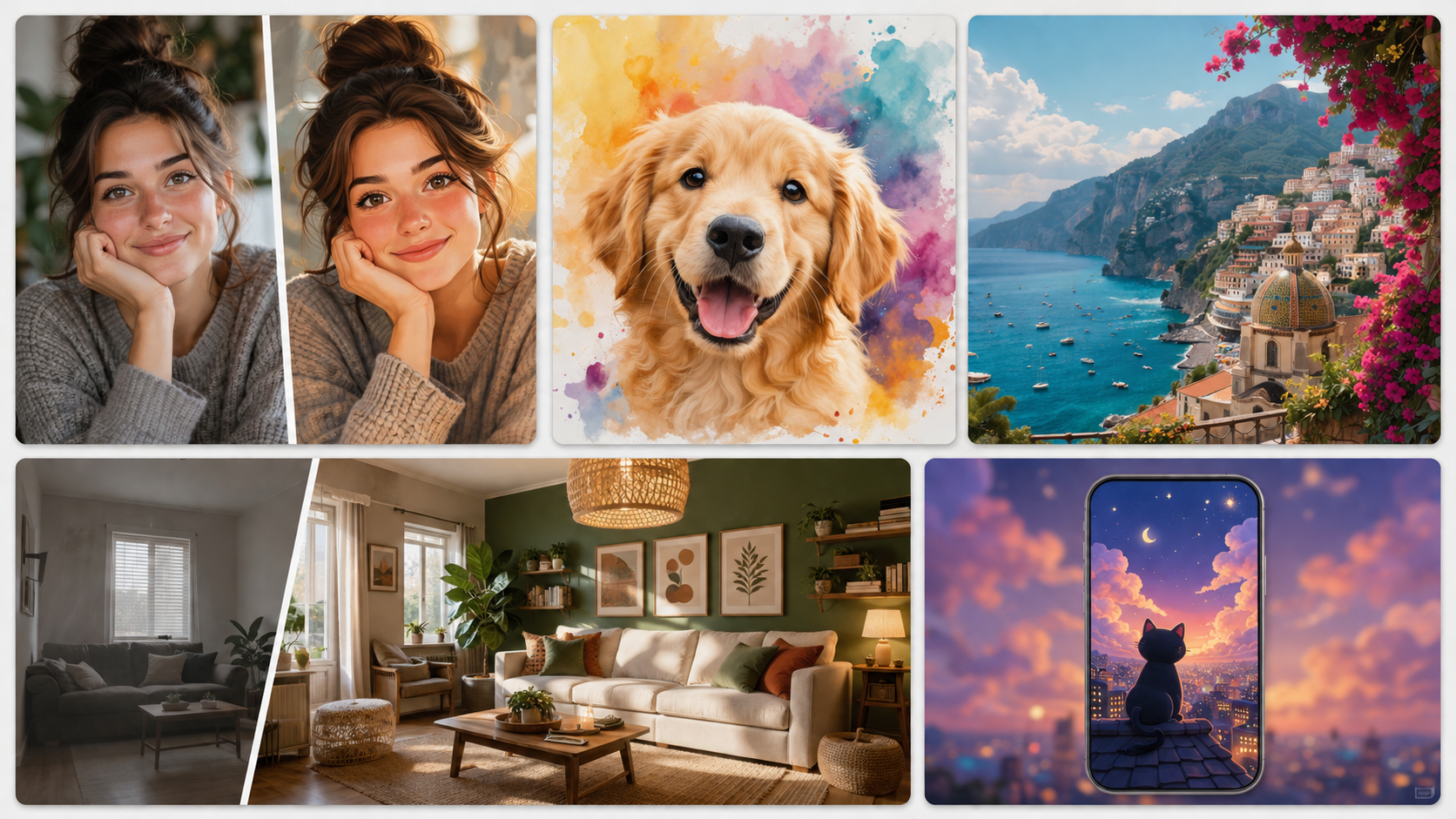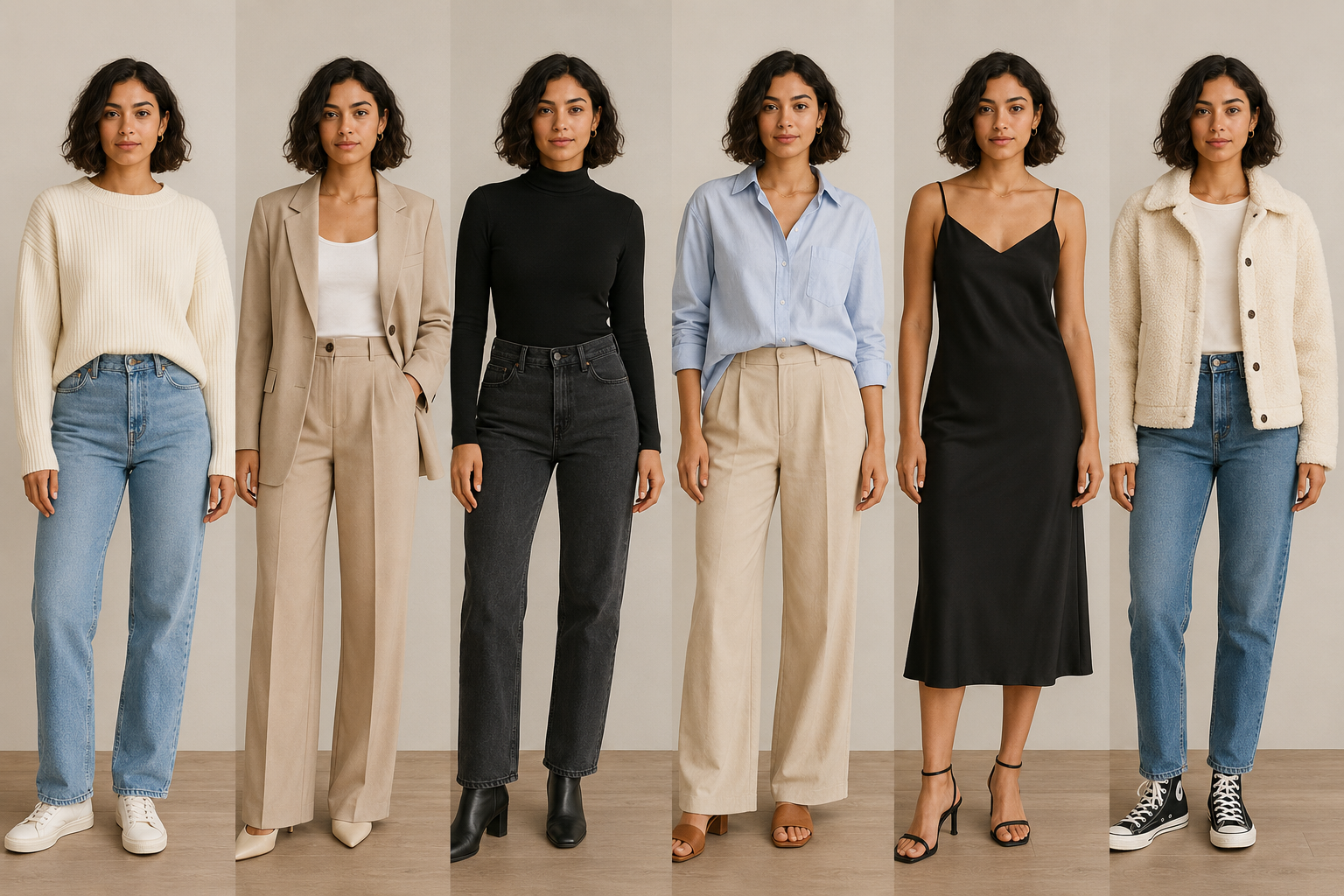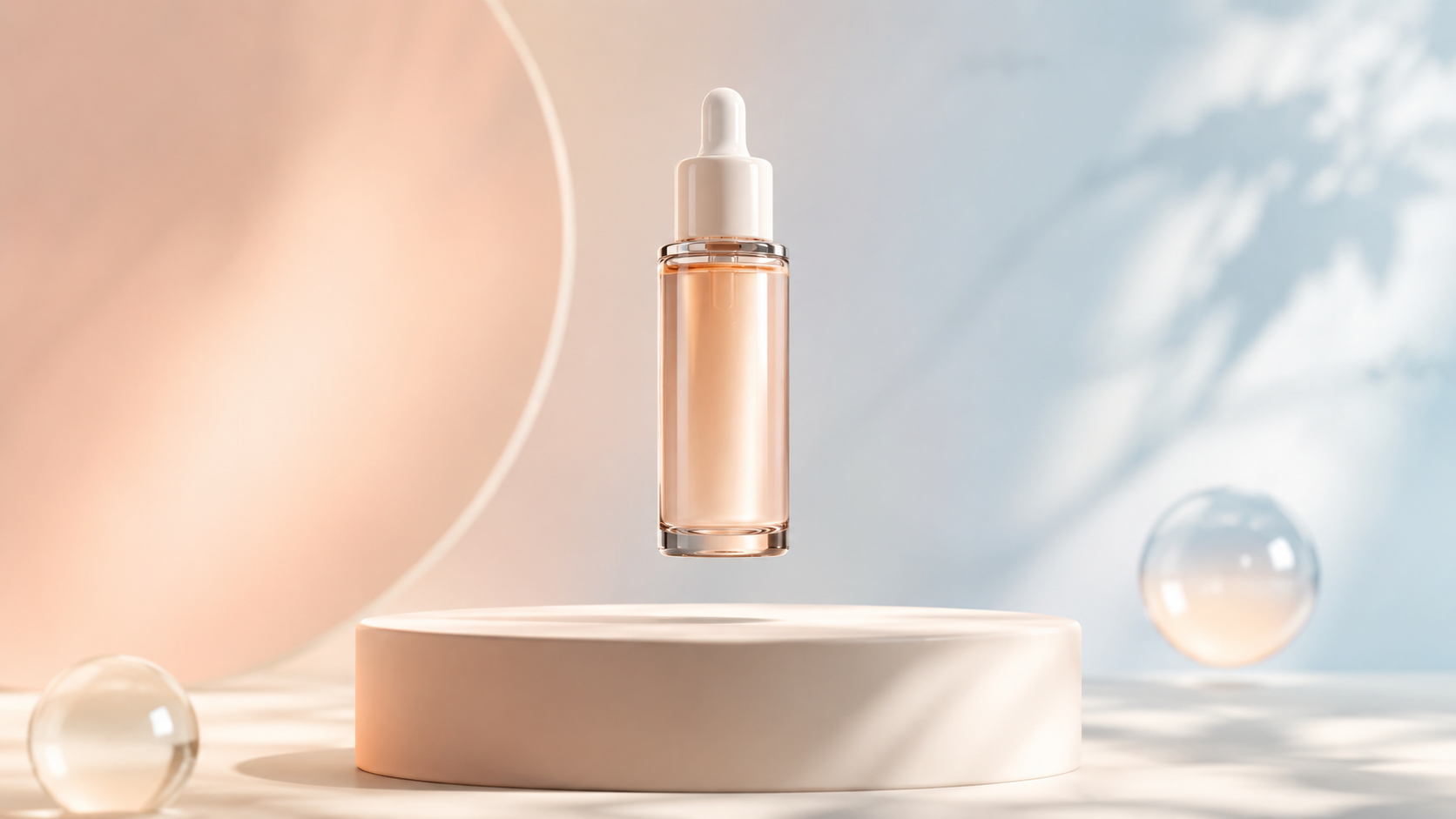


A still image can be beautiful. It can also sit there with the energy of a coworker who joined the meeting and forgot to unmute.
That is where the Gemini Omni AI video generator becomes useful. Instead of opening a video editor, building a timeline, and negotiating with twelve tiny buttons, you can start with one image and describe the movement, camera feel, and atmosphere you want. The result is a short AI-generated video that gives a static visual a little more life.
Google's official Gemini Omni overview presents the model as part of a broader multimodal approach to understanding and creating media. This article focuses on the simpler workflow available in this generator: upload one image, choose a visual direction, describe the motion, and generate a short video. It is not a guide to editing an existing video or combining multiple reference images.
What is the Gemini Omni AI video generator?
The Gemini Omni AI video generator is designed for turning a still visual into a short moving scene. You provide the starting image, then guide the result with a prompt that explains what should move and how the camera should behave.
Think of it as giving a photograph a tiny stage and a very motivated camera operator.
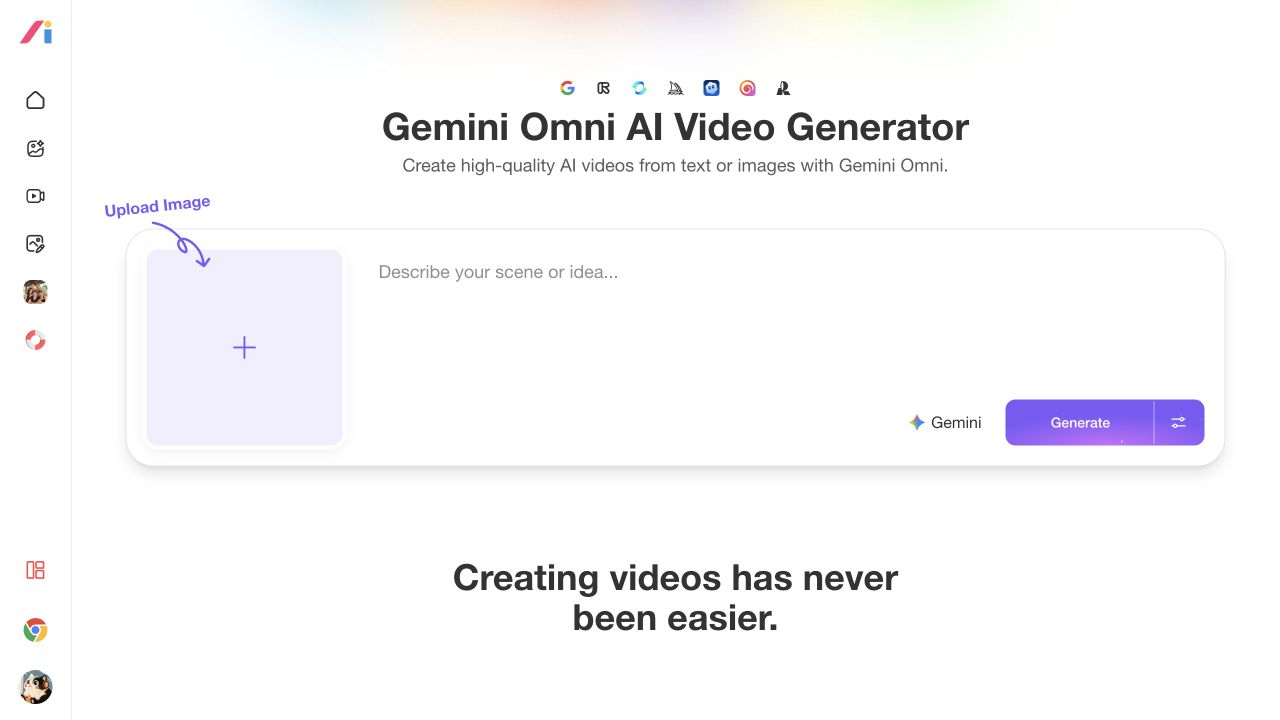
The simplest way to understand the tool is to see its starting point. On the Gemini Omni AI Video Generator page, you upload one image, describe the motion or scene, and let the model handle the complicated part.
This workflow can be useful for:
- Product photos that need a little motion for social media
- Logo visuals that need a short animated introduction
- Fashion and portrait images that would benefit from a gentle camera move
- Food and travel images that need more atmosphere
- Campaign concepts that are easier to understand as motion than as a still image
You do not need a video timeline, keyframes, masks, or previous video-production experience. A clear image and a focused request are a much better starting point than a prompt that reads like an entire creative agency's group chat.
How to create a short video from one image
1. Start with one clear image
Choose an image with one obvious subject. A product should be visible, a portrait should have a reasonably clear face, and a logo should not be buried under five layers of visual noise.
Good starting images usually have:
- One main subject
- Clear edges and reasonable resolution
- Lighting that already makes sense
- Enough empty space for the intended camera movement
- No important details hidden by clutter
You do not need to rebuild the image in a design app first. Use the ordinary image you already have and let the generator handle the motion concept.
2. Describe movement, not just mood
“Make it cinematic” sounds nice, but it leaves the camera wondering whether it should dolly in, spin around, or have an existential crisis.
Tell the generator what should happen. Useful motion descriptions include:
- Slow push-in toward the subject
- Gentle left-to-right camera movement
- Product rotating slightly on a clean surface
- Fabric or hair moving softly in the breeze
- Steam rising from a hot drink
- Light shifting across the scene
- A subtle reveal from foreground to background
Then add the visual treatment: soft studio lighting, warm afternoon light, a premium commercial look, a calm editorial mood, or a playful social-video style.
3. Generate the first take
Treat the first result as a creative direction, not a final exam. Check whether the subject stayed recognizable, whether the motion feels believable, and whether the camera movement helps the image instead of distracting from it.
If the result is too busy, simplify the next prompt. If the movement is too weak, describe one stronger action. The goal is not to make the prompt longer; it is to make the requested motion easier to understand.
When you are ready to try it, start with one clear image and one useful movement. The best first take is usually the one that knows what not to do.
A simple prompt formula that works
Use this structure when you are not sure what to write:
Subject + action + camera movement + lighting or style + setting + motion limits
For example:
A white skincare bottle on a pale stone table, rotating slowly a few degrees as soft sunlight moves across the label, gentle close-up camera push-in, premium clean beauty commercial style, warm neutral background, keep the bottle shape and label readable, no extra objects or text.
The prompt works because it gives the generator a subject, an action, a camera instruction, and a boundary. It does not ask for a full film trilogy in one sentence.
5 prompts for turning images into short videos
1. Product showcase
Use this when a product image feels too static for a social post or campaign teaser.
Prompt:
Turn this product image into a polished short commercial video. Use a slow camera push-in while the product makes a subtle, elegant rotation. Add soft studio light, a clean premium background, and a gentle highlight across the surface. Keep the product shape, colors, proportions, and visible label consistent. Avoid extra objects, distorted packaging, or generated text.
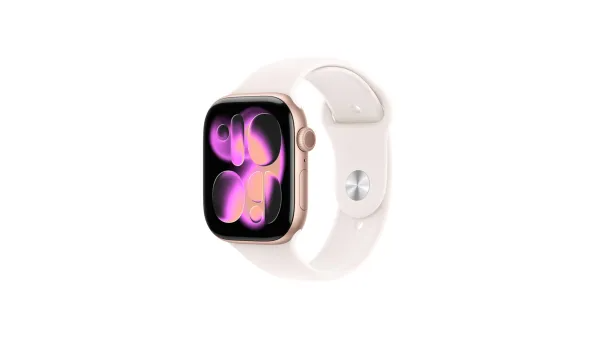
For a more dimensional product ad, try this product showcase video generator. It turns a product image into a polished 3D-style presentation—like giving the product a tiny launch event before it has even left the warehouse.
 |
2. Logo introduction
Use this when a brand needs a short opening visual for social content, a presentation, or a landing page.
Prompt:
Animate this logo as a clean, modern brand intro. Begin with a calm close-up view, then reveal the full logo with a smooth camera pull-back and a subtle light sweep. Keep the logo's shape, colors, spacing, and proportions unchanged. Use a polished background with no extra symbols, words, or watermarks.
For a more tactile brand reveal, try this embossed logo animation maker. It turns a regular logo image into a raised, material-focused intro—because sometimes a logo deserves to look like it has texture, not just a job title.
 |
3. Fashion portrait
Use this when a portrait needs movement without turning into a dramatic music video.
Prompt:
Bring this fashion portrait to life with a gentle side-to-side camera movement. Let the hair and clothing move slightly in a soft breeze while the subject remains natural and recognizable. Use warm editorial lighting, shallow depth of field, and a refined fashion-campaign mood. Keep the face, pose, outfit colors, and overall composition consistent.
4. Food photography
Use this for restaurant posts, menu previews, and seasonal food campaigns.
Prompt:
Turn this food photo into an appetizing short video. Use a slow camera move toward the dish, with a subtle rise of steam and a gentle shift of warm window light across the table. Keep the food's shape, ingredients, plating, and color natural. Create a cozy restaurant atmosphere without adding utensils, hands, text, or extra dishes.
5. Travel and lifestyle image
Use this when a destination photo needs a little more atmosphere for a reel or travel post.
Prompt:
Create a calm cinematic video from this travel image. Use a slow forward camera movement with a light breeze moving nearby leaves or fabric. Add soft golden-hour light and natural depth between the foreground and background. Preserve the main landmark, landscape, colors, and overall composition. Keep the motion subtle and realistic.
How to choose the right motion
Different images call for different kinds of movement. A good rule is to make the motion support the subject instead of competing with it.
- Product: slow rotation, push-in, light sweep, or controlled reveal
- Portrait: gentle camera drift, slight fabric movement, or soft background motion
- Logo: reveal, pull-back, light sweep, or simple scale movement
- Food: slow push-in, steam, light movement, or a subtle focus shift
- Landscape: forward movement, drifting clouds, leaves, water, or changing light
If the image is already visually busy, choose one motion. If the composition is simple, you can add one environmental detail. Two clear instructions usually beat seven competing ones.
Common mistakes to avoid
Asking for a complete advertisement in one prompt
“Make a viral luxury campaign with a model, five locations, a product reveal, dramatic text, and a surprise ending” is less a prompt and more a production meeting that should have been scheduled for next Tuesday.
Start with one subject and one main movement. Keep the visual goal easy to review.
Using only abstract adjectives
Words such as “cool,” “epic,” and “beautiful” can help set a mood, but they do not explain what the camera should do. Add physical details: push in, rotate slightly, move through warm light, drift left, reveal the background, or keep the subject still.
Choosing an image with too much clutter
The generator has more work to do when the source image contains many overlapping objects, tiny labels, or unclear edges. Use the cleanest image available, especially when the main subject is a product or logo.
Expecting the generated clip to fix every design problem
Motion can make an image more engaging, but it cannot rescue an unreadable label, a confusing composition, or a product that is barely visible. Start with a source image that already communicates its main idea.
Requesting too many movements
A product does not need to rotate, explode into confetti, fly through a city, and land on a marble pedestal just because the prompt box is feeling generous. Pick the movement that best supports the content's purpose.
Give your still image a small job to do
You do not need a complicated production workflow to make a static image feel more alive. Start with one clear image, describe one useful movement, and let the generator explore the motion.
For more context on Google's broader media-generation direction, see the official Gemini Omni overview and Google's photo-to-video introduction. For the practical version, keep the brief simple: one image, one visual idea, and one short video worth watching.